Draw the plant layout
The layout you draw here is what everyone sees in Spatial Twin. You draw it once per site and update it when the plant changes. It is usually done by an admin or an engineer who knows the plant layout.
Before you start
Section titled “Before you start”- Permissions: Edit spatial site structure lets you add buildings, floors and floor outlines. Edit spatial floor content lets you draw zones, load floor plans and place items on a floor. Both are whole-site permissions, and by default only organization admins have them. People without them can open the editor but see a Read-only badge, and the controls they can’t use are greyed out.
- Use a computer: on a phone this page shows only the catalogue (Spatial catalog) for looking at models. Drawing needs a big screen.
- Have ready: each floor’s plan as a PDF or image, a real distance between two points on it (for example, the length of one wall), and the locations of the rooms and machines you will link to zones.
- Open the editor: press Open editor on the Spatial Twin page, or open app.pulse-i.com/labs/spatial-twin/editor. It edits the layout of the site you are working in.
The screen has three parts: on the left, Structure (buildings and floors) and Catalog (3D models); in the middle, the drawing area; on the right, the settings of whatever you selected, with the list of Issues below.
Tools in the top bar (each has a keyboard shortcut)
| Tool | Key | What it does |
|---|---|---|
| Select | V | Select, drag and reshape. Double-click an edge to add a corner. Press Delete to remove what you selected. |
| Draw zone | A | Draw a free-shape zone corner by corner. |
| Rectangle zone | M | Draw a rectangular zone with two clicks. |
| Floor boundary | B | Draw the outline of the floor. |
| Register drawing | R | Set the real-world scale of the floor plan. |
The other buttons are Grid 0.5 m (grid on/off), undo/redo, Load drawing, Fit to drawing, 3D preview (a 3D preview under the drawing area) and Save changes.
Add buildings and floors
Section titled “Add buildings and floors”-
On the Structure tab, press Add building (on an empty layout, Add a building to start in the middle).
-
Press Site layout to see the whole site. Drag the building to its real position, or type X, Y and Rotation in the right panel. Rename it in Name.
-
Press + next to the building’s name to add a floor, then set it up in the right panel: Name, Elevation (height above ground), Clear height (height under the ceiling) and Wall height (3D) (how tall the walls look on the 3D map).
-
A floor needs an outline. Pick Floor boundary (B) and click the corners of the walls — or, once a floor plan is loaded, press Fit to drawing to use the edges of the plan as the outline.
Load a floor plan and set its scale
Section titled “Load a floor plan and set its scale”-
Select a floor on the Structure tab and press Load drawing. Pick a PDF or image file. For a PDF with several pages, choose the page in Choose a page.
-
The plan appears as a faint background. Pick Register drawing (R) and click two points on the plan whose real distance you know, such as the two ends of a long wall.
-
In the Register drawing window, choose:
- Distance only: enter Distance 1 → 2 (m), the real distance between the two points in metres (the easiest way).
- Coordinates: enter the real coordinates of both points (Point 1 X/Y, Point 2 X/Y) when the plan must line up with positions on the site.
Then press Apply. PULSE shows the scale in metres per pixel.
-
Adjust how faint the plan is with Drawing opacity in the right panel. If you clicked the wrong points, press Re-register.
Draw zones and link them to locations
Section titled “Draw zones and link them to locations”A zone is an area on the layout that has a status: a room, a production line or a single machine. Machines in a room can be drawn as small zones inside the room’s zone.
-
Select the floor, then pick a tool:
- Draw zone (A): click each corner. Close the shape by clicking the first point again or pressing Enter (at least 3 corners). Backspace removes the last corner, holding Shift draws straight lines, and Esc cancels.
- Rectangle zone (M): click one corner, then the opposite corner. The rectangle lines up with the nearest wall.
-
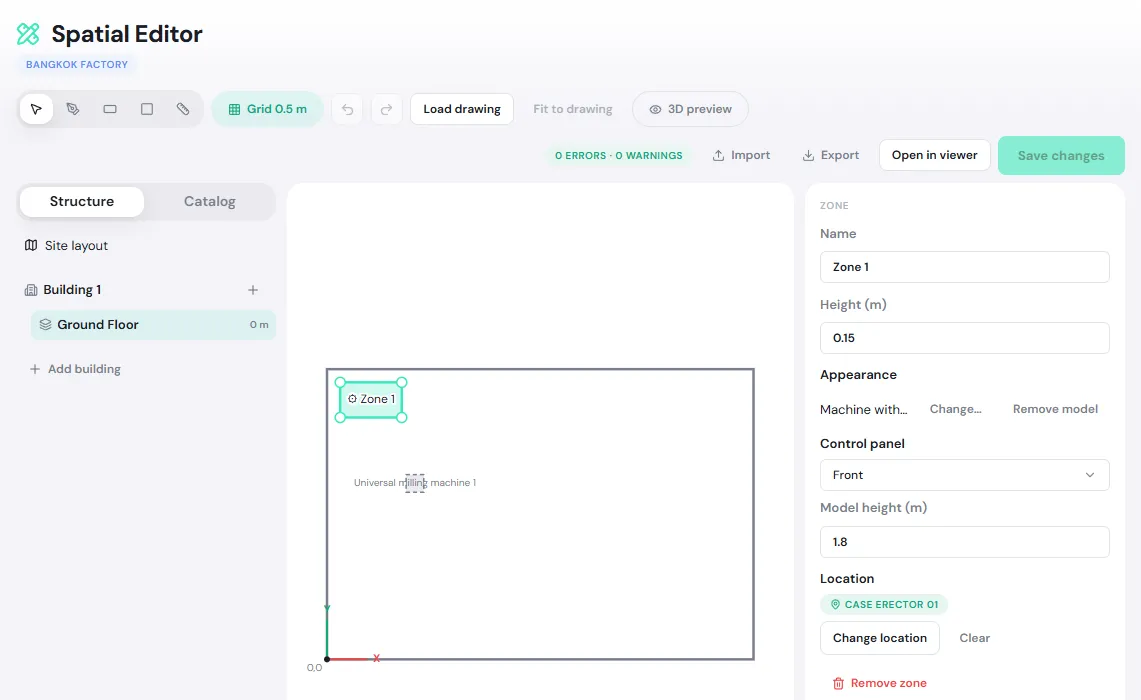
Select the zone (with Select). The right panel shows Zone. Set its Name and Height.
-
Under Location, press Choose location and pick the location of that room or machine. A green badge shows the location’s name (for example, CASE ERECTOR 01). Change it with Change location or remove it with Clear.
-
To show the zone as a machine on the 3D map, press Change… under Appearance and pick a model from the catalogue. The model is fitted to the zone’s shape and coloured by status. Set Model height if needed; Remove model turns it back into a flat floor area.
Place machines and items from the catalogue
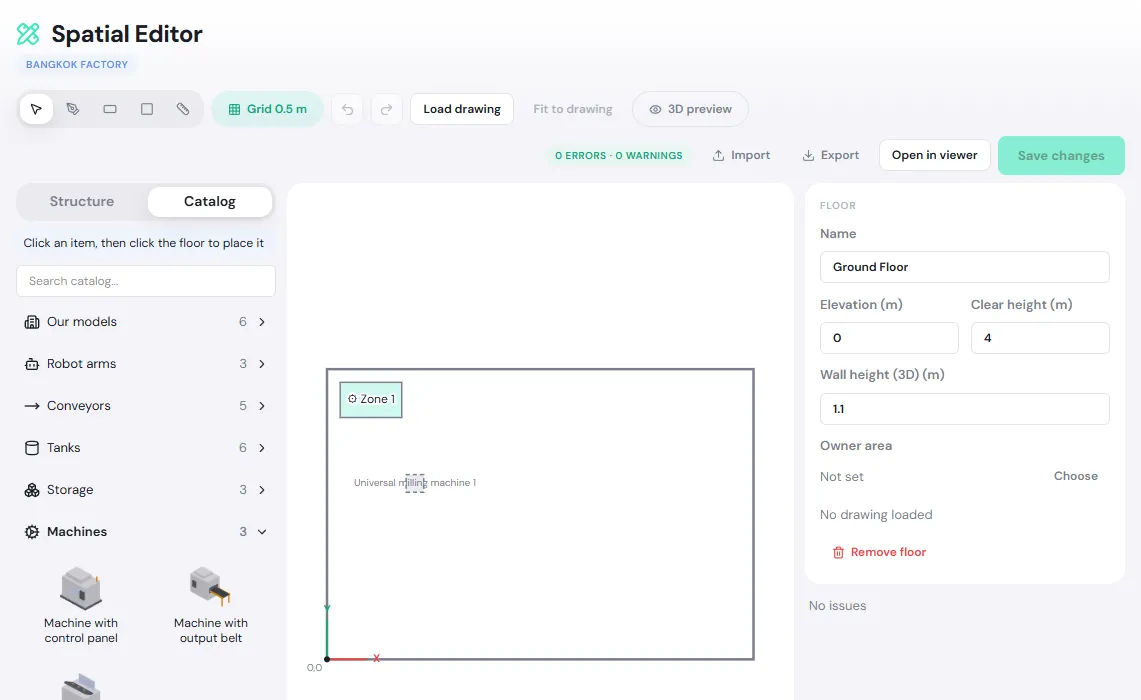
Section titled “Place machines and items from the catalogue”The Catalog tab holds 3D models in groups: Robot arms, Conveyors, Tanks, Storage (racks and pallets) and Machines. Our models are the ones your organization added.
-
Select a floor and open the Catalog tab. Search with Search catalog… or open a group.
-
The catalogue works in two ways:
- With a zone selected: click a model to change that zone’s appearance.
- With nothing selected: click a model, then click the drawing area to place it as a decoration. You can place several; press Esc when you are done.
-
Select a placed item to set its Length, Width, Height and Rotation in the right panel.
Models under Our models may come from an AI assistant connected to PULSE, which can build a model from photos of the real machine (they carry an AI badge and the name of whoever added them). People who can edit the layout can rename or remove these models from the catalogue.
Save the layout
Section titled “Save the layout”-
Check the errors · warnings badge at the top right and the Issues list in the right panel. Click an issue to jump to it. Errors (red) must be fixed before you can save; warnings can be saved.
-
Press Save changes. PULSE saves the site structure (buildings, floors, outlines) and the content of each floor you changed, and shows Site structure saved or (floor name) saved.
-
Press Open in viewer to see the result in Spatial Twin. Anyone who has Spatial Twin open sees the new layout straight away.
Good to know when saving
- Closed the page without saving: your changes are kept in this browser. When you open the editor again it asks Restore unsaved layout? — press Restore or Discard draft. If someone else has saved the layout since, you can only Download draft or discard it.
- Someone else saved first: the This layout changed window lets you Reload theirs or Keep mine as a copy (downloads yours as a JSON file).
- Removing a floor that has zones: PULSE asks Remove floors with saved content? Pressing Remove and save also deletes that floor’s zones and decorations.
- Open in viewer works only once your changes are saved.
- Export downloads the whole layout as a JSON file for backup. Import loads such a file to keep editing (nothing is saved until you press Save changes, and you need to re-attach the floor plans).