Sites, calendar and costs
This page covers the reference data other modules rely on: sites, the plant calendar (holidays and shutdowns), cost codes and the catalog. Get them right early and OEE, energy cost, maintenance planning and purchasing will all calculate correctly.
Before you start
Section titled “Before you start”| Menu | Who can manage it |
|---|---|
| Sites | Organization Admins, and Site Admins (editing the sites they manage) |
| Public holidays, Expense codes, Catalog | Organization Admins (shared by the whole organization) |
| Planned shutdowns | Organization Admins, Site Admins and Supervisors |
| Cost centers | Organization Admins and Site Admins |
Every item is in every plan, but the number of sites is limited by plan; see Plan & Usage.
Planned shutdowns and Cost centers work on the site you have selected. Switch sites with the site name at the bottom of the left menu (the shutdowns page also has its own site picker).
A site is one plant or branch. Locations, assets, stores and users all sit under a site. Open Administration → Sites: the table shows each site’s Name, Code, and number of Locations, Assets and Users.
-
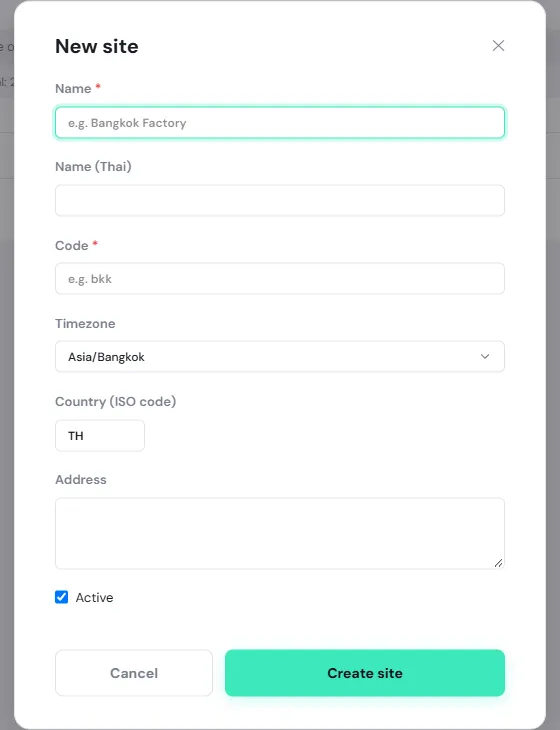
Tap New site.
-
Enter the Name (required), Name (Thai) and Code (required, such as bkk).
-
Check the Timezone (Asia/Bangkok by default) and Country (ISO code) (TH). The site uses that country’s holidays, and its calendar, OEE and shutdown times follow that time zone.
-
Add the Address (optional), leave Active ticked, and tap Create site.
Tap a site in the table to see its Details and Coverage, and tap Edit to change them.
Public holidays
Section titled “Public holidays”The holiday list for each country, shared by every site in that country. Enter your company’s announced holidays ahead of each year.
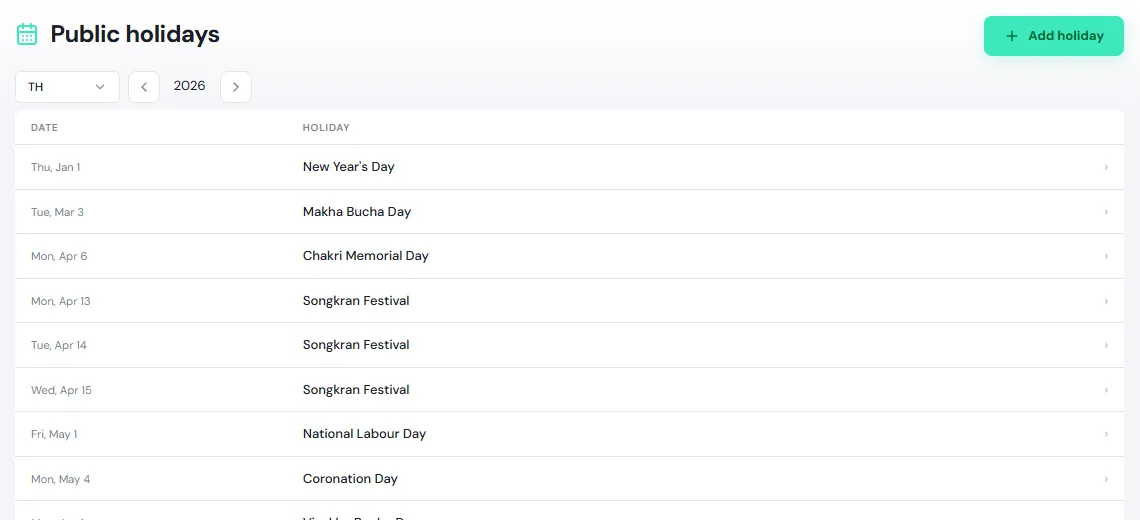
- Choose the Country and move between years with the Previous year / Next year arrows.
- Add holiday: enter the Date, Name (English) and Name (Thai), and tap Save. Fill in the Thai name too, so people using the app in Thai see it. Each date can hold one holiday.
- Tap a holiday to edit it, or tap Remove.
Holidays affect:
- Energy cost: under TOU tariffs a holiday is billed off-peak all day. When you change a holiday, PULSE recalculates the energy cost for that date. See Billing.
- The maintenance calendar: holidays show on it. See Plan and track work.
- OEE doesn’t use holidays. If the plant stops on a holiday, create planned shutdowns from your holidays (below).
Planned shutdowns
Section titled “Planned shutdowns”Periods when the whole site, or part of it, stops on purpose: an annual overhaul, a stop for lack of orders, or a holiday.
Planned shutdowns affect:
- OEE: PULSE removes shutdown time from planned production time, only where it overlaps scheduled shifts, so machines aren’t counted as losing time. See OEE.
- Maintenance planning: shutdowns show on the maintenance calendar. Work marked Required shutdown (including work from PM plans) but scheduled outside a shutdown appears under Plan issues. See Planned maintenance (PM) and Plan and track work.
Add a planned shutdown
Section titled “Add a planned shutdown”-
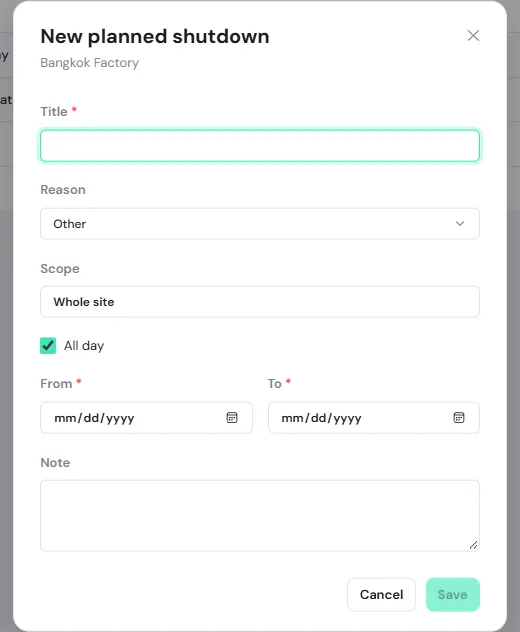
Open Administration → Planned shutdowns, choose the site, and tap Add shutdown.
-
Enter a Title (required), such as “Annual overhaul”, and choose a Reason: Holiday, Maintenance, No orders or Other.
-
Scope: leave it as Whole site, or tap it to Choose the location that stops, such as a single line (it covers every machine under it).
-
Tick All day and pick the days in From and To, or untick it to enter times. The end must be after the start.
-
Add a Note if useful, and tap Save.
Create from holidays
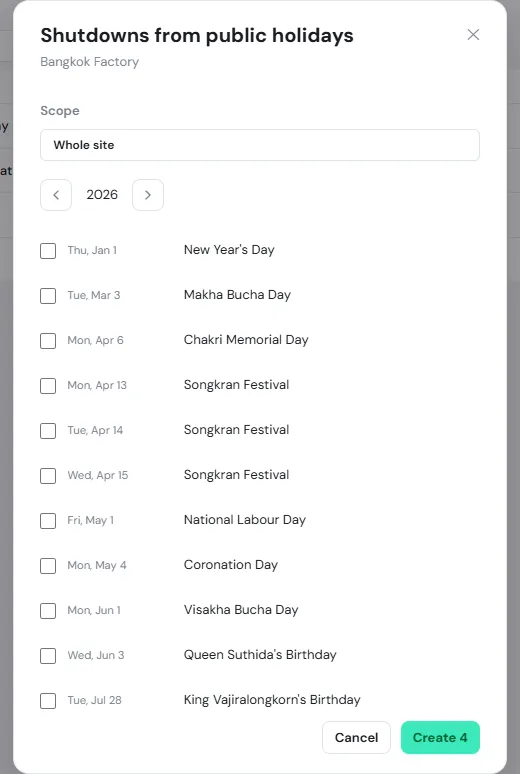
Section titled “Create from holidays”Tap From holidays, choose the Scope and the year. PULSE ticks the holidays still ahead for you; untick the days the plant keeps running, then tap Create …. Days that already have a shutdown are skipped.
The list shows upcoming shutdowns only; tap Show past to see earlier ones. Tap a shutdown to edit or Delete it.
Cost centers
Section titled “Cost centers”A cost center says who pays, such as Packing or Utilities. Each site has its own list. PULSE uses cost centers on:
- Locations: each location has a default cost center; if none is set, it inherits its parent’s. See Locations.
- Work orders: the parts cost of a job goes to the work order’s cost center and adds up on the maintenance Spend page.
- Purchase requests: every request needs a cost center, and the cost center’s approvers approve it. See Purchasing.
Add a cost center
Section titled “Add a cost center”-
Open Administration → Cost centers (for the site you have selected) and tap Add cost center.
-
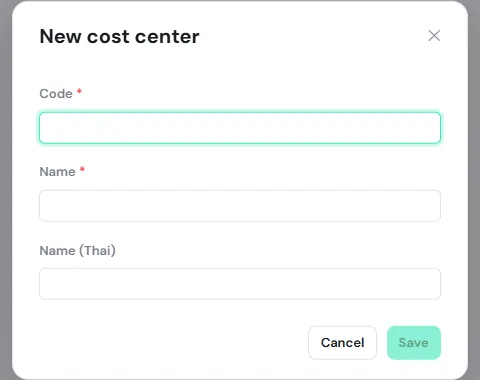
Enter the Code (such as CC-PACK), Name and Name (Thai), and tap Save. The code can’t be changed later.
-
Tap Approvers at the end of its row and pick the Level 1 approvers. If large requests need a second sign-off, enter Level 2 from (base currency) and pick the Level 2 approvers, then tap Save. Leave the amount blank for level 1 only.
Someone can be listed at both levels, but one request always needs two different people, and a requester can’t approve their own request. If a cost center has no approver who can approve a request, the requester can’t submit it.
The Used by column shows how many locations use the cost center as their default. Tap a row to rename it or Deactivate it. A deactivated cost center stays on past cost lines but can no longer be picked; locations that used it fall back to their parent’s cost center.
Expense codes
Section titled “Expense codes”An expense code says what the money is spent on, such as mechanical spares, consumables or outside repair services. They are shared by the whole organization and used on:
- Part categories and parts: a category has a Default expense code that its parts use. See Set up parts and stores.
- Purchase lines that aren’t catalogue parts, and services. See Purchasing.
Open Administration → Expense codes, tap Add expense code, enter the Code, Name and Name (Thai), and tap Save. The Used by column shows how many categories and parts use the code. Deactivating works the same way as for cost centers.
Import from a CSV file
Section titled “Import from a CSV file”You can import many cost centers or expense codes at once.
-
Tap Import CSV, then Download template. The file has the columns
code,name,name_th. -
Fill it in Excel and save it as CSV.
-
Pick the file under CSV file. PULSE first shows how many rows are new, updated, unchanged and in error, with the line numbers of any errors.
-
Tap Import. Existing codes get their names updated; deactivated codes are reactivated.
Catalog
Section titled “Catalog”Administration → Catalog holds the reference data every site shares. The page is in English only and has six tabs:
| Tab | What it’s for |
|---|---|
| Types | Asset types such as Pump or Compressor, and the properties each type carries. Types marked system can’t be edited |
| Properties | All properties types can use, such as motor power or flow rate |
| Companies | Manufacturers and vendors (a site’s vendors are used in purchasing). Import Vendors loads a ready-made vendor list |
| Units | Units and dimensions, such as kW or m³/h |
| Tags | The tag dictionary for assets |
| Failure Codes | Problem, cause and remedy codes technicians pick when completing work |
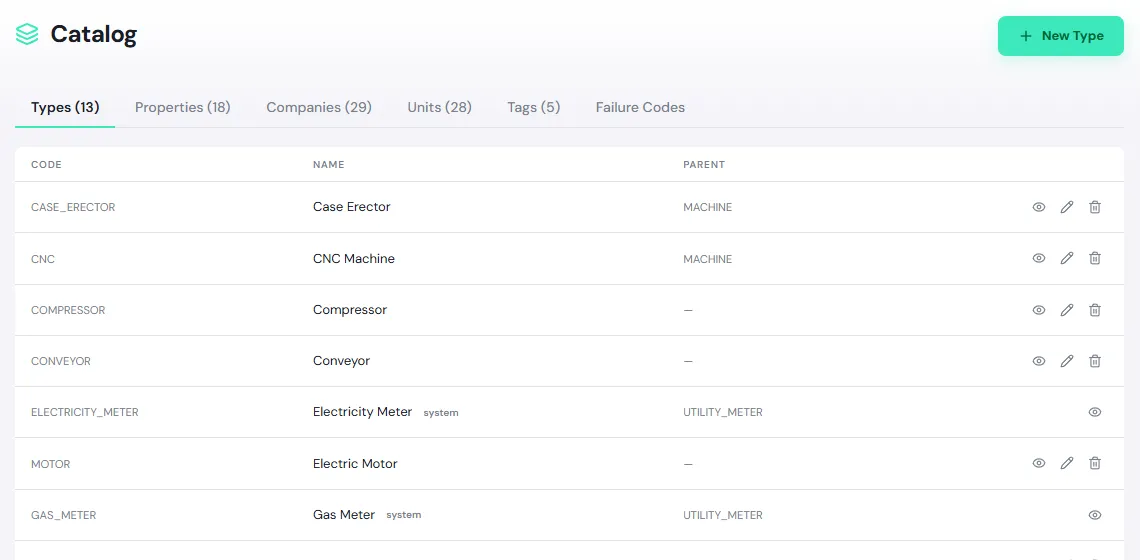
Tap New Type (or each tab’s create button) to add an entry. How types and tags are used on assets is covered in Assets and locations.