Approve requests
Parts whose control policy needs approval can only be issued after a manager approves. This page is for supervisors and managers who decide material requests and make sure issued material is really used or returned.
Before you start
Section titled “Before you start”- You need the right to approve material requests. The Supervisor and Site Admin groups have it.
- A request comes to you when the requester Reports to you (or reports to someone who reports to you, with nobody earlier in the line able to approve). If you can approve, your own requests come to you too.
- Inventory is in the Enterprise plan.
Approve or reject a request
Section titled “Approve or reject a request”When a request is waiting for you, you get a notification and see a count on Inventory → Approvals.
-
Open Inventory → Approvals. The Needs my decision queue lists requests waiting for you, with the requester, work order, number of lines and how long it has waited.
-
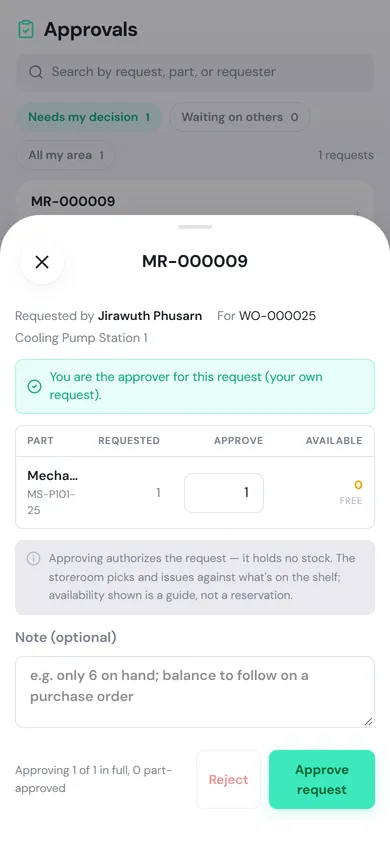
Tap a request, for example MR-000009. The sheet shows the requester, work order and location, and a green bar confirms that you are the approver.
-
Check each line. The Approve box starts at the quantity asked for.
- Approve in full: leave it.
- Approve part of it: lower the number. The shortfall is recorded.
- Refuse just this line: enter 0.
-
Add a Note if the requester should know something, for example “only 6 on hand; balance to follow on a purchase order”.
-
Tap Approve request, or Reject (add the reason in the note first; the requester sees it).
What happens next
- Approved: the request becomes Approved. The requester and the keepers of the stores it draws from are notified, and it lands in the keepers’ Requests to pick → Storeroom work
- Rejected: the request becomes Rejected and the requester is notified with your reason. If you set every line to 0 and approve, it is recorded as a rejection.
You can also decide from the request page: open the request (for example from the notification) and tap Approve or Reject at the bottom.
The approval queues
Section titled “The approval queues”| Queue | What it shows |
|---|---|
| Needs my decision | Requests you are the approver for |
| Waiting on others | Requests in your area routed to someone else. You can open them, but they are Read-only for you |
| All my area | Both together |
A request with a Stuck flag has no approver in the requester’s reporting line. A PULSE admin has to set the requester’s Reports to under Administration → Users before anyone can decide it.
Keep an eye on your team’s material
Section titled “Keep an eye on your team’s material”Inventory → Oversight is a read-only page for supervisors to see what their team is holding and what looks wrong. Open a row to act on it.
- The tiles at the top: Awaiting you, In custody, Oldest held, Non-serviceable held and Team write-offs over 30 days.
- Your team & area: material held by your reports and by people in your area, oldest first, colored for up to 7 days, 8–30 days and over 30 days.
- Stores you cover: only shown when your area includes a store, with in-flight shipments and stock adjustments at that store over 30 days.
If something has been held too long, ask that technician to record the usage or return it from My Items → Get parts