Handle requests
This page is for supervisors who triage requests. Every request needs a decision: Accept it to turn it into a work order for a technician, or Reject it if it is not maintenance work.
Before you start
Section titled “Before you start”- You need permission to accept/reject work requests at that location. The Supervisor and Site Admin groups have it.
- Available in every plan.
Find requests waiting for you
Section titled “Find requests waiting for you”- My Work lists requests to triage, each with a Triage action and its response time, such as “Respond by 14:30” or “Response due 2d ago”.
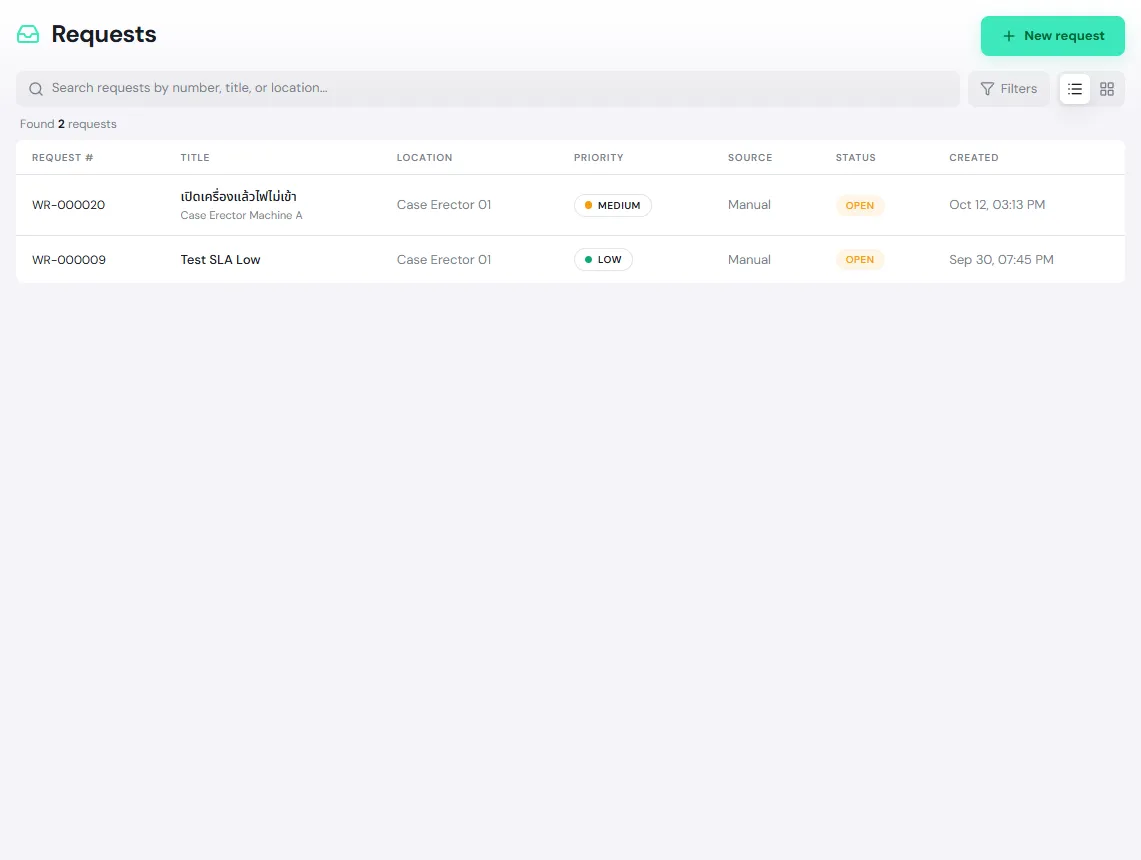
- Maintenance → Requests lists every request, starting with Open ones. Tap the chips at the top to see Accepted, Rejected, Cancelled or All. Use Filters to narrow by priority, source (Manual or Alarm), location or who reported it.
Accept a request into a work order
Section titled “Accept a request into a work order”-
Open the request, for example WR-000022. Read the description, look at the photos, then tap Accept.
-
Details: check the Title and Description copied from the request. Reword them for the technician if needed. Tap Next.
-
Priority: confirm or change the work order’s priority. Tap Next.
-
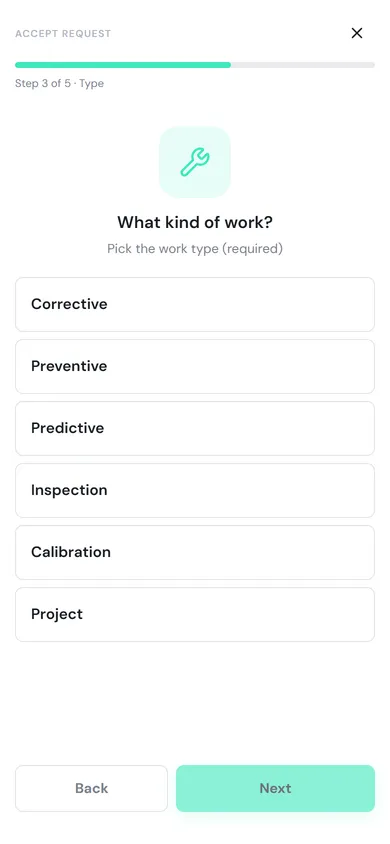
Type: pick the work type (required). An ordinary breakdown is Corrective. Tap Next.
-
Impact: choose the operational impact, Production stopped, Reduced performance or No impact (optional; the technician confirms it when completing). Tap Next.
-
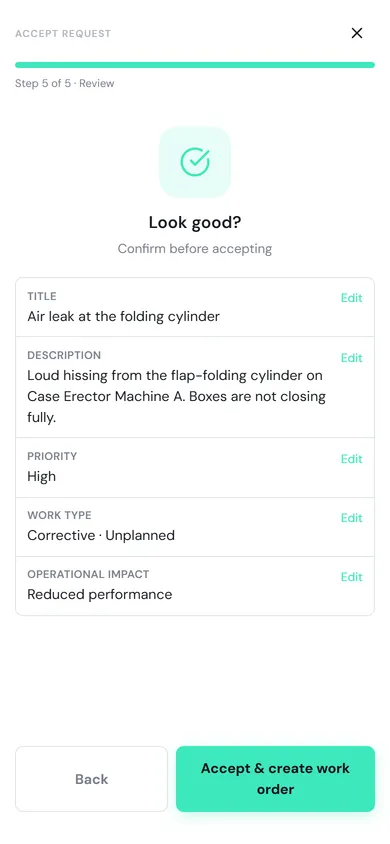
Review: check the summary, then tap Accept & create work order.
PULSE creates the work order, for example WO-000023, and opens it. The request becomes Accepted and the requester is notified. The new work order is Approved, or Pending approval if your site has Require approval before work starts turned on.
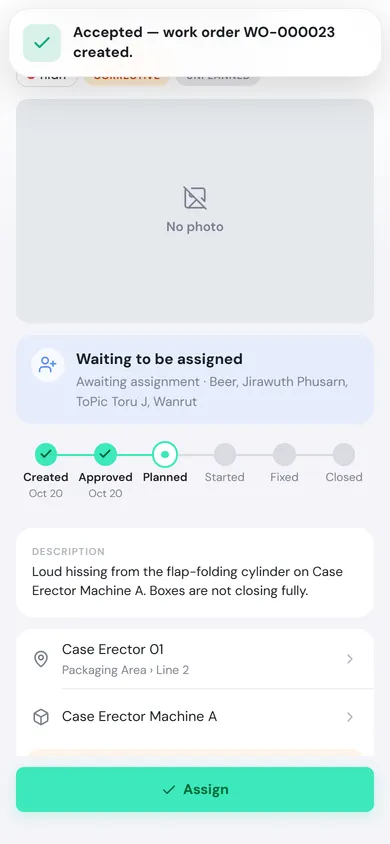
The next step is to assign a technician. See Work orders → Assign the work.
Reject a request
Section titled “Reject a request”Use this when it is not maintenance work, for example a duplicate or something for another department.
-
Open the request and tap Reject (on a phone, tap ⋮ at the top right first).
-
Fill in the Reason (required). Write it for the requester, for example “Same as WR-000020, a technician is already on it”.
-
Tap Reject.
The request becomes Rejected. The requester is notified and sees the Rejection reason on the request. A rejection cannot be undone; if the problem is still there, the requester must report it again.