People and access
This page is for admins who add people to PULSE and decide what each person can see and do. If “where versus what” is new to you, read the overview first.
Before you start
Section titled “Before you start”- Users and Org Units: Organization Admins, and Site Admins for the sites they manage.
- User Groups, Roles & Permissions and Access Control: Organization Admins only.
- Available in every plan. Free and Starter limit the number of users; see Plan & Usage.
- Create at least one org unit before adding users, because every user must belong to one.
Open Administration → Users. The list shows name, email, role or sites, status and when the account was created. Tap a site name above the list (such as Bangkok Factory) to see only that site’s people.
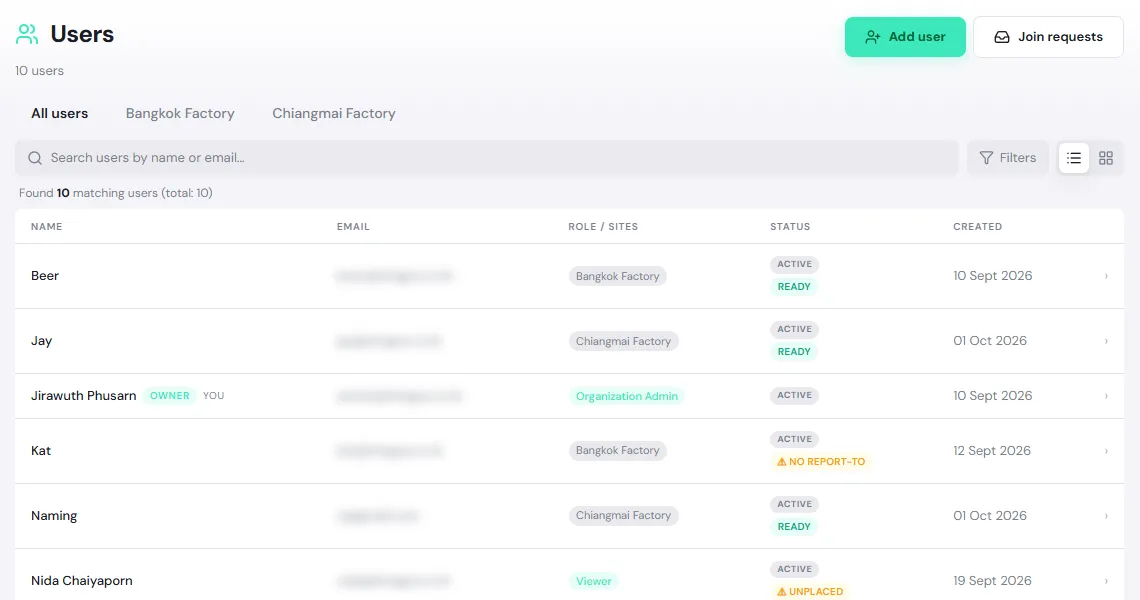
The badges in the Status column tell you whether a user’s setup is complete.
| Badge | Meaning | What to do |
|---|---|---|
| Ready | Has an org unit, a user group and a boss | Nothing |
| Unplaced | Not in any org unit, so group rights apply nowhere | Pick an org unit in Manage access |
| No capability | No user group and no organization role; they will sign in and see nothing | Pick a user group |
| No report-to | No Reports to set; approvals go to everyone with the approval permission instead | Pick a boss (optional, but recommended) |
| Active / Deactivated | The account can sign in, or is switched off |
Add people to the organization
Section titled “Add people to the organization”Tap Add user and choose how.
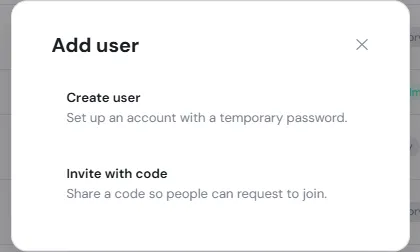
- Invite with code: share an invite code so people sign up themselves, then approve each request. The full steps are in Invite your team. In the Invite code dialog, Regenerate replaces the code and Revoke turns joining off (it shows Joining disabled until you tap Generate code again).
- Create user: create the account yourself, for people who can’t easily sign up. Follow the steps below.
-
Who: enter the Name and Email, then tap Next. PULSE generates a temporary password.
-
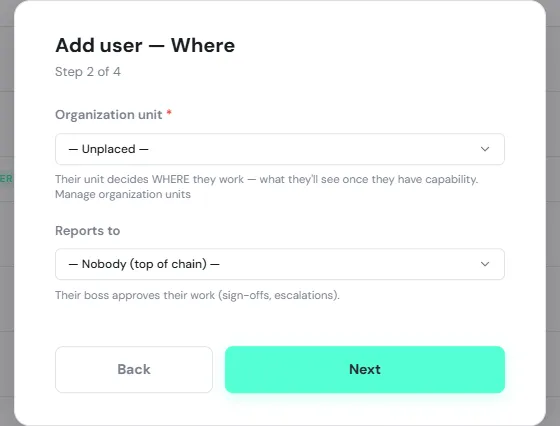
Where: choose the Organization unit (required) and Reports to, the person’s direct boss. For the top of the chain, choose — Nobody (top of chain) —.
-
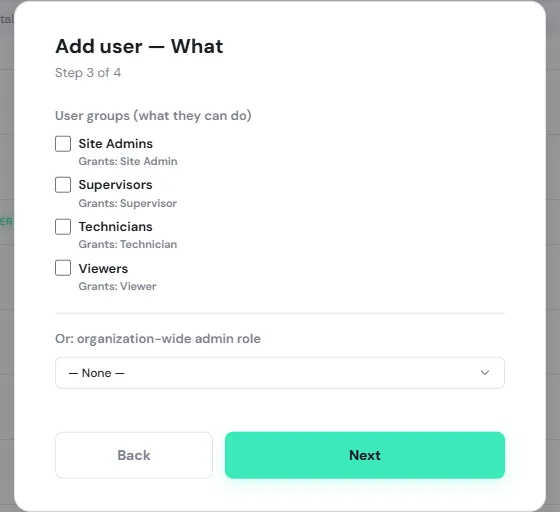
What: tick the User groups that fit the job, such as Technicians for a technician. For someone who must administer the whole organization, choose Or: organization-wide admin role instead (groups are then disabled).
-
Review: check the checklist and Effective access to see what this person will reach, then tap Create user (the button reads Create anyway if something is still missing).
-
PULSE shows the temporary password once. Copy it and give it to the person; they must change it at their first sign-in.
Approve join requests
Section titled “Approve join requests”When someone asks to join with an invite code, or with a company email domain already in PULSE (marked via company domain), the Users page shows a … join requests waiting banner. Organization Admins are also notified.
Tap Review (or the Join requests button), then:
- Approve: opens the same wizard as above, starting at Where, then What and Review, and ends with Approve & finish. The person can sign in straight away.
- Deny: closes the request; the person can’t join.
Tick Show decided to see requests already approved or denied. If another admin decided the same request first, PULSE tells you and refreshes the list.
View and change a user
Section titled “View and change a user”Tap a user’s name to open their details.
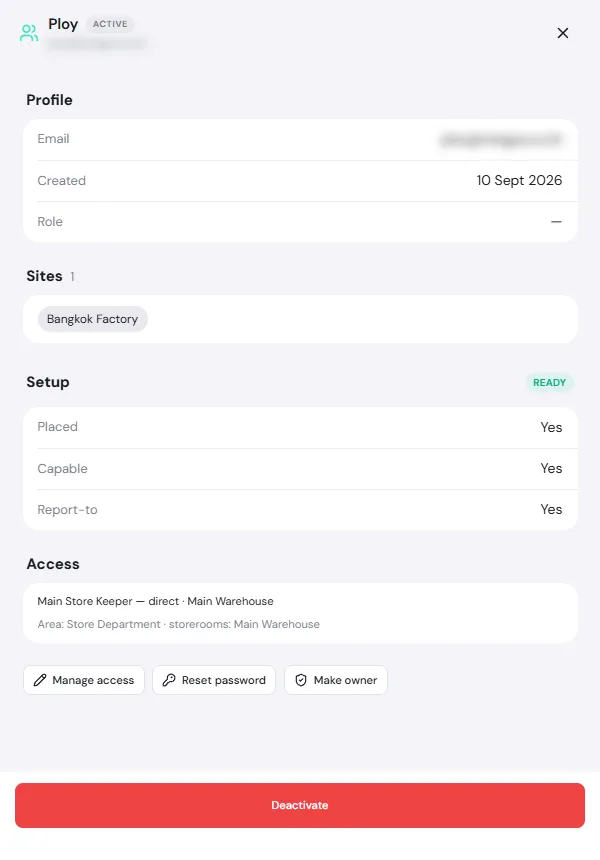
- Sites: the sites the person can reach. They come from their org unit’s area; you don’t pick them directly.
- Access: the roles they hold and where each comes from, such as “via Technicians” or “direct”.
- Manage access: opens the wizard at Where to change their unit, boss or groups; tap Save changes. (Site Admins can see the groups but not change them; an Organization Admin must.)
- Reset password: PULSE suggests a temporary password (you can edit it; at least 8 characters). Give it to the person; they must change it at their next sign-in.
- Make owner: hands organization ownership to this person; you stop being the owner. The owner always has full access, so the organization can never be locked out.
- Deactivate: for someone who leaves. The account can’t sign in until you tap Reactivate. Their work history stays intact.
Org units
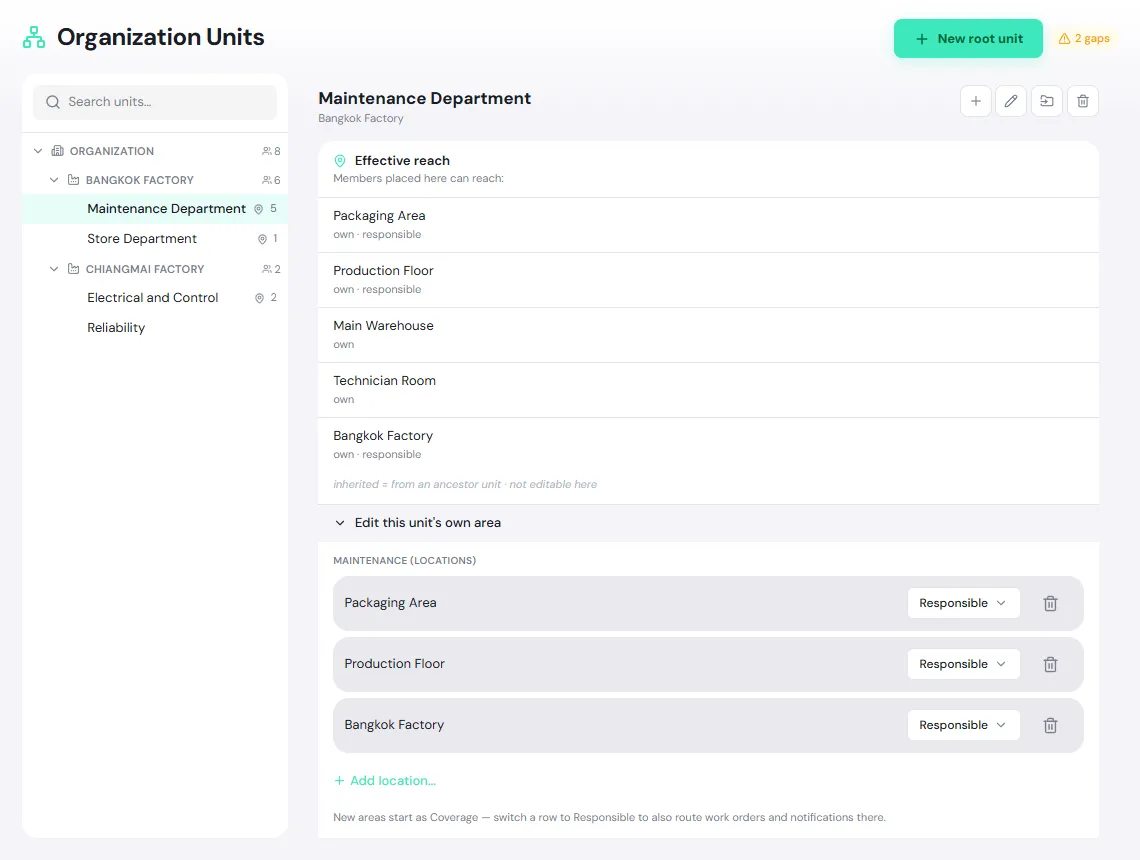
Section titled “Org units”Org units are your organization chart: maintenance, stores, and so on. Each unit has an area it looks after and its members. People in a unit see and work only inside the unit’s area.
Open Administration → Org Units. On the left is the unit tree, grouped by site; tap a unit to see its details on the right.
Create a unit
Section titled “Create a unit”-
Tap New root unit for a top-level unit, or select a unit and tap + for a New child unit.
-
Enter the Name. A root unit needs an Administrative home: one site, or Organization-level (corporate). A child unit inherits its parent’s home.
-
Tap Create unit.
The buttons at the top right of a unit Rename it, Move it under another parent, or delete it.
Set a unit’s area
Section titled “Set a unit’s area”-
Select the unit and tap Edit this unit’s own area.
-
Add areas:
- Add whole site: everything at the site.
- Add location…: that location and everything under it, such as Production Floor.
- Add storage location…: that store or storage location.
-
Set each row’s type:
- Coverage: members can see and work in this area.
- Responsible: the same, and this unit is also offered the area’s work orders and notifications.
New areas always start as Coverage. Child units inherit their parent’s area (Effective reach marks it inherited, and it can’t be edited on the child).
Unit members
Section titled “Unit members”The Members section lists the people placed in the unit. Tap Move people here, pick people, and tap Move … here. Each person belongs to one unit, so moving them takes them out of their old unit. You can also change someone’s unit from Users → Manage access.
Check for gaps
Section titled “Check for gaps”The badge at the top right reads Healthy or … gaps. Tap it to open Configuration health, which lists, for example, Users without a unit, Users without a report-to, Locations no unit covers, Storage locations no unit covers, Responsible units with no members and Exceptions expiring within 7 days.
User groups
Section titled “User groups”A user group is a bundle of capability. PULSE creates four system groups for you:
| Group | Grants | Suits |
|---|---|---|
| Site Admins | Site Admin | Site administrators: users, org units, and the site’s maintenance, inventory, energy and OEE settings |
| Supervisors | Supervisor | Supervisors: accept requests, assign and close work, approve part requests |
| Technicians | Technician | Technicians: report breakdowns, work on work orders, request parts |
| Viewers | Viewer | Read-only users |
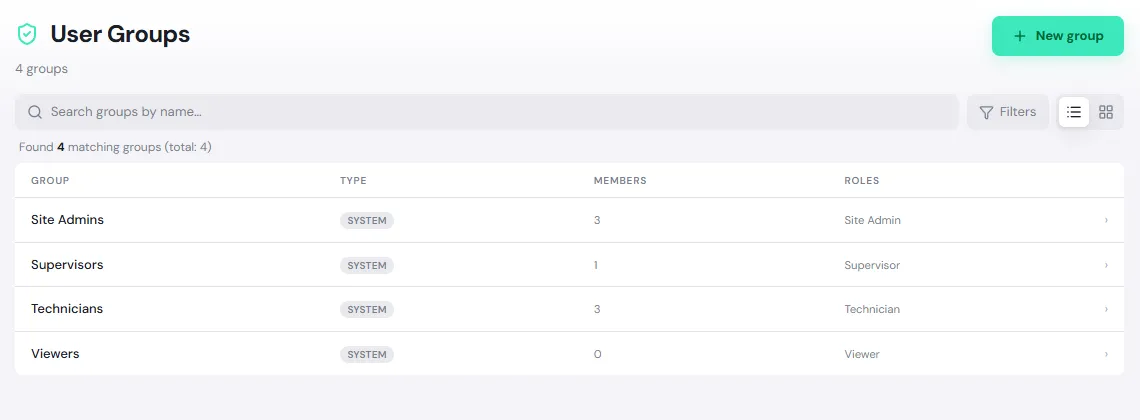
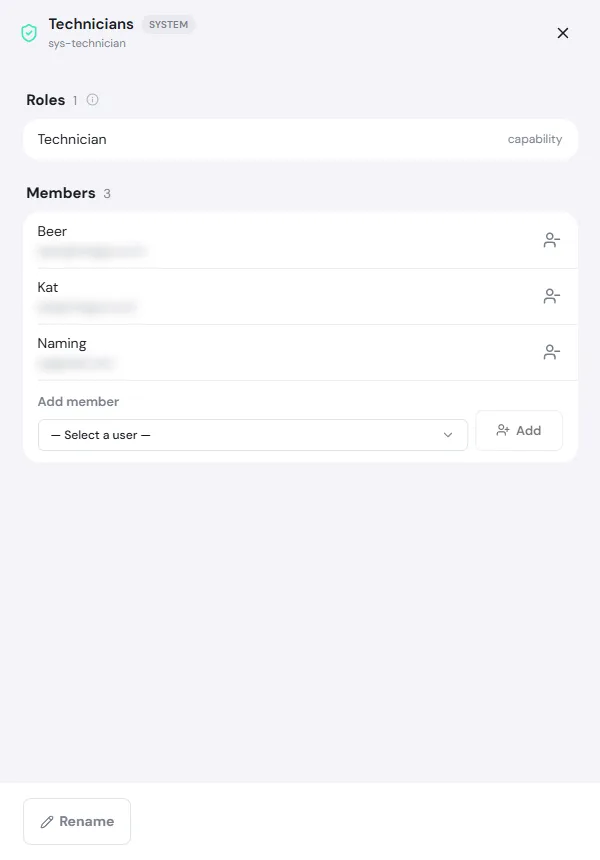
Tap a group to see its Roles and Members. Add people under Add member: pick a user and tap Add. Remove someone with the icon next to their name.
If the system groups aren’t enough, tap New group, enter a Name and Description, and tap Create group. Then grant the group a role under Access Control, with Subject type set to Group.
A group’s roles apply organization-wide, but each member uses them only inside their own org unit’s area. Deleting a group stops its grants immediately.
Roles and permissions
Section titled “Roles and permissions”A role is a list of permissions, such as Manage planned shutdowns or View assets. Open Administration → Roles & Permissions and tap a role to see all its permissions, grouped by module.
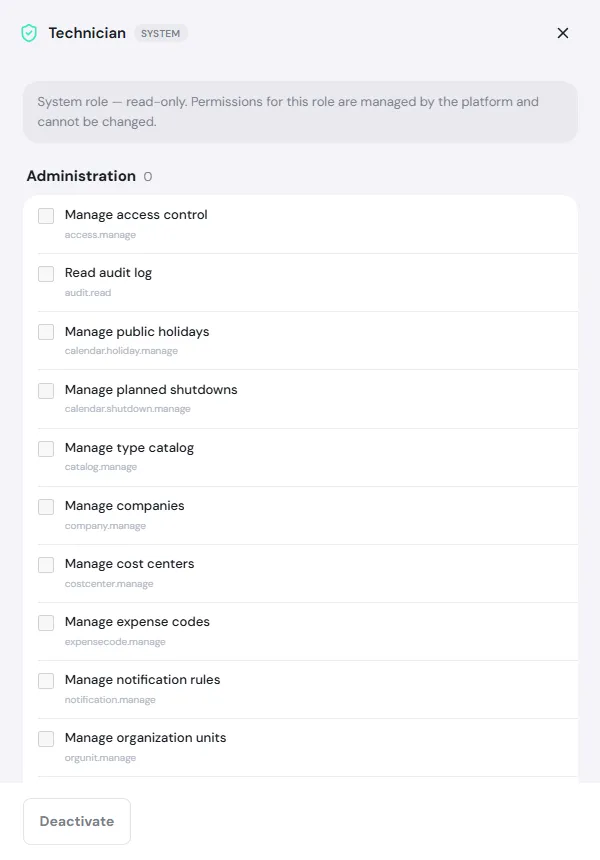
- System roles (Organization Admin, Site Admin, Supervisor, Technician, Viewer) are read-only. PULSE keeps them up to date as features are added.
- To create a role, tap New role, enter a Key (such as maintenance_technician), Name, Description and Scope (Organization-wide or one site), and tap Create role. Then tick the permissions you want and tap Save permissions. View is ticked for you whenever you pick Create, Update or Delete.
- Deactivate a role to hide it from role pickers and stop all its grants until you reactivate it. Nothing is deleted.
Access control
Section titled “Access control”This page lists every role grant: who (a user or a group) holds which role, at which scope. You rarely need it, because adding people to groups and org units is usually enough. Use it to:
- give a role to a group you created;
- make an exception grant for one person, such as making Ploy Main Store Keeper for the Main Warehouse store only, or letting a technician from another site help at one location for a while.
-
Tap New assignment.
-
Choose the Subject type (User or Group), then the person or group and the Role.
-
Choose the Scope: Organization, Site (current site), Location (picked from the location tree) or Storeroom. A grant to a group is a capability; members use it inside their own org unit’s area.
-
For a grant outside the org chart, tick Exception grant (a visible deviation from the org chart) and set Valid until if it should expire by itself.
-
Tap Create assignment.
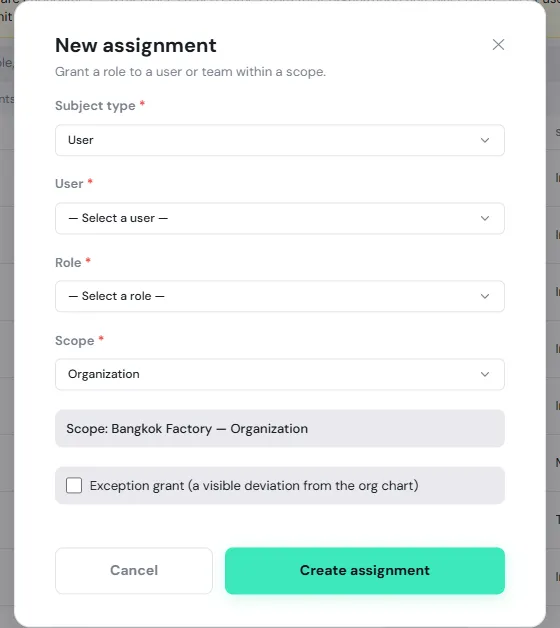
Use the Exceptions only filter to review special grants from time to time. Remove a grant with the bin icon at the end of its row.