Planned maintenance (PM)
A PM schedule is maintenance done on a cycle, such as lubricating a machine every month. PULSE creates the work order by itself as each round comes due. The Task Library and My Task Template hold steps you reuse, so technicians do the job the same way every time. This page is for supervisors and maintenance planners.
Before you start
Section titled “Before you start”| To do this | Who can |
|---|---|
| View PM schedules | Every group, including Technician and Viewer |
| Create, edit, pause or delete PM schedules | Supervisor and Site Admin |
| Manage the Task Library (the organization’s procedures) | Organization Admin |
| Create My Task Template templates | Anyone who can view work orders |
Available in every plan. A PM schedule needs a location. To use a Usage counter trigger (for example every 500 running hours), you also need an asset that has a counter reading.
How PULSE creates PM work orders
Section titled “How PULSE creates PM work orders”- Each schedule has at least one trigger:
- Calendar: On the calendar keeps to fixed dates, such as every 1st of the month, no matter when the last job finished. After last job counts from when the last job was finished, such as 1 month after it was done.
- Usage counter: due when the asset’s counter reaches the next round.
- PULSE creates the work order Lead days before the due date (left blank, the site default from Settings applies).
- A PM work order is due at the end of its due day and has no planned window yet, so it appears under Needs scheduling on the calendar for a supervisor to schedule.
- If the schedule has a unit or lead, the work order starts as Assigned; otherwise Approved, waiting to be assigned. PM work orders skip approval.
- A schedule can have only one open work order at a time. If the last round is not closed, the next one waits (the schedule shows Waiting for open work order).
- In the work order list, work from a schedule carries a PM badge.
Create a PM schedule
Section titled “Create a PM schedule”-
Go to Maintenance → PM Schedules and click New PM schedule.
-
Details: enter a Title (required), such as “Monthly cylinder seal check”. Choose a PM Type (optional), the Work type (Preventive, Inspection or Calibration) and the Priority. Add a Description, the Estimated duration, and tick Required shutdown if the job can only be done while the machine is stopped.
-
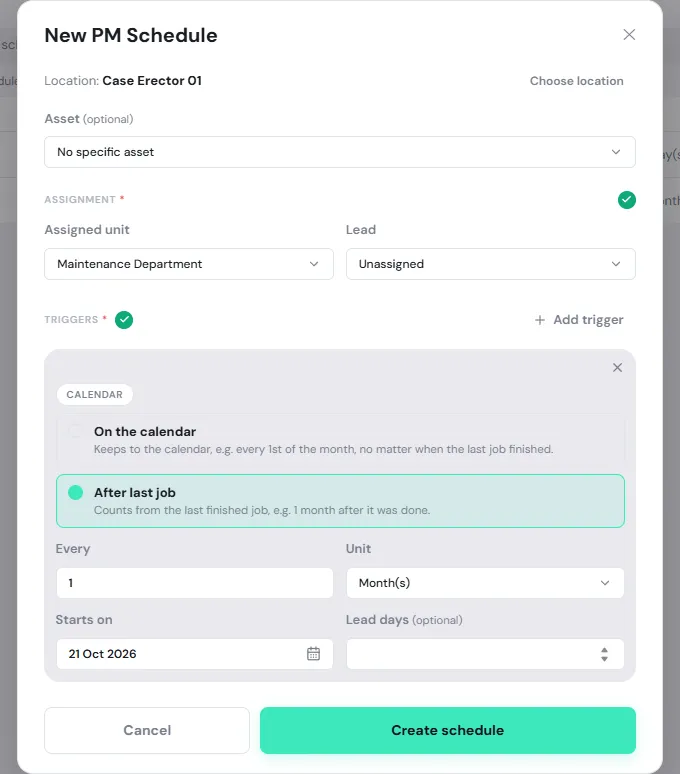
Placement: click Choose location, then pick an Asset (optional). If you pick an asset, choose whether the plan should Follow this location (maintain whatever asset is installed there) or Follow this asset (maintain this asset wherever it moves).
-
Assignment: choose an Assigned unit, a Lead, or both.
-
Triggers: click Add trigger and choose Calendar or Usage counter. For a calendar trigger, pick the schedule type, then set Every so many Day(s), Week(s) or Month(s) (up to 365), Starts on, and Lead days (must be shorter than the interval).
-
Click Create schedule.
Look after a PM schedule
Section titled “Look after a PM schedule”Click a schedule in the list to open it.
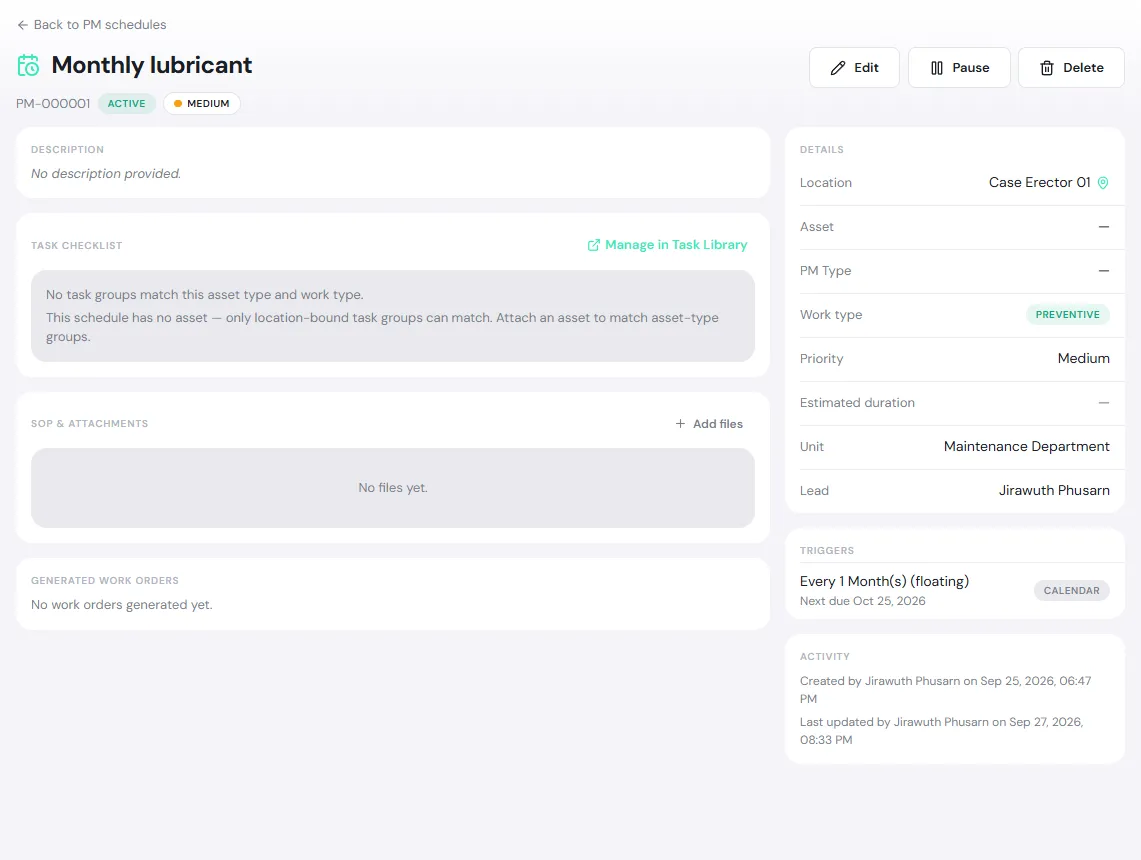
- Task checklist: steps from the Task Library that match this schedule’s asset type and work type.
- SOP & attachments: attach manuals or SOPs for the technician.
- Generated work orders: every work order this schedule has created, with its status.
- Triggers: shows the Next due date.
- Buttons at the top: Edit, Pause (stops creating work orders until you click Resume) and Delete (work orders already created are kept).
| Schedule status | Thai label | What it means |
|---|---|---|
| Active | ใช้งาน | Running normally; creates work orders as rounds come due |
| Overdue | เกินกำหนด | Past its due date and not done yet |
| Paused | หยุดชั่วคราว | Creates no work orders until you click Resume |
Task Library
Section titled “Task Library”The Task Library holds standard procedures shared across the organization, such as “Motor Preventive Maintenance”. Only organization admins see this menu.
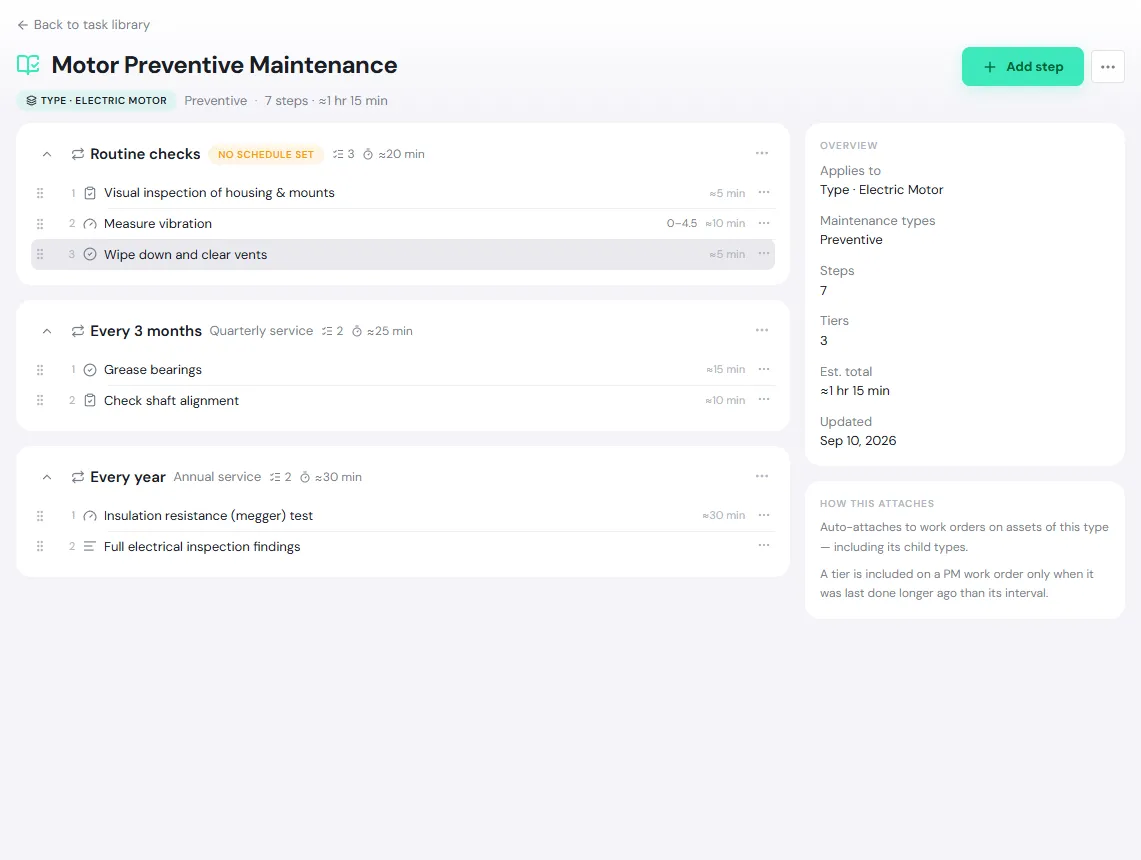
- Applies to: bind a procedure to an Asset type (child types included) or a Location (that location only, not its children), and it attaches to matching work orders automatically when they are created. A Standalone procedure is attached by hand.
- Maintenance types: which work order types it applies to; none ticked means all.
- Steps: each has an Instruction, an Est. duration and a Result type: General (mark it done), Text, Measurement (a number with a unit and an expected range) or Inspection (pass, fail or not applicable).
- Tiers: split steps by how often they are due, such as every time, quarterly and yearly. A tier is included on a PM work order only when it was last done longer ago than its interval.
Start with New procedure, then add steps with Add step. A work order keeps its own copy of the steps when they are attached, so later edits or Archive do not change existing work orders.
My Task Template
Section titled “My Task Template”Your own task lists for work you repeat, such as a “Conveyor pre-start check”.
- Create: click New template, enter a Template name and Add step. Or, on a work order that already has tasks, tap ⋮ → Save task list as template.
- Use: on a work order’s Tasks tab, tap Task → My templates.
- Share: share with colleagues. They can view, apply and copy it, but not edit it. Templates shared with you are under Shared; hide the ones you don’t use.