Report a breakdown
When a machine is not working right, raise a work request. It reaches the supervisors responsible for that location straight away. This page is for everyone in the plant, operators and technicians alike.
Before you start
Section titled “Before you start”- You need permission to create work requests at that location. The Technician, Supervisor and Site Admin groups have it; Viewer does not.
- Available in every plan.
Report a breakdown
Section titled “Report a breakdown”-
Open the request form in one of these ways:
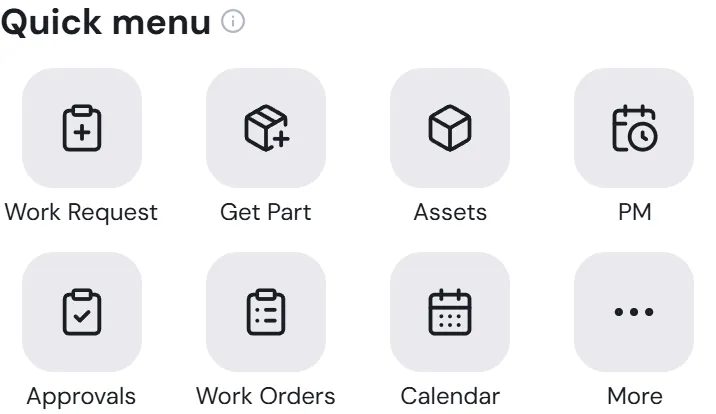
- On Home, tap Work Request in the Quick menu.
- Go to Maintenance → Requests and tap + (on a computer, New request).
- Scan the QR code on the machine. See Report by scanning a QR code below.
-
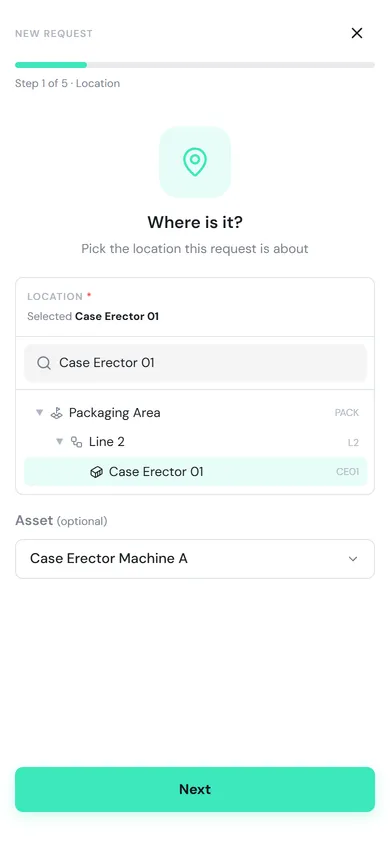
Location: type in the search box and tap where the problem is, for example Case Erector 01. Then pick the Asset if you know which machine it is, for example Case Erector Machine A (optional). Tap Next.
-
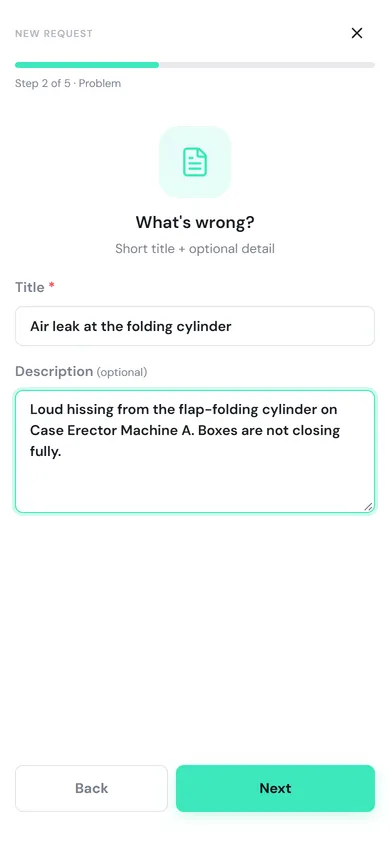
Problem: enter a short Title (required), such as “Air leak at the folding cylinder”, and a Description of what you see (optional). Tap Next.
-
Priority: choose Low, Medium, High or Urgent (Medium by default). Tap Next.
-
Evidence: tap Take photo or Choose files to attach a picture of the fault (optional, but it helps the technician a lot). Tap Next.
-
Review: check everything, tap Edit next to anything you need to change, then tap Create request.
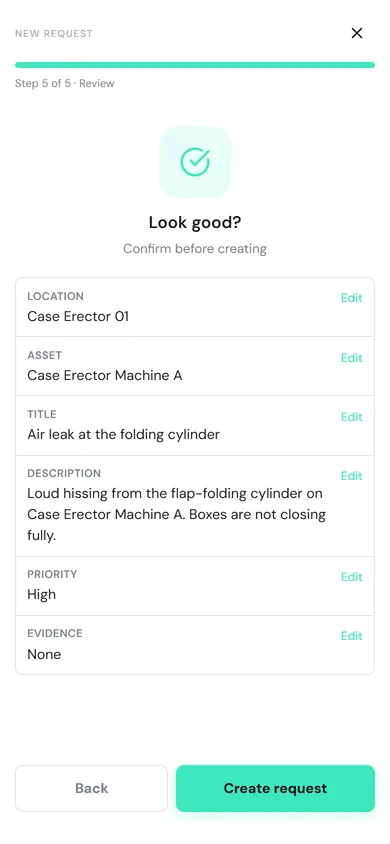
PULSE gives the request a number, such as WR-000022, and opens it. People who can triage requests at that location are notified.
Report by scanning a QR code
Section titled “Report by scanning a QR code”If your plant has stuck location QR codes on its machines (an admin prints them with Show QR code on the location page):
-
On your phone, tap the Scan button in the middle of the bottom bar and point the camera at the code.
-
Tap Report a problem. The request form opens with the location already chosen. If exactly one asset is installed there, PULSE picks it too.
-
Carry on from the Problem step above.
After a scan you can also tap Open work order (when the machine has open work) or Open record to see the location.
Follow your request
Section titled “Follow your request”Open your request from Maintenance → Requests, or from the My requests group in My Work. The progress bar shows where the job is: Sent → Accepted → Planned → Started → Fixed → Closed.
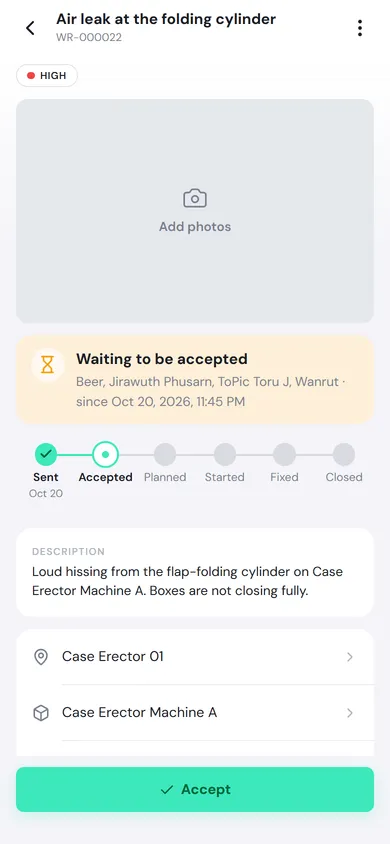
The card at the top tells you the status in plain words, such as Waiting to be accepted with the names of people who can accept it, or Being fixed once there is a work order. You are notified when the request is accepted or rejected, when the work is assigned or rescheduled, and when the technician starts, pauses or closes the job.
While the request is still Open, you (the requester) can use the buttons at the top of the page (on a phone, tap ⋮ at the top right) to:
- Edit the title, description, priority or asset. The location cannot change; if it is wrong, cancel the request and report it again.
- Cancel the request, with an optional comment.
- Share a link. The person needs permission to view requests to open it.
Once the request is accepted it can no longer be edited. Talk to the team in the work order’s Comment tab instead.
Verify the fix
Section titled “Verify the fix”If your site has turned on the Requester verification step, your request shows Please verify the fix when the technician completes the job, and you are notified. Check the machine, then tap:
- Confirm fixed if it works normally again.
- Not fixed if the problem is still there. Fill in What is still wrong? and tap Send back. The job goes back to the technician for rework.