Plan and audit log
The last two Administration items are for checking, not setting up. Plan & Usage shows what your organization can use; the Audit Log shows who did what in the system.
Before you start
Section titled “Before you start”- Plan & Usage: everyone in the organization can open it.
- Audit Log: Organization Admins (all sites) and Site Admins (the sites they manage).
- Both are in every plan.
Plan & Usage
Section titled “Plan & Usage”Open Administration → Plan & Usage.
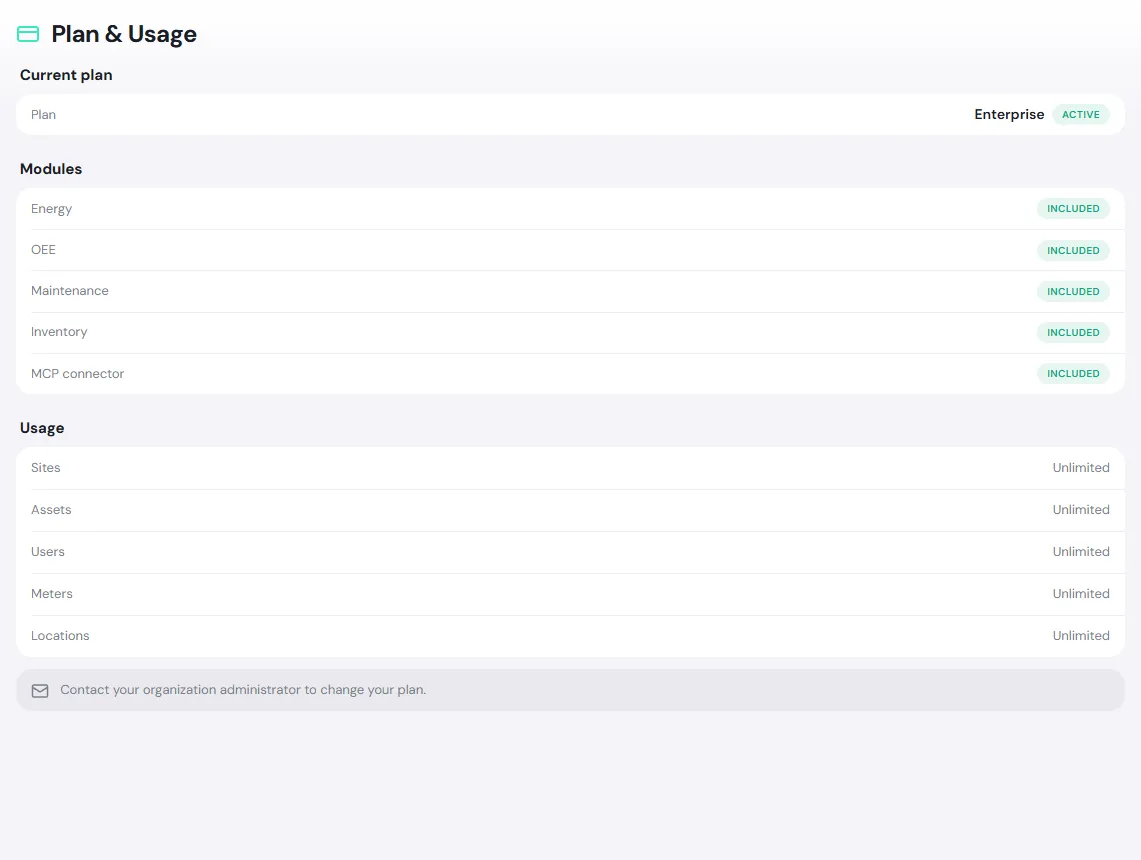
- Current plan: the plan name (Free, Starter, Pro, Enterprise), its status, and Valid until.
- Modules: each module is Included, Grace (read-only) or Not in plan.
- Usage: how many Sites, Assets, Users, Meters and Locations you use against the limit, for example 8 / 10. The bar turns amber at 80% and red when full. Unlimited plans show Unlimited.
| Plan | Modules |
|---|---|
| Free and Starter | Maintenance |
| Pro | Maintenance, Energy, OEE |
| Enterprise | All modules, including Inventory and the MCP connector (AI apps) |
Purchasing, Alarms, Documents, Edge Devices and Spatial Twin are in every plan. See prices and each plan’s limits on the pricing page.
Plan status
Section titled “Plan status”| Status | Meaning |
|---|---|
| Active | Working normally |
| Grace period | The plan has ended but data stays readable for a while; the plan’s modules are read-only |
| Not yet started | The plan starts on a set date |
| Expired / Canceled / No active plan | The plan’s modules can’t be used; your data is kept |
| Payment past due | Payment is overdue; contact the PULSE team |
When you reach a limit
Section titled “When you reach a limit”If you add more users, assets, locations, sites or meters than your plan allows, PULSE shows Plan limit reached with your current usage and doesn’t create the new record. Nothing existing is lost. If you open a module that isn’t in your plan, you see … isn’t in your plan with a View plan button.
This page is read-only. To upgrade or change plans, an Organization Admin contacts the PULSE team at jp@integrainnovation.co.th.
Audit Log
Section titled “Audit Log”PULSE records every change: who did it, what they did, to what, when, and the value before and after. For example: an asset created, a work order assigned, a material request approved, a password reset, sign-ins and sign-outs, and an AI app reading data on a user’s behalf. The log can’t be edited or deleted, not even by admins.
Open Administration → Audit Log. The page is in English only; the newest entries are at the top.
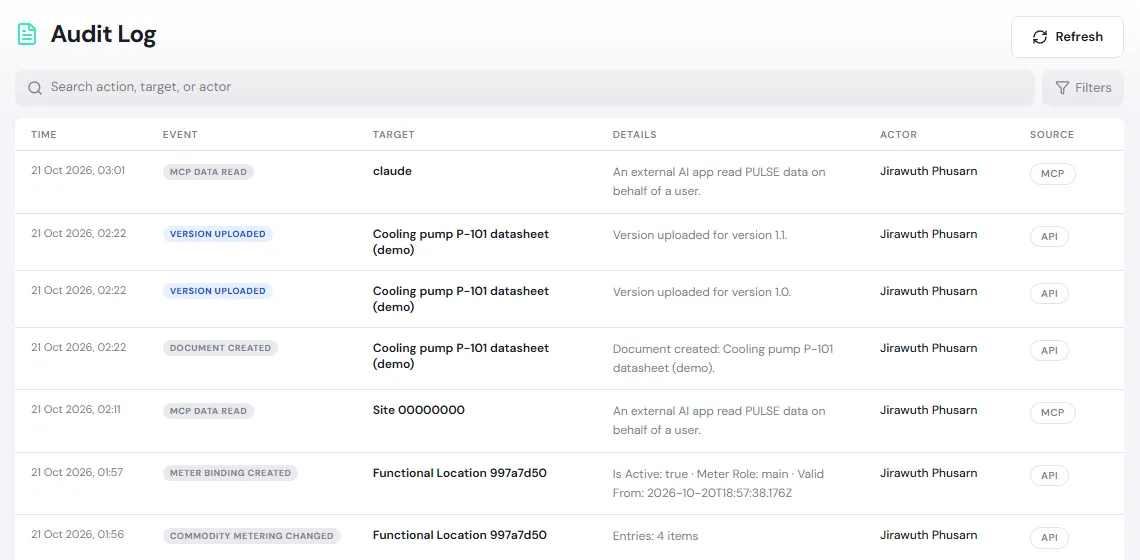
| Column | Meaning |
|---|---|
| Time | Date and time it happened |
| Event | What happened, such as Work order assigned or Asset created |
| Target | What was changed; tap the icon next to the name to open it |
| Details | A summary of the change |
| Actor | Who did it: a person, an Edge device, the system or an integration |
| Source | Which channel, such as API (the app) or MCP (an AI app) |
Find an event
Section titled “Find an event”-
Type in Search action, target, or actor, for example a work order number, a machine name or a person’s name.
-
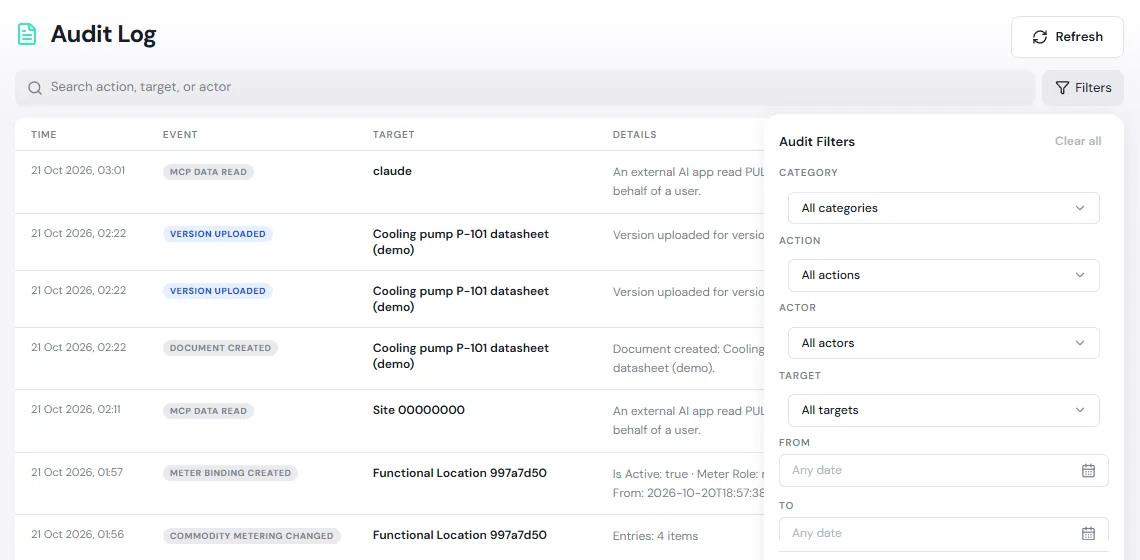
Tap Filters and choose a Category (such as Asset, Location, Document, Edge, Alarm, Catalog, Auth), Action, Actor, Target and a date range in From / To.
-
Active filters show as chips above the table; tap Clear all to remove them. Tap Load more at the bottom for older entries, and Refresh for the latest.
-
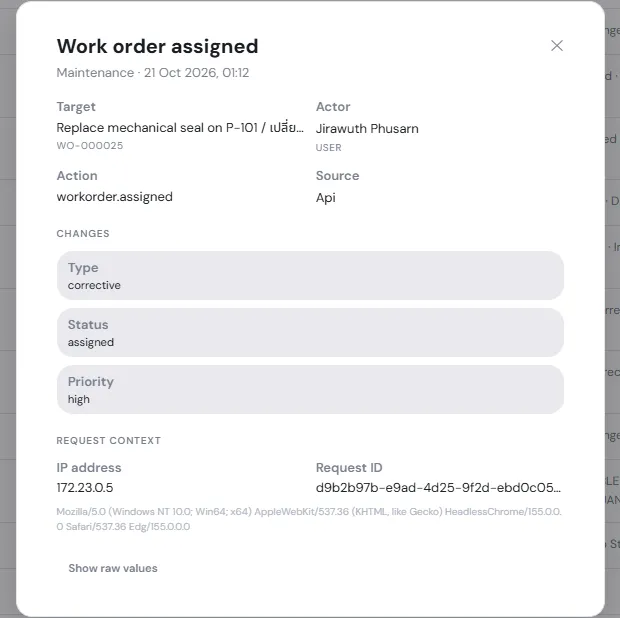
Tap a row for details: Target, Actor, Action, Source, the Changes (the values that changed) and the Request context (the IP address of the device used). Tap Show raw values for the raw data.