Energy dashboard
The dashboard answers three questions on one page: how are things right now, what will this billing cycle cost, and where did the energy go in the period you pick. Open it from Energy → Dashboard.
Choose what to look at
Section titled “Choose what to look at”-
Open Energy → Dashboard. It starts with the whole site you have selected.
-
Click the tree button to the left of the location path (Browse locations) and pick an area, line or machine. Type in Filter locations… to search, or choose Whole site to go back to the overview.
-
Click a name in the location path (for example Bangkok Factory › Utilities › Cooling Water) to go back up a level, or click a bar in Energy breakdown to drill down.
If a location is not set up yet, the dashboard says “Energy isn’t configured for this location yet.” with a Configure energy for … link to that location’s Energy tab.
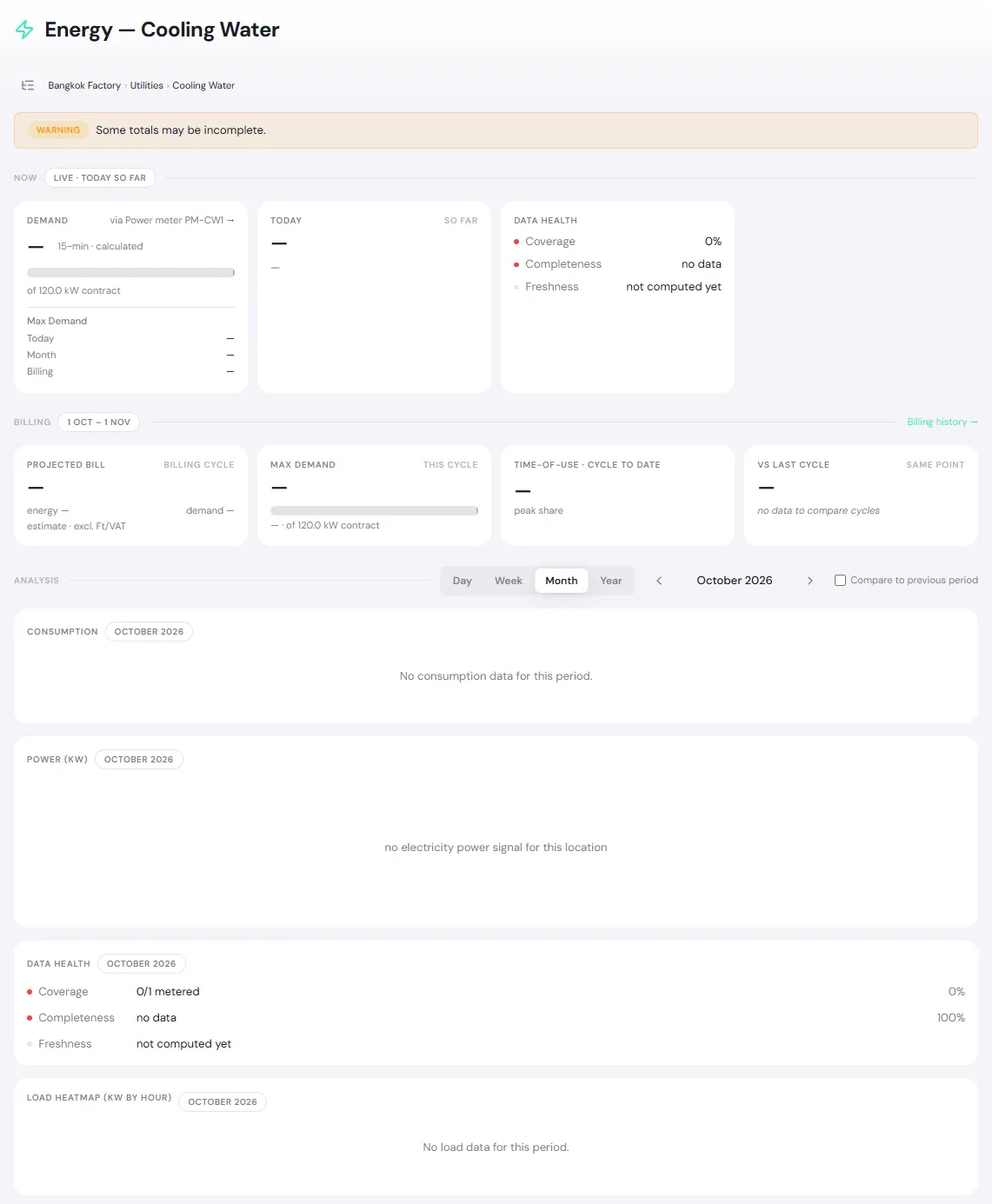
This picture shows a location whose meter is bound but has not sent any readings from an Edge Device yet, so the values show — and Data health is red. Once the meter reports, the same cards fill with real numbers.
The alert bar at the top
Section titled “The alert bar at the top”When something needs attention, a bar at the top shows a message and stays in view as you scroll.
| Message | When it appears |
|---|---|
| Demand … of … kW (…%) | Demand right now reaches 85% of contract demand (amber) or 95% or more (red) |
| Power factor … — below 0.90 (approaching PEA penalty) | Power factor is below 0.90 |
| Power factor … — below 0.85 (PEA penalty) | Power factor is below 0.85, the penalty threshold |
| Warning Some totals may be incomplete. | A meter is missing data or a required meter is not bound. See When data is missing. |
The Now band (Live · today so far) does not change with the period you pick lower down.
| Card | What it shows |
|---|---|
| Demand | Electrical demand right now (kW), a bar against contract demand, and Max Demand for today, month and billing. native means the meter sends its own demand value; 15-min · calculated means PULSE works it out from the energy used in each 15-minute block. |
| Power factor | The latest 15-minute average, and whether it is above or below the 0.85 penalty threshold. Shown when the meter sends power factor. |
| Today | Energy used today so far, and the change vs yesterday. |
| Data health | Coverage, Completeness and Freshness. Click the card to open the location’s Energy tab and see which meter is missing. |
“Today” starts at the Energy day start set in the site settings (00:00 by default).
Billing
Section titled “Billing”The Billing band shows the current billing cycle, for example 1 Oct – 1 Nov. If a Billing cycle start day is set, it says “resets day …”.
| Card | What it shows |
|---|---|
| Projected bill | This cycle’s estimated bill, split into energy and demand. Click it to open the billing history. |
| Max demand | This cycle’s highest demand, when it happened and how it compares with the contract. Click it to open Demand analysis. |
| Time-of-use · cycle to date | The peak share of electrical energy, plus peak energy cost and off-peak energy cost (energy cost only, without the demand charge). |
| vs last cycle | This cycle’s use against the last cycle at the same point in the cycle (for example day 10 of both). |
Analysis
Section titled “Analysis”The Analysis band follows the period you pick.
- Choose Day, Week, Month or Year, and use the arrows for the Previous period or Next period.
- Tick Compare to previous period to overlay the previous period on the consumption chart.
- Year view shows only the consumption chart. The other cards are available in Day, Week or Month view.
| Card | What it shows |
|---|---|
| Consumption | Bars of energy used in each part of the selected period. |
| Energy breakdown | Energy of each area or machine under this location. Click a bar to drill down. Unallocated is energy the total meter measured that no sub-meter accounts for. If you see “Sub-meters exceed the total meter”, check the meter bindings. |
| Power (kW) | Power over time, with a Contract line so you can see how close you came to contract demand. |
| Top consumers | The places that used the most energy, largest first. |
| Data health | Coverage, completeness and freshness for the selected period, with a list of Missing meters. |
| Load heatmap (kW by hour) | A colour grid of power by hour. It helps you spot high-load hours and machines left running outside working hours. |
| Other commodities | Water, gas and steam use, with required · not metered when a meter is required but not bound. |
| Energy by end-use | Energy split by the End-use category set when binding meters, such as Production, Utility, HVAC and Lighting. |
If a location has only one meter and no sub-meters, Energy breakdown and Top consumers are not shown, because there is nothing to break down.
A quick look at one location
Section titled “A quick look at one location”On a location page, the Energy tab has a Today section with today’s use for each commodity and the latest value from each meter. Click Open dashboard → to open that location’s dashboard. See The location’s Energy tab.