Set up parts and stores
This page is for admins and inventory managers who lay the foundations: which parts exist, where they are kept, who hands them out, and which ones need approval. It is easiest on a computer.
Before you start
Section titled “Before you start”| Job | Who can do it |
|---|---|
| Parts catalogue, part categories, control policies, reorder planning | Organization Admin (shared by the whole organization: one part number means the same thing at every site) |
| Create stores and storage locations | Site Admin and Organization Admin |
| Name a store’s keepers and members | That store’s keepers, and anyone who can create stores |
| Adoption review | Keepers |
Everyone who can view parts (including Viewer) can open the Parts catalogue to search and check stock. Inventory is in the Enterprise plan.
Add a part to the catalogue
Section titled “Add a part to the catalogue”-
Go to Inventory → Parts catalogue and click New part. The New part form has 7 steps.
-
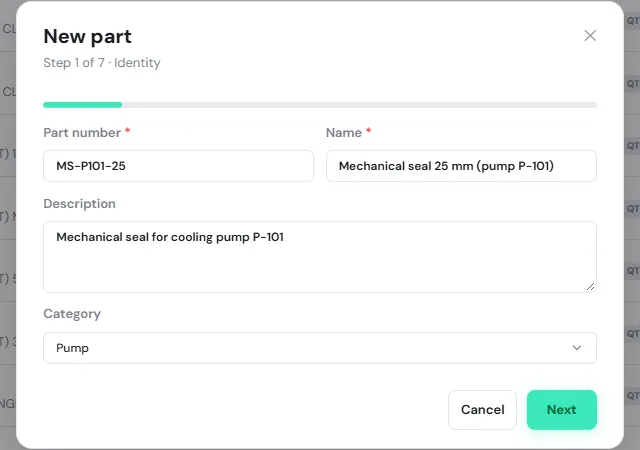
Identity: Part number and Name (required), Description and Category. Click Next.
-
Manufacturer: the Manufacturer (from your registered companies), Manufacturer part number and Barcode. A serialized installable part needs a manufacturer part number.
-
Tracking: choose Quantity (counted in bulk, like 12 bearings in a bin) or Serialized (every unit has its own serial number), then the Stocking unit, such as pcs. Tick Can be split for things like cable.
-
Usage: Consumable (used up, like grease or bolts), Installable (fitted into equipment, like a bearing or a drive) or Reusable (goes out and comes back, like a calibration tool). Tick Repairable if it can be repaired and used again.
-
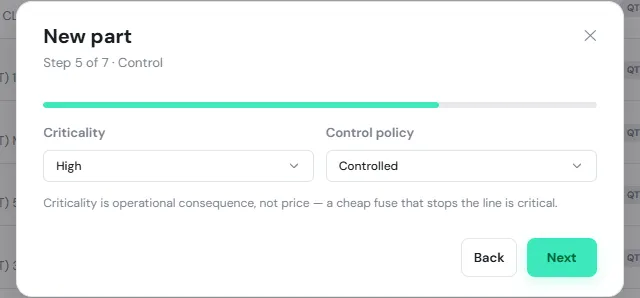
Control: Criticality (Low, Medium, High, Critical) measures the effect on production, not the price, and the Control policy decides whether it needs approval. See Control policies.
-
Stock levels: Minimum, Reorder at, Order qty and Maximum, used by Reorder & planning. Warnings use available stock, so material already promised to a job cannot hide a shortage.
-
Cost & supply: Standard unit cost, Preferred vendor and Expense code (defaults from the category), then click Create part.
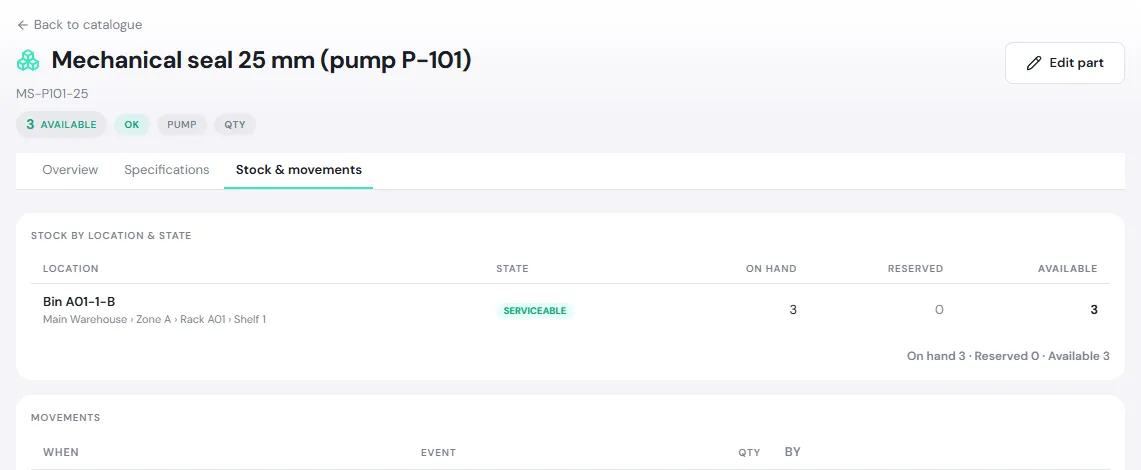
Click a part in the catalogue to open its page, with the Overview, Specifications and Stock & movements tabs (stock by bin and state, plus the receive, issue and use history). Change it with Edit part. In the catalogue, use the Below reorder and Out of stock chips, or Filters, to narrow the list by category.
Part categories
Section titled “Part categories”Inventory → Part Categories groups parts for browsing and reporting. Click New category and fill in Code, Name, Parent category (or None — top level), Description and Default expense code, which parts in the category use by default.
- A category’s place in the tree is fixed when you create it; afterwards you can only change its name, description and expense code.
- Deactivate hides a category from pickers. A category that still has parts cannot be deactivated.
Create stores and bins
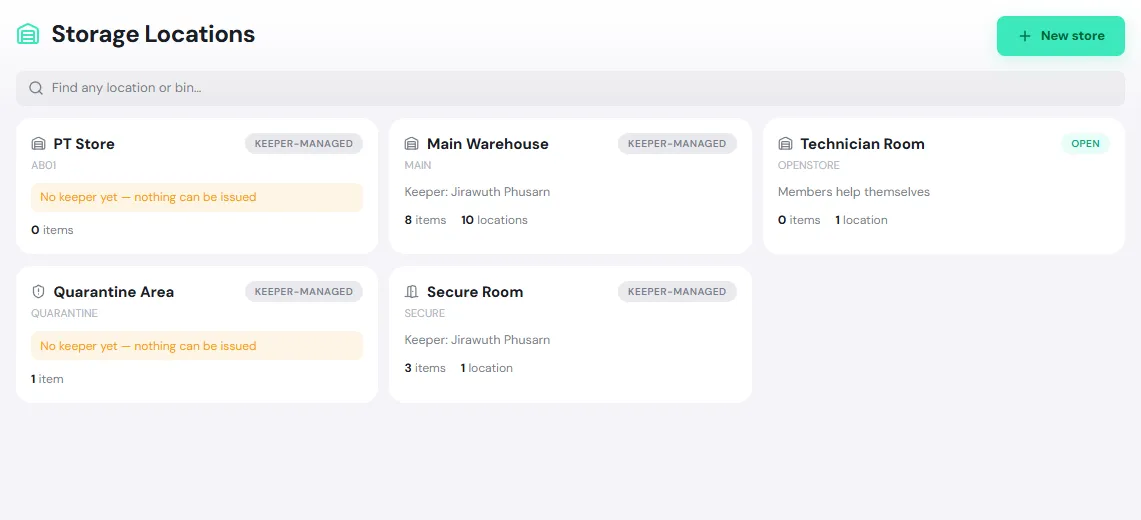
Section titled “Create stores and bins”Inventory → Storage Locations shows each store as a card with its mode, keepers, item count and number of locations inside. An orange No keeper yet — nothing can be issued card needs a keeper before it can be used.
-
Click New store, fill in Code, Name and Type, for example Warehouse, and click Create location.
-
Click the store card to open it, then click + Add location inside to build the layout from big to small, for example Zone → Rack → Shelf → Bin. Use readable codes such as A01-1-B.
-
Create one staging point per store (a counter, for example) by ticking Staging area. Technicians leave returned material there and the keeper puts it away.
-
Click ⋯ on the store header and choose Manage access to name the keepers (see below).
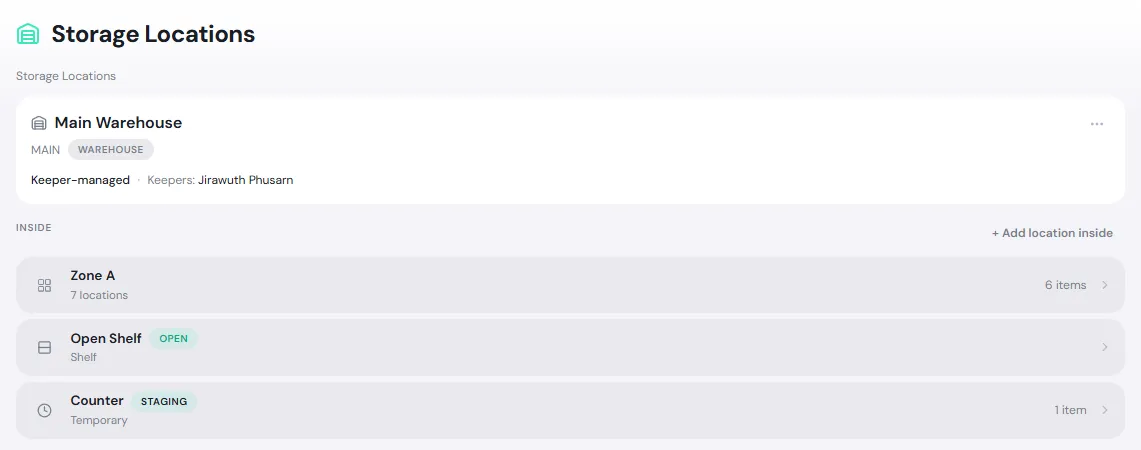
Location types are Warehouse, Zone, Room, Rack, Shelf, Bin, Cabinet, Temporary, Technician, Repair area and Quarantine. The ⋯ menu also has Show QR for a label to stick on the bin (scan it when receiving or transferring) and Deactivate.
Keepers and how parts are handed out
Section titled “Keepers and how parts are handed out”Manage access has three parts:
- Mode: Keeper-managed (a keeper issues parts on request) or Open (members help themselves). Sub-locations follow the parent’s setting unless they set their own.
- Keepers: click Add keeper. Keepers issue, receive, inspect and manage access for this store and every location inside it.
- Members: people who can help themselves when the store is open. People whose unit covers this store are members automatically; click Add member to add others, or choose Restrict to listed people to keep only the people listed.
Control policies
Section titled “Control policies”Inventory → Control Policies sets the rules for every part that carries a policy. Give a part its policy in the Control step of the part form. A part with no policy can be issued without approval.
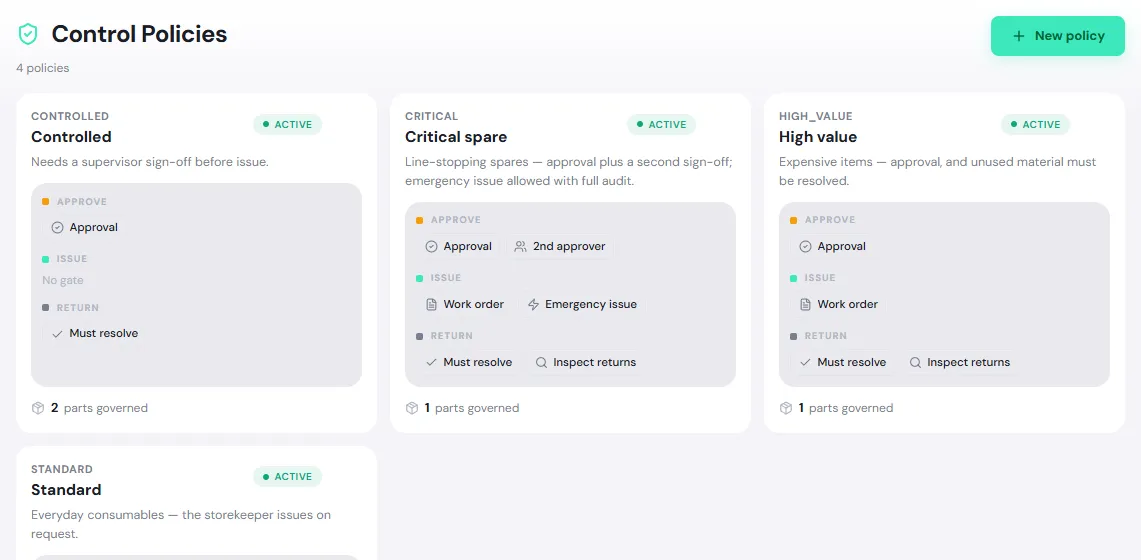
| Gate | Stage | What it does |
|---|---|---|
| Approval before issue | Approve | A request containing this part must always be approved before it is issued |
| Value threshold | Approve | A line worth more than the threshold (quantity × cost) needs approval even if Approval before issue is off. Leave it blank if value should not trigger approval |
| Second approver required | Approve | Recorded and shown as a note; not yet enforced |
| Allow emergency issue | Issue | A keeper can issue before approval, with a stated reason |
| Work order required | Issue | The request must name a work order |
| Return must resolve | Return | The work order cannot be closed while issued material is outstanding |
| Inspect returns | Return | Returned units land as Pending inspection until inspected |
A policy with no gates shows Open draw — anyone with access can take it, no approval or ceremony. Click New policy to add one, or click a card to edit or deactivate it. A change applies to every part that carries the policy.
Reorder planning
Section titled “Reorder planning”Inventory → Reorder & planning lists the parts whose available stock across the organization is at or below their Reorder at point.
- Tiles: Parts to buy, Out of stock, Below minimum and Estimated spend at standard cost.
- Filter with All, Out, Below min and Reorder. The table shows on hand, available, quantities approved but not yet ordered, quantities on order, and the suggested Order qty (the part’s order quantity, or maximum − available).
- Select rows and click Export selected, or Export list for everything, to turn it into purchase requests.
PULSE does not place orders from this page. Use the exported list, or raise purchase requests in Purchasing. Parts without stock levels show a prompt to Set policy first.
Adopt registered machines into stock
Section titled “Adopt registered machines into stock”If you registered machines or equipment under Assets before using Inventory, Inventory → Adoption Review lists the ones whose model number matches a catalogue part’s manufacturer part number.
- Check the Match column: Model + Mfr matches on both; verify Model only before adopting.
- Enter the Serial for the unit if the asset has none.
- Select the rows and click Adopt … as stock units.
PULSE creates a serialized stock unit at the machine’s location, marked installed, with no cost recorded.