Read OEE
OEE lives on the location page, OEE tab. This page explains what each part tells you, and how technicians and supervisors record why a machine stopped.
Before you start
Section titled “Before you start”- See OEE: every built-in group, for the locations they can see.
- Assign reasons: Technician, Supervisor and Site Admin.
- The location must have an OEE channel bound. See Set up OEE.
Open the OEE tab
Section titled “Open the OEE tab”-
Go to Location and pick the machine or line. In the location tree, OEE points have a small mint dot after the name (hover it to see OEE monitored).
-
Click the OEE tab.
-
Choose a range at the top right: Today, 7d (the default), 30d or Custom (pick a From date and To date, up to today).
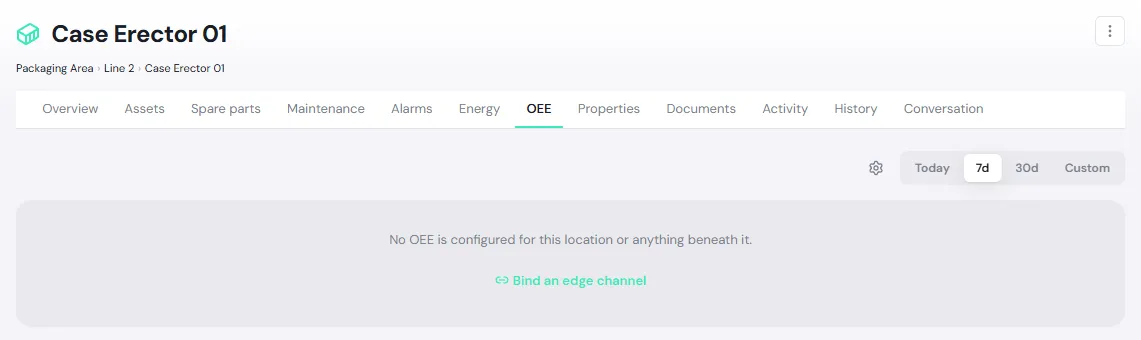
What you see depends on whether a channel is bound to this location:
| Case | What you see |
|---|---|
| A channel is bound to this location (for example a single machine) | The OEE cards and details for this location |
| Nothing bound here, but machines below it are bound (for example a line) | The table OEE points under this location |
| Bound here and below | This location’s details, then the table |
| Nothing bound anywhere | No OEE is configured for this location or anything beneath it. Admins see Bind an edge channel |
Read the summary cards
Section titled “Read the summary cards”The top row has five cards:
- OEE, with a data coverage pill such as COMPLETE · 672 of 672. Anything other than COMPLETE means the number comes from partial data. See When data is incomplete.
- Availability, Throughput and Quality. When a figure can’t be calculated, the card shows — with the reason, for example no cycle time configured, never 0%.
- Cycle time shows the actual average / the expected value, for example 2.7s / 2.5s. When the machine is slower than it should be, the actual value turns orange. Click UPH to see units per hour instead.
Under the cards are two rings:
- Time: the share of hours Running, Unplanned down, Planned stops and No data.
- Production: the number of Good and Reject parts.
See when and why the machine stopped
Section titled “See when and why the machine stopped”- State timeline: a coloured bar over time. The colours show Running, Planned stop, Down (reasoned), Unclassified down and No data. Hover a segment to see the state, reason and times.
- Downtime breakdown: reasons ranked by downtime, including Unclassified and No data rows. Click a row to see each stop. A stop still going on is marked Open; a reason someone assigned by hand is marked Manual.
- Production trend: good and reject parts over time.
Assign a reason to downtime
Section titled “Assign a reason to downtime”Stops the machine sent no code for, or whose code has no rule, land in Unclassified downtime at the bottom of the tab. Giving them a reason is what lets the downtime breakdown show where the time went.
-
In Unclassified downtime, click the stop’s row. Each row shows the time span, the state (Stopped or Fault) and the machine’s code if there is one.
-
Click the matching reason, such as a changeover or a material shortage. You can add a Note (optional).
-
Click Assign.
If every stop shown has the same reason, click Assign all shown…, pick the reason and click Assign all. PULSE assigns it row by row; any already-classified downtime in between stays untouched.
What happens next: the row leaves the list straight away and PULSE recalculates within about a minute. If the reason is set up as a Planned stop (a changeover, say), that time is removed from the time the machine should run, and Availability goes up. When everything is classified, the list header shows All classified ✓.
Compare machines on a line
Section titled “Compare machines on a line”On a line or area page, the table OEE points under this location has the columns Location, OEE, Availability, Throughput, Quality and Coverage, worst OEE first, so you can see at once which machine to look at. Click a row to open that machine’s OEE tab.
Each row is that machine’s own number. PULSE does not average machines into a line figure; see Why a line’s OEE is not the average of its machines.