Assets
An asset is one real machine or piece of equipment, such as a pump, a motor or a case erector. This page is for the supervisors and admins who register machines, and for technicians who install, remove or swap machines on the floor.
Before you start
Section titled “Before you start”- Create new assets: the Supervisor and Site Admin groups.
- Edit, install, uninstall, replace and change status: Technician and above.
- Decommission: the Supervisor and Site Admin groups.
- Available in every plan. For the asset limit of each plan, see the overview.
- To install a machine right away, the location it goes to must already exist.
Find an asset
Section titled “Find an asset”Open Assets. The Asset Registry lists every machine you may see, with its Tag, Status and the Location where it is installed (a dash “—” means it is not installed).
- Type a machine name in the search box.
- Tap Filters to filter by Status or by Tag, for example Criticality = High.
- Switch between the list and a photo card view with the buttons on the right.
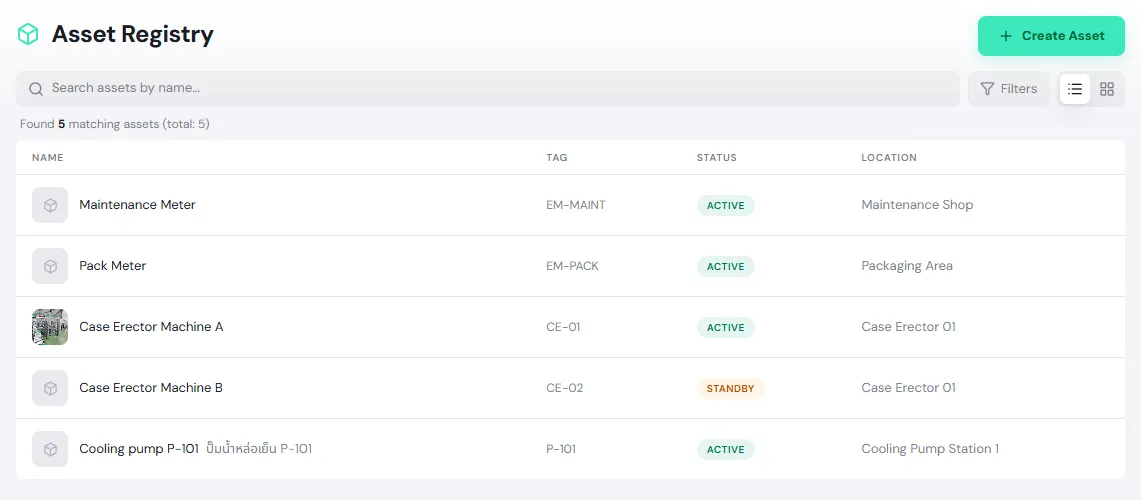
You can also find a machine with Search at the top of the left menu, or on a location’s Assets tab.
Register a new asset
Section titled “Register a new asset”-
On the Asset Registry, tap Create Asset.
-
Fill in the machine’s details (each field is explained below). Only Name (EN) is required.
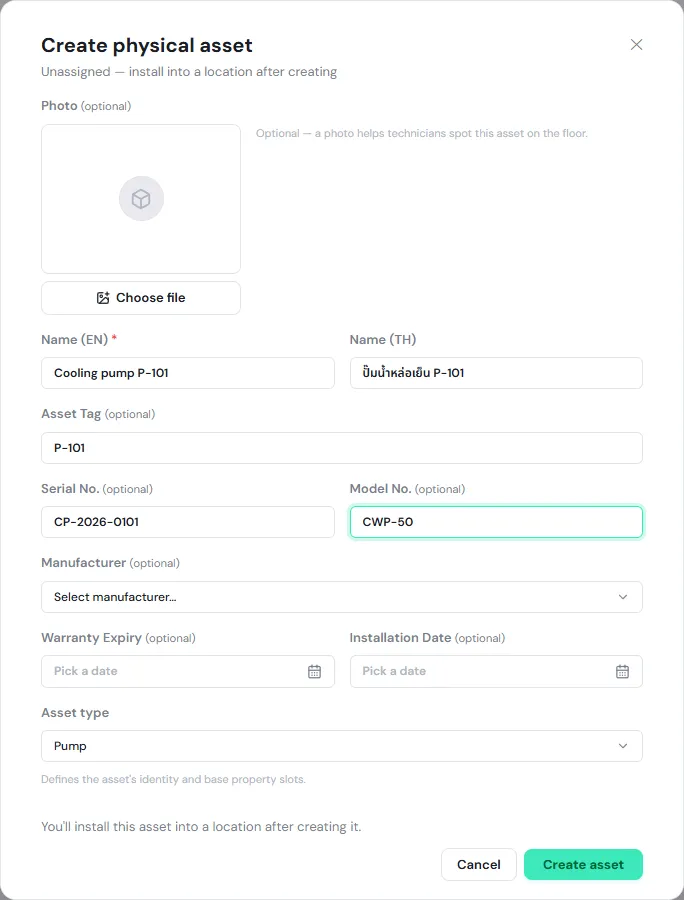
-
Tap Create asset. The new machine appears in the Asset Registry with status Active and no location (its page shows No location assigned).
-
Install it at a location once it is physically in place.
On a phone, the same form is split into steps: Type → Photo → Name → Review. Tap Create asset on the last step.
| Field | What to enter |
|---|---|
| Photo | A picture of the machine (PNG, JPEG, WebP or GIF, up to 10 MB) so technicians can spot it on the floor. On a phone you can tap Take photo. |
| Name (EN) (required) and Name (TH) | The name everyone sees. PULSE shows the name in each user’s language. |
| Asset Tag | The code your plant uses for the machine, such as P-101 or the fixed-asset label number. |
| Serial No. | The serial number from the nameplate. It must be unique within your organization. |
| Model No. and Manufacturer | Model and make. The manufacturer is chosen from the companies in the catalog. |
| Warranty Expiry and Installation Date | From the warranty card, and the date the machine went into service. |
| Asset type | Pick a type, such as Pump, and that type’s specification fields appear on the Properties tab for you to fill in. No type is allowed. |
Edit an asset
Section titled “Edit an asset”-
Open the asset, tap ⋯ at the top right (on a phone, ⋮, the More menu) and choose Edit.
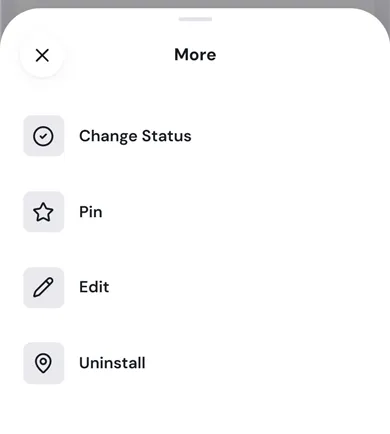
-
Change the name, description, photo, identity details or type, then tap Save changes.
- Changing the type may add or remove specification fields on the Properties tab.
- If the machine came from a serialized unit in Inventory, its serial number, model, manufacturer, warranty expiry and installation date are locked to the inventory record. Only users allowed to correct locked values can change them, and they must give a reason.
- Every change is recorded on the Activity tab: who changed what, and when.
Install an asset at a location
Section titled “Install an asset at a location”-
Open an uninstalled asset, tap ⋯ and choose Install.
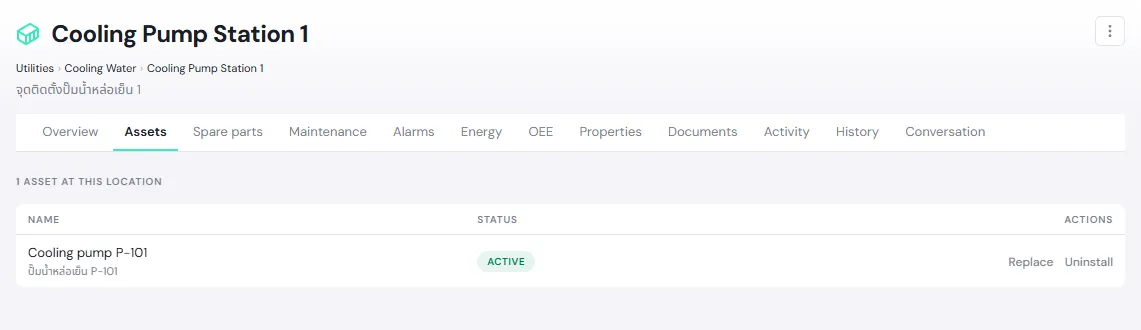
Or start from the location: open its Assets tab and tap Install asset, then choose the machine under Asset (only floating, uninstalled assets are listed) or tap + Create new asset.
-
In the tree on the left, pick the Install location. Tap ▶ to expand a location.
-
Check the Install date & time (it defaults to now; you can enter an earlier date but not a future one), and fill in the other fields if you have them:
- Meter reading: for example the run hours or meter value on the day of installation.
- Work order ID: the work order for the installation.
- Notes.
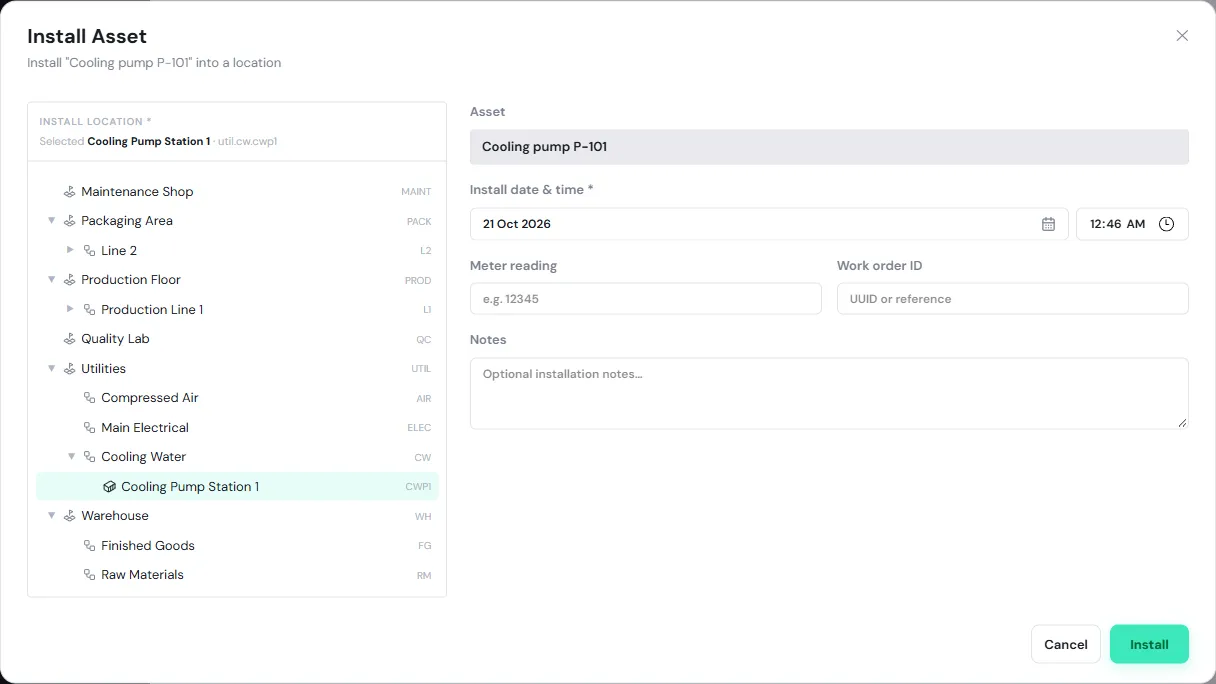
-
Tap Install. PULSE shows Asset installed.
The asset page now shows the location under the machine’s name, the machine appears on that location’s Assets tab, and the installation is recorded on the History tab of both the asset and the location.
| If you see | It means |
|---|---|
| This location already has an asset installed — uninstall it or use Replace. | The location is a Slot and already holds a machine. Use Replace. |
| This asset is already installed somewhere. Uninstall it first, or use Replace. | Remove the machine from its current location first. |
| The date can’t be in the future. | Set the install date and time to now or earlier. |
Uninstall an asset
Section titled “Uninstall an asset”Use this when a machine is taken out for repair, storage or a move.
-
On the asset page, tap ⋯ and choose Uninstall (or tap Uninstall on the location’s Assets tab).
-
Check the Uninstall date & time, and fill in Meter reading, Work order ID and Notes if you have them.
-
Tap Uninstall.
The machine is floating again, ready to be installed somewhere else. If it is a serialized unit from Inventory, it stays in your custody until you deposit it into a store.
Swap in a new machine
Section titled “Swap in a new machine”Replace removes the current machine and installs another in one step, at the same moment. Use it, for example, to swap a spare pump in for a broken one.
-
Open the location’s Assets tab and tap Replace on the current machine’s row.
-
Choose the Incoming (being installed) machine from the uninstalled assets.
-
Check the Replace date & time (applied to both the uninstall and the install), and fill in Meter reading (outgoing) and notes if you have them.
-
Tap Confirm Replace.
The location’s history records which machine the new one replaces. The location’s History tab also shows the Total swaps in the last 365 days, which helps you spot positions where machines are swapped unusually often.
Change a machine’s status
Section titled “Change a machine’s status”-
On the asset page, tap ⋯ and choose Change Status.
-
Choose the New status, such as In Repair or Standby.
-
Enter a Note (required) saying why, then tap Confirm.
PULSE records the change and the note in the machine’s history. For what each status means, see the overview.
Decommission an asset
Section titled “Decommission an asset”Use this when a machine is retired for good, for example sold or scrapped. PULSE does not delete it; its repair history and readings are kept.
-
If the machine is still installed, uninstall it first so the position is free for a new machine.
-
Tap ⋯ and choose Change Status.
-
Set New status to Decommissioned, enter a note and tap Confirm.
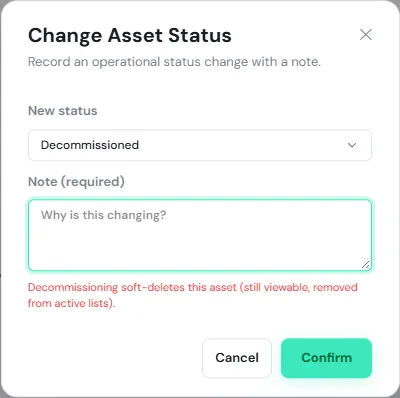
A decommissioned machine disappears from the Asset Registry and from every machine picker, so it cannot be chosen for new work.