Set alarm rules
An alarm rule tells PULSE when a reading from one property of a machine or location, such as a temperature or an air pressure, should raise an alarm. This page is for the supervisors, engineers and technicians who set up machines.
Before you start
Section titled “Before you start”- Rules on an asset need permission to update that asset; rules on a location need permission to update that location. The Technician, Supervisor and Site Admin groups have it. Viewer can only see rules.
- An Automatic action needs one more permission at that location: create work requests (Technician, Supervisor, Site Admin) or create work orders (Supervisor, Site Admin).
- The property must already receive readings from an Edge Device. A rule on a property that gets no readings never raises an alarm.
- Available in every plan.
Add an alarm rule
Section titled “Add an alarm rule”-
Open an asset or location page, for example Case Erector Machine A, and open the Alarms tab.
-
Tap Rules to see the existing rules. They are grouped by property; each row shows the severity, the rule name and its condition, such as
> 30.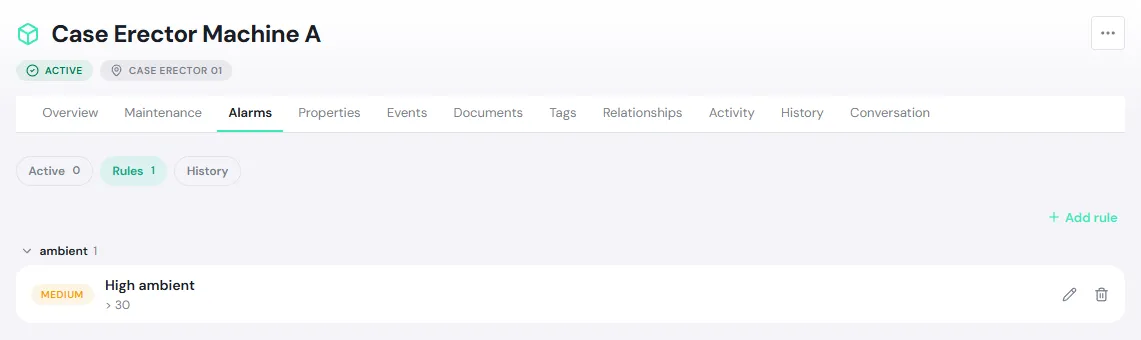
-
Tap Add rule, choose the Property to watch and tap Next.
-
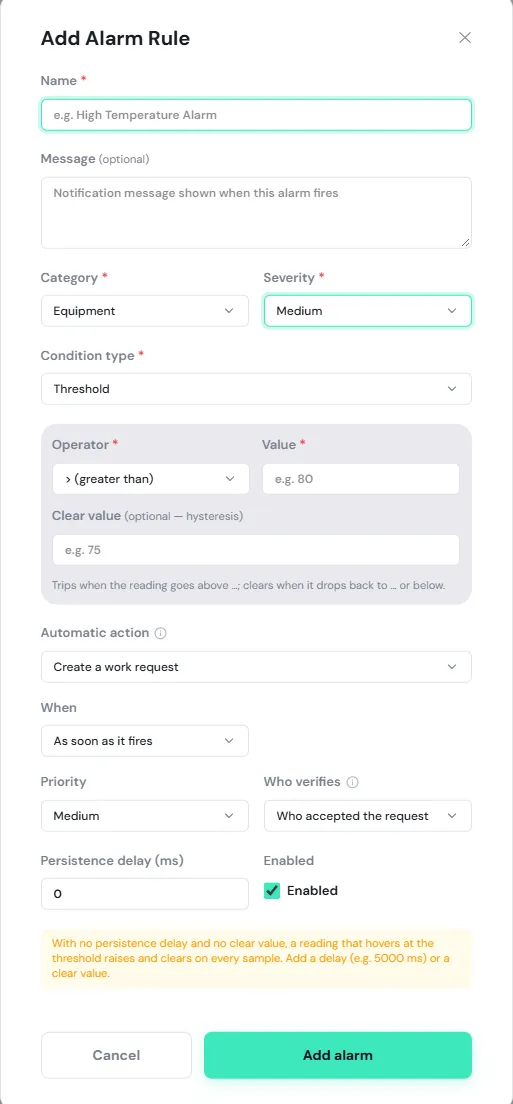
Fill in the Add Alarm Rule form (each field is explained below).
-
Tap Add alarm. PULSE shows Alarm rule added. and starts checking new readings against the rule straight away.
To change a rule, tap the pencil icon (Edit alarm rule). To delete it, tap the bin icon (Delete alarm rule) and confirm; this cannot be undone. To pause a rule instead, edit it and clear Enabled. A paused rule shows a Disabled label.
The form fields
Section titled “The form fields”| Field | What to enter |
|---|---|
| Name (required) | The name everyone sees in the alarm list and notifications, such as “Motor temperature high”. It is also the title of any automatic repair work. |
| Message | Details or advice shown in the notification, such as “Check the cooling fan”. |
| Category | Equipment, Process, Energy, Maintenance or Safety. |
| Severity | Critical, High, Medium, Low or Info. People following the place are notified when the severity reaches the level they chose. |
| Condition type | Threshold, Range or Missing data (see below). |
| Automatic action | Whether PULSE creates repair work for you (see Automatic action). |
| Persistence delay (ms) | The reading must stay out of range this long before the alarm is raised, and back in range this long before it clears. 1000 ms = 1 second. |
| Enabled | Clear it to pause the rule without deleting it. |
Condition types
Section titled “Condition types”Threshold raises an alarm when the reading compares to the Value you set using the Operator: > (greater than), >= (greater than or equal), < (less than), <= (less than or equal), = (equal) or != (not equal).
- Clear value (optional) stops the alarm flicking on and off while the reading hovers near the threshold. For example, raise above 80 and clear when it drops back to 75 or below. For a “greater than” rule the clear value must be below the threshold; for a “less than” rule it must be above.
- Under the fields a sentence explains how the rule will behave, such as “Trips when the reading goes above 80; clears when it drops back to 75 or below.” Read it before you save.
- If the property is an on/off signal, this type is called State (True / False) and you choose Alarm when True (on) or False (off).
Range sets a Min and Max, then a Mode:
- Outside band (alarm when outside), for example pressure must stay between 40 and 60.
- Inside band (alarm when inside), for example a speed band that makes the machine vibrate.
- Clear min and Clear max (optional) work like the clear value above.
Missing data raises an alarm when no reading arrives for longer than Timeout (ms), for example 30000 (= 30 s). Use it to catch a sensor or Edge Device that has stopped sending. The alarm clears when readings arrive again.
Automatic action
Section titled “Automatic action”Let PULSE open the repair work for you when the alarm fires. This suits problems that always need a technician.
| Field | Options |
|---|---|
| Automatic action | Off — create work requests by hand (the default) · Create a work request · Create a work order |
| When | As soon as it fires, or If nobody handles it in… with a number of Minutes (1–1440) |
| Priority | Low, Medium, High or Urgent. PULSE picks one from the severity first (Critical → Urgent, High → High, Medium → Medium, Low and Info → Low); you can change it. |
| Who verifies (work requests only) | Who checks the finished work in place of a requester: Who accepted the request, Who acknowledged the alarm (falls back to the accepter if nobody acknowledged it) or No verification |
What happens when the alarm fires
- As soon as it fires: PULSE creates the work request or work order at the alarm’s location straight away.
- If nobody handles it in…: the alarm card shows “Automatic work in … min”. If before then someone acknowledges the alarm, the alarm clears, or someone creates a work request from that alarm by hand, PULSE creates nothing.
- Automatic work is created by PULSE System. Its title is the rule name; its description holds the rule’s message, the time the alarm was raised and the reading. It is linked to the alarm and follows the normal maintenance flow. An automatic work order is a corrective job that starts Approved, or Pending approval depending on your site’s settings.
- PULSE never creates a second one while earlier work from the same rule is still open. The alarm card says “Covered by WR-…” instead.
- The alarm card always shows the result, such as “WR-000031 raised automatically”. If PULSE cannot create the work it says “Automatic work failed: asset not installed”. Open a request from the alarm by hand and install the asset at the right location.