Set up meters and tariffs
This page is for the supervisors and site admins who set up the Energy module. You do it once per location and once per site; after that the dashboard and the bills are worked out for you.
Before you start
Section titled “Before you start”- Turn on monitoring, bind, edit or remove meters: the Supervisor and Site Admin groups (and organization admins).
- Site energy settings: the Site Admin group and organization admins. Nobody else can open that page.
- The Pro plan allows up to 50 bound meters; Enterprise is unlimited. Over the limit, PULSE tells you and does not bind the meter.
- The meter must be an asset with a meter type (Electricity Meter, Water Meter, Gas Meter, Steam Meter or a subtype of one) and must be installed at the location you bind it to. See Assets.
- Meter values come from an Edge Device that sends readings into the meter asset’s properties. You can bind the meter first, but it shows no numbers until readings arrive. See Edge Devices.
Turn on energy monitoring for a location
Section titled “Turn on energy monitoring for a location”-
Open the location page, for example Cooling Water, and open the Energy tab. A location that is not set up says “Energy monitoring is disabled for this location.”
-
Next to Energy profile, click Edit.
-
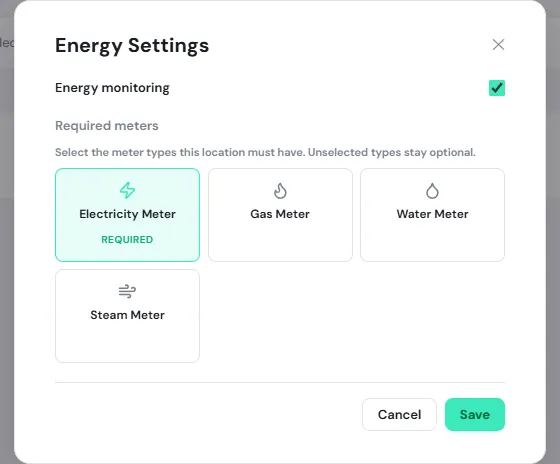
Tick Energy monitoring.
-
Under Required meters, click each commodity this location must have a meter for, for example Electricity Meter. It is marked Required. Types you don’t select stay optional.
-
Click Save.
A commodity marked Required that has no reporting meter brings Coverage below 100% and makes the dashboard warn that totals may be incomplete. Mark a commodity required only where a meter really should be. In the location tree, locations with monitoring turned on are marked Energy enabled.
Bind a meter
Section titled “Bind a meter”-
On the location’s Energy tab, click Bind meter.
-
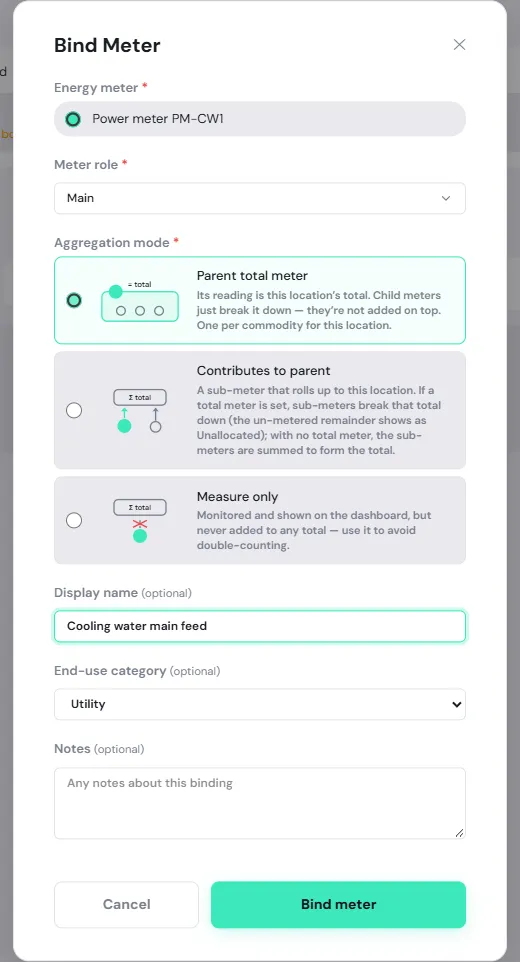
Under Energy meter, pick the meter. The list shows only meters installed at this location that are not bound yet. If there are none, it says “No energy meters are installed at this location. Install or move an energy-meter asset here first.”
-
Choose the Meter role: Main, Sub, Machine, Virtual, Reference or Temporary. The role is a label that says what the meter is; it does not change how totals are added up.
-
Choose the Aggregation mode (see the table below). This is the most important choice, because it decides how the meter counts towards totals.
-
Enter a Display name, for example “Line 3 Main Feed”, and pick an End-use category: Production, Utility, HVAC, Lighting, Office, Renewable or Other. Both are optional, but the category feeds the Energy by end-use chart. Add Notes if you like.
-
Click Bind meter.
Choose the aggregation mode
Section titled “Choose the aggregation mode”| Mode | Use it when | Effect on totals |
|---|---|---|
| Parent total meter | The meter measures everything coming into the location, for example the meter on a building’s main distribution board | Its reading is this location’s total. Child meters only break it down and are not added on top. Whatever they don’t cover shows as Unallocated. One per commodity per location. |
| Contributes to parent | A sub-meter for a machine or zone | If the location has a total meter, sub-meters break that total down. If not, PULSE adds the sub-meters together to make the total. |
| Measure only | You want to see a meter’s values, but it measures something another meter already counts | Shown on the dashboard but never added to any total, so nothing is counted twice. |
PULSE refuses bindings that would count energy twice, for example a second total meter for the same commodity at one location, a meter that is already the total meter of another location, or a meter that already contributes to another location. If the dashboard shows “Sub-meters exceed the total meter”, the sub-meters measured more than the total meter; check that the modes are right.
The location’s Energy tab
Section titled “The location’s Energy tab”A location’s Energy tab has three parts:
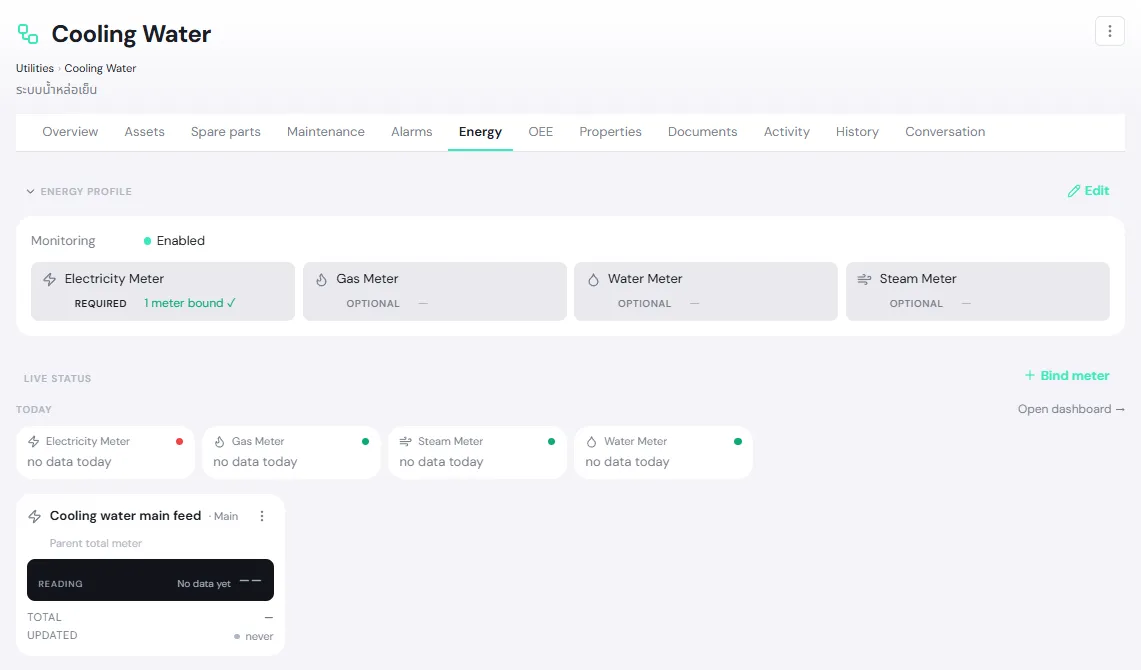
- Energy profile: whether monitoring is on, and for each commodity whether it is Required or Optional, with how many meters are bound (“1 meter bound ✓” or “No meter bound”).
- Today: today’s use for each commodity. Each light shows Coverage. Open dashboard → opens the dashboard.
- Meter cards: the latest value from each meter: Rate (for example kW) or Total (for example kWh), and Updated.
| Meter card | Meaning |
|---|---|
| Green dot | Last reading within 5 minutes |
| Amber dot | Last reading 5–30 minutes old |
| Red dot and STALE | Last reading more than 30 minutes old; check the Edge Device |
| No data yet and never | The meter has never sent a reading |
Click ⋮ on a card to Edit binding (change the role, mode, name, category or notes, but not the meter itself) or Remove binding. Removing cannot be undone. To swap the meter, remove the old binding and bind the new one.
On a phone, the Energy tab appears only on locations with energy monitoring turned on.
Site energy settings
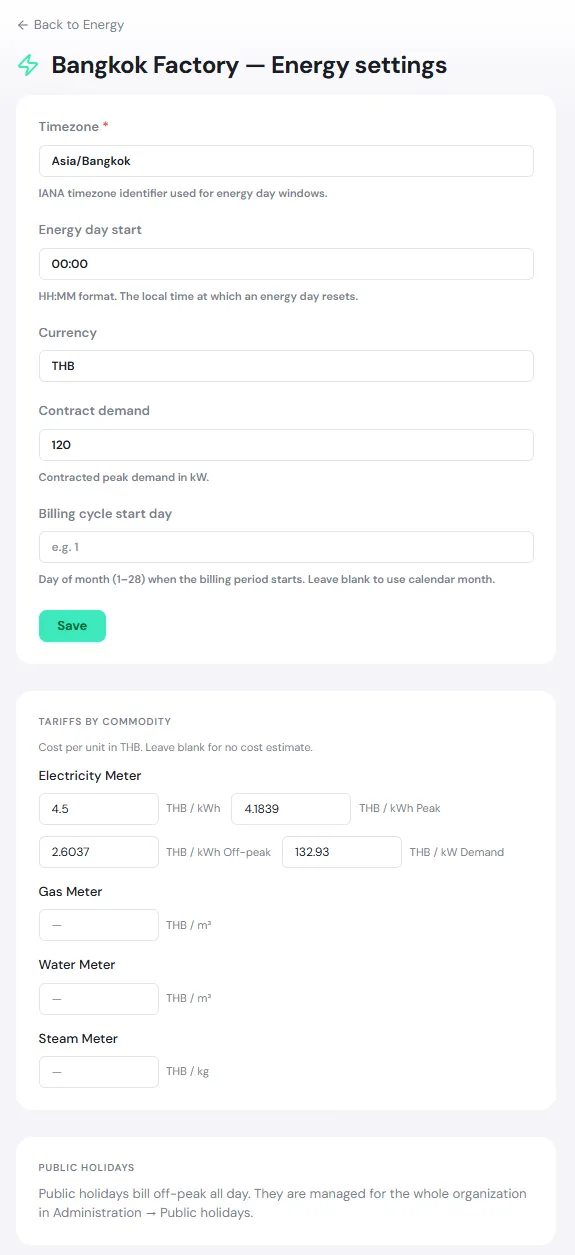
Section titled “Site energy settings”These apply to every location in the site. Open Energy → Settings. The page uses the site you have selected; to set up another site, switch sites first.
| Field | Meaning |
|---|---|
| Timezone | The site’s timezone, for example Asia/Bangkok. Used to cut days and to split on-peak and off-peak hours. |
| Energy day start | When “today” resets, in HH:MM, for example 00:00, or 08:00 if the plant counts days by shift |
| Currency | For example THB |
| Contract demand | The peak demand in your contract with the utility, in kW. Used for the contract line and the 85% and 95% demand warnings. |
| Billing cycle start day | The day of the month (1–28) when the billing period starts, matching the utility’s meter-reading day. Leave blank to use calendar months. |
Change these fields and click Save.
Tariffs by commodity
Section titled “Tariffs by commodity”Tariffs by commodity has one row per commodity. Leave a row blank if you don’t want a cost estimate for it.
| Commodity | Fields |
|---|---|
| Electricity Meter | Flat rate (THB / kWh) · Peak rate (THB / kWh Peak) · Off-peak rate (THB / kWh Off-peak) · Demand rate (THB / kW Demand) |
| Water Meter, Gas Meter | Flat rate (THB / m³) |
| Steam Meter | Flat rate (THB / kg) |
If you enter both a Peak and an Off-peak rate, PULSE charges energy by time-of-use (TOU); otherwise it uses the flat rate. See how it is calculated in Billing. Enter the rates from your utility’s tariff. Ft and VAT are not included in the calculation.
Public holidays
Section titled “Public holidays”Public holidays bill off-peak all day. The list of holidays is managed for the whole organization under Administration → Public holidays.