The asset page
The asset page is the “machine file” of one machine. Technicians check it before a repair, supervisors use it to see how often the machine fails, and admins fill in its specifications. Open it from Assets, from Search, or from a location’s Assets tab.
Before you start
Section titled “Before you start”- Everyone who can view assets can open this page and all its tabs, Viewer included. The Maintenance tab is shown only to people who can view work requests.
- Changing values, setting tags, adding properties and linking live data need Technician or above.
- Available in every plan.
The page header
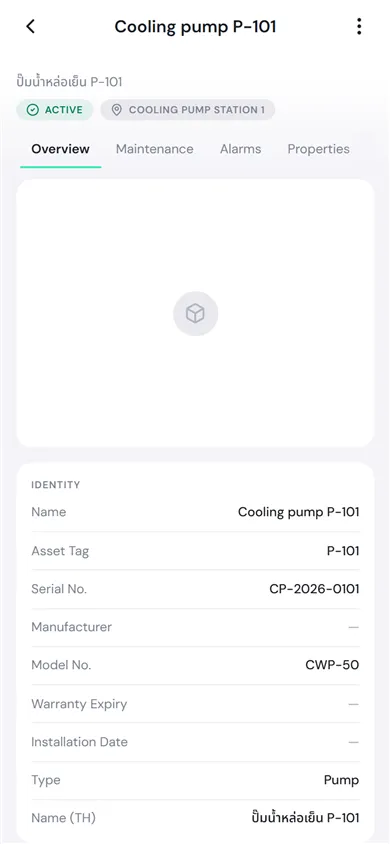
Section titled “The page header”Under the machine’s name are its status and the location where it is installed (or No location assigned). If the machine has active alarms, a label shows how many.
The ⋯ button at the top right (⋮ on a phone) holds the machine’s actions: Change Status, Pin, Edit, and Install or Uninstall. See Assets for how to use them. Pin keeps the machines you look after close at hand.
The tabs
Section titled “The tabs”| Tab | What is on it |
|---|---|
| Overview | The photo, Identity (name, asset tag, serial number, manufacturer, model, warranty expiry, installation date, type), Lifecycle (status, location, created, last updated), a summary of properties, recent activity and the latest document |
| Maintenance | Open work (work requests and work orders not yet closed), Upcoming PM, and the History of closed repairs with problem, cause and downtime. Tap Create work request to report a problem on this machine. |
| Alarms | Active alarms, alarm history and the machine’s alarm rules. See Active alarms. |
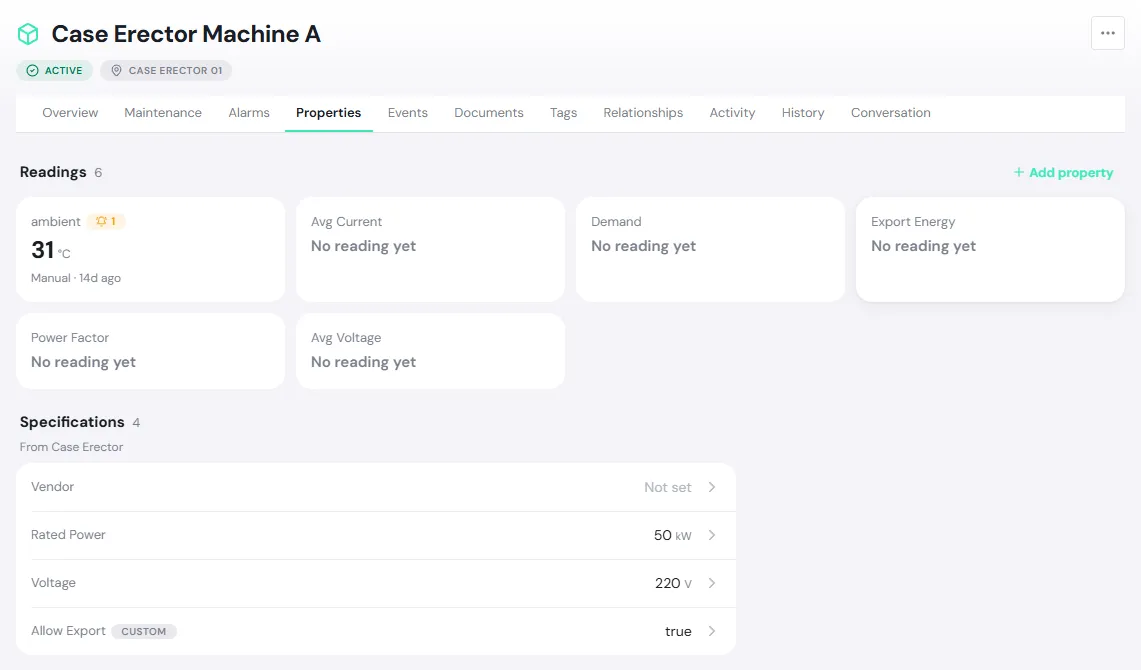
| Properties | The machine’s Readings and Specifications. See the next section. |
| Events | A general log of events on the machine. Tap New Event to record one; filter by status and severity; acknowledge or close events. |
| Documents | Manuals, drawings, warranty papers and other files. Tap Upload Document. See Documents. |
| Tags | Labels for what is true now, such as Criticality. See Set tags. |
| Relationships | Links to other machines that do not depend on location, for example this motor is POWERED BY a given panel, or this pump FEEDS a given tank. |
| Activity | Every change to the machine: who did what, and when. |
| History | Installation history: where it was installed, when it was removed, which machine it replaced, and the meter reading at the time. |
| Conversation | Discuss the machine with your team: start topics, comment, and @mention colleagues. |
Specifications and readings
Section titled “Specifications and readings”The Properties tab has two parts.
- Readings are cards for values that change all the time, such as temperature, current or voltage. Values come from an Edge Device or are recorded by hand. Under each value PULSE shows how fresh it is, such as Manual · 14d ago or No reading yet.
- Specifications are the machine’s fixed values, such as rated power or rated voltage. The heading From … marks the fields that come with the asset type; a Custom label marks a field added to this machine only.
Fill in or change a specification
Section titled “Fill in or change a specification”-
Tap the specification row, for example Rated Power.
-
Enter the new value and save. Tap History on the same panel to see earlier values, who changed them and when.
If the asset type marks some fields as Required and they are empty, the page shows a bar such as 1 required value missing. Tap Fill in and PULSE walks you through them one by one (tap Skip for a value you don’t know yet).
Add a property the type doesn’t have
Section titled “Add a property the type doesn’t have”-
Tap Add property.
-
Type the Property Key (Unique identifier). If your organization already has that property, PULSE reuses it (the label and data type are the same on every machine). If not, enter a Display Label, choose the Data Type and the unit.
-
Tap Add Property.
See the trend, record a reading and link live data
Section titled “See the trend, record a reading and link live data”Tap a reading card to open its details.
- Trend shows the last 24 hours. Tap Open full trend for other periods.
- Record Reading is for values a technician reads off a gauge on their round. Enter the New value, Reading time and a Note, then tap Record Reading. The button appears only for a property set to Allow manual readings in its Measurement settings and not linked to live data. If the new value is lower than the previous one, PULSE still records it and warns you.
- Under Live data, tap Link to connect the property to a signal from an Edge Device: choose the Edge Device, Data Source and Metric, set the scaling and unit, then tap Save Binding. See Edge Devices.
- Alarm rules raise an alarm when the value goes out of range. See Set alarm rules.
Measurement settings (for numeric properties you added yourself) decide whether PULSE keeps readings over time, and what kind of value it is.
| How the value behaves | Use it for |
|---|---|
| Gauge | The latest reading is the value, such as temperature or pressure. |
| Counter | Only goes up; usage is the difference, such as total kWh or run hours. Can drive a usage-based PM schedule. |
Set tags
Section titled “Set tags”-
Open the Tags tab and tap Add tag.
-
Choose the tag from your organization’s list, such as Criticality.
-
Choose or type the value and save. PULSE shows Tag saved.
Tags are grouped as Business, Maintenance and Operational, and you can filter the Asset Registry by them. If the tag you need isn’t in the list, ask your Organization Admin to add it in Administration → Catalog.