Locations
Locations are the map of your factory, from large areas down to the spot where each machine stands. Repair work, alarms and energy all belong to a location. This page is for the admins and supervisors who build the tree, and for everyone who needs to find a machine in it.
Before you start
Section titled “Before you start”- View locations: every built-in user group, limited to the locations your unit is responsible for.
- Edit, move and reorder: Technician and above.
- Add locations, import CSV and decommission: the Supervisor and Site Admin groups.
- Available in every plan. For the location limit of each plan, see the overview.
- Read about location levels, and slots versus containers, in the overview first.
Browse the location tree
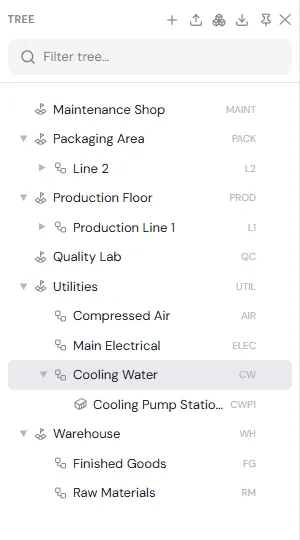
Section titled “Browse the location tree”On a computer, click Location in the left menu. The Tree opens on the left. Tap ▶ to expand a location and click a name to open its page. Type in Filter tree… to find one quickly. The icons above the tree are, from left to right: Add location, Import CSV, Import spare parts, Export CSV, Pin tree (keep the tree open beside the page) and Close tree.
On a phone, tap Location. You see Search locations…, a Needs attention section (places with stopped machines, alarms or open work) and the list of Areas. Tap to go down one level at a time.
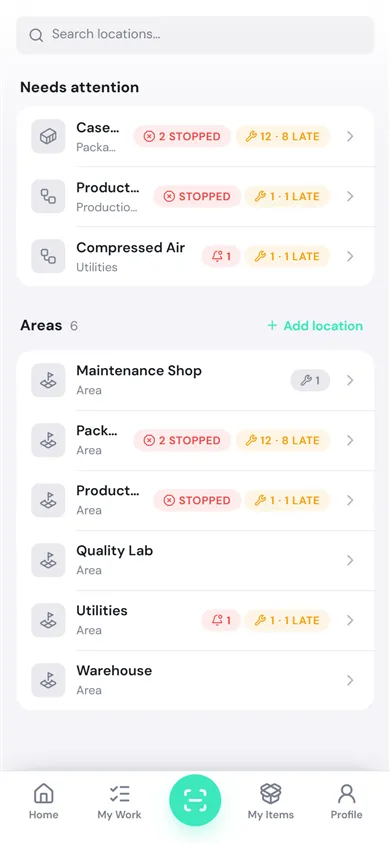
The coloured labels on each row give a quick status: Stopped (machines stopped), a bell (active alarms) and a wrench (open work · how many are late).
The location page
Section titled “The location page”At the top is the location’s path, such as Utilities › Cooling Water › Cooling Pump Station 1, followed by tabs.
| Tab | What is on it |
|---|---|
| Overview | Needs attention (stopped machines, open work, assets in repair) or All clear if nothing is pending; Details (code, level, inside); Sub-locations and Assets here |
| Assets | The machines installed here, with Install asset, Replace and Uninstall. See Assets. |
| Spare parts | The spare parts recommended for this position, with the quantity to keep and what is in stock |
| Maintenance | Open work, upcoming PM and the repair history of this location. Tap Create work request to report a problem here. |
| Alarms | Alarms of the location and of the machines installed in it, and the Follow alarms button. See Active alarms. |
| Energy and OEE | Energy and performance data for this position (Pro plan and up). On a phone they appear only where enabled. |
| Properties | Readings and values of the location; works the same way as on the asset page. |
| Documents | Documents linked to the location. Tap Add document. |
| Activity | Every change to the location |
| History | Installs, removals and swaps at this position, and the Total swaps in the last 365 days |
| Conversation | Discuss this location with your team |
The ⋮ button at the top right (Open actions menu) holds: Pin, Edit, Move…, Move up, Move down, + Add child, Show QR code, Export subtree CSV and Decommission.
Add a location
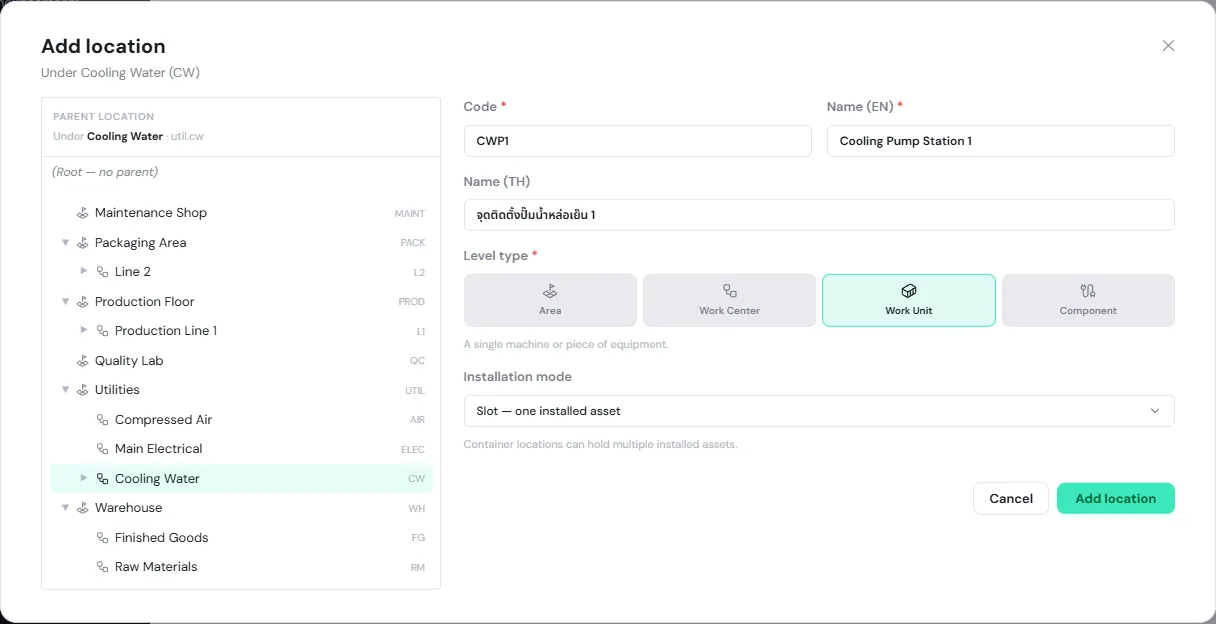
Section titled “Add a location”Example: add the pump position Cooling Pump Station 1 under Cooling Water.
-
Open the parent location (Cooling Water), tap ⋮ and choose + Add child.
Or tap Add location (the + icon on the tree, or the button on the Location page on a phone) and pick the parent yourself. Choose (Root — no parent) for a top-level area.
-
Enter a Code (required), such as CWP1. PULSE turns it into capitals. Use a code no other location in the site has.
-
Enter Name (EN) (required) and Name (TH).
-
Choose the Level type: Area, Work Center, Work Unit or Component. A level bigger than the parent’s cannot be chosen.
-
Choose the Installation mode: Slot — one installed asset or Container — many installed assets. (The form starts on Container; for the spot where a single machine stands, switch to Slot.)
-
Tap Add location.
On a phone, the same form is split into steps: Parent → Level type → Code & name → Mode → Review.
The location page shows the full code, joined to the parent’s code: CW under UTIL shows as UTIL-CW.
Edit, move and reorder
Section titled “Edit, move and reorder”- Edit: tap ⋮ → Edit to change the code, name, Description, level type, installation mode and Cost center (only for people allowed to manage cost centers; left empty, the location inherits its parent’s). Tap Save changes.
- Move: tap ⋮ → Move…, pick the new parent or (Root — no parent), then tap Move here. Sub-locations and the machines installed in them move along. You cannot move a location under itself or under a location of a smaller level.
- Reorder: Move up and Move down change the order among locations at the same level.
Import locations from a CSV file
Section titled “Import locations from a CSV file”Use this to create many locations at once, for example when you first set up a plant. Up to 500 rows per import. Do it on a computer.
Prepare the file
Section titled “Prepare the file”One row per location, with a header row first. Download a template from the import dialog (⬇ Download template CSV).
| Column | Required | What to enter |
|---|---|---|
code |
Yes | The location code. It must not repeat in the file, nor match a location that already exists in the site. |
name |
Yes | The English name |
level_type |
Yes | area, work_center, work_unit or component |
parent_code |
No | The code of the parent location in the same file. Leave it empty for a top-level location. |
name_th |
No | The Thai name |
Example:
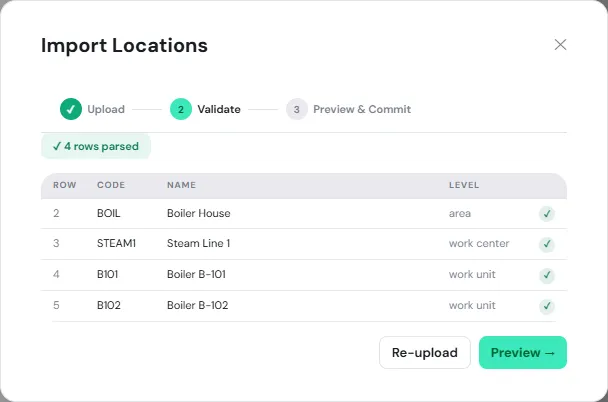
code,name,level_type,parent_code,name_thBOIL,Boiler House,area,,โรงหม้อไอน้ำSTEAM1,Steam Line 1,work_center,BOIL,ไลน์ไอน้ำ 1B101,Boiler B-101,work_unit,STEAM1,หม้อไอน้ำ B-101B102,Boiler B-102,work_unit,STEAM1,หม้อไอน้ำ B-102Import
Section titled “Import”-
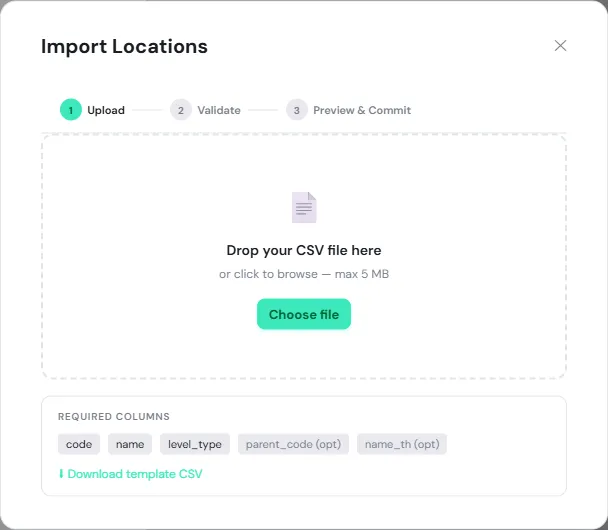
Click the Import CSV icon above the tree. The Import Locations dialog opens at the Upload step.
-
Drop the file in, or click Choose file (up to 5 MB).
-
The Validate step lists every row with its result. If there are errors — must fix, correct the file and tap Re-upload. Warnings alone don’t stop you. Tap Preview →.
-
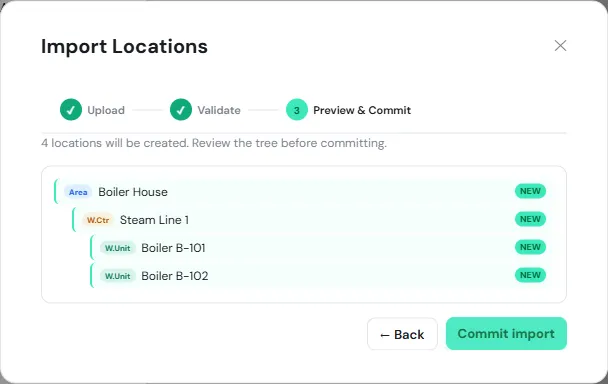
The Preview & Commit step shows the tree that will be created, every row marked NEW. Check each location sits under the right parent, then tap Commit import.
-
PULSE shows Import complete with how many were created and skipped. Tap View locations →.
| Common message | How to fix it |
|---|---|
| Missing required column: … | The row has no value in a required column, or the header is misspelled. |
| Invalid level_type “…” | Use only area, work_center, work_unit or component. |
| Duplicate code “…” — first used in row … | The same code is on two rows of the file. |
| parent_code “…” not found in this file | The parent code is misspelled, or it is not in the file. |
| Code “…” already exists in this site | A location with that code already exists. Change the code or remove the row. |
| Name “…” appears to be all lowercase | A warning only; you can import, but tidy the name. |
Export CSV above the tree downloads the whole site in the same format; Export subtree CSV in the ⋮ menu downloads just that location and the ones below it. Use them as an example file or a backup.
Print a QR code for a machine
Section titled “Print a QR code for a machine”A location QR code lets anyone scan at the machine and report a problem straight away, without searching for the machine’s name.
-
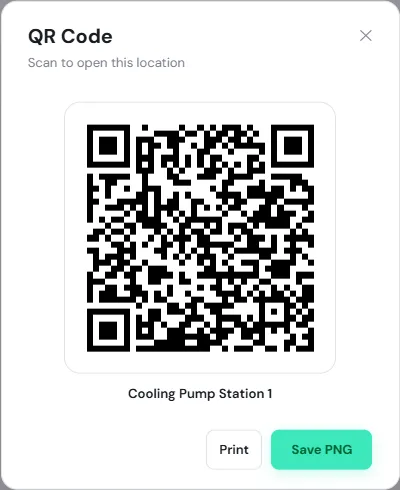
Open the location, such as Cooling Pump Station 1, tap ⋮ and choose Show QR code.
-
Tap Print or Save PNG, then stick the label on the machine or its position. (If the browser blocks the pop-up, allow it before printing.)
The QR code belongs to the location, not to the machine, so the same label keeps working when a new machine is swapped in.
Scan a QR code
Section titled “Scan a QR code”-
On a phone, tap the scan button in the middle of the bottom bar and point the camera at the QR code.
-
PULSE opens a menu for that spot, titled with the machine’s name (if exactly one machine is installed) or the location’s name. Choose:
- Report a problem: opens the work request form with the location and machine already filled in. See Report a breakdown.
- Open work order: shown when there are open work orders, with how many.
- Open record: opens the location page.
The scan button also reads part codes and serial numbers from Inventory. See Inventory.
Decommission a location
Section titled “Decommission a location”Use this when a position is retired for good, for example when a line is dismantled. Decommissioning cannot be undone.
-
First move its sub-locations elsewhere and uninstall any machines still installed there.
-
Tap ⋮ and choose Decommission.
-
Type the phrase shown exactly:
deletefollowed by the location’s name, such asdelete Cooling Pump Station 1, then tap Decommission.
The location disappears from the tree; its repair history and data are kept. Opened from an old link, it shows the banner Decommissioned on … This page is read-only.