AI assistant (Claude)
Connect your Claude app to PULSE once, then just ask, for example “What was repaired on P-101 this month?” Claude looks up the real data in PULSE to answer. This page is for everyone who uses PULSE: technicians, supervisors and managers.
Before you start
Section titled “Before you start”- Plan: the AI assistant (MCP connector) comes with the Enterprise plan or as an add-on for other plans. The plan must be active; it can’t be connected during a trial.
- An Organization Admin turns it on first: in Administration → Integrations, on the MCP connector card, switch on Enable MCP access. See MCP connector (AI apps). Turning it on connects nobody; each person connects their own Claude.
- You need: your own PULSE account and a Claude account (the iPhone or Android app, or claude.ai on a computer).
- Who can use it: everyone in the organization. Claude sees and does only what you can already see and do in PULSE.
What Claude can help with
Section titled “What Claude can help with”Once connected, type or speak to Claude in English or Thai. Claude picks what to look up in PULSE.
| Topic | What you can ask |
|---|---|
| Assets and locations | Find a machine by name or code, see its details, and see what’s in an area. |
| Sensor readings | The latest readings of a machine that has sensors, and their history. |
| Maintenance history | Open work, finished repairs with causes and fixes, problems seen on machines of the same type, and parts likely needed with their stock. |
| Work requests and work orders | Search by machine, area, status or text, including “my work”: work assigned to you or requests you raised. |
| Spare parts and stock | Find parts, see stock on hand, and the spare parts linked to an area or machine. |
| Photos | Machine photos and work photos, only if your organization switched on Share photos with AI apps. Otherwise Claude gives you a link to open the photo in PULSE. |
| Report a breakdown | Describe the problem and let Claude raise a work request in your name. |
| Spatial Twin | Add a machine model to the Spatial Twin catalogue from photos and real dimensions. |
Try asking
- “What was repaired on P-101 this month?”
- “What’s on my work list today?”
- “What are the sensor readings on cooling pump P-101 now, compared with yesterday?”
- “How many work requests in the packing line haven’t been picked up yet?”
- “How many pump shaft seals are left in stock?”
- “Case Erector Machine A is making an unusual noise. Please raise a work request.”
Answers about a job or a machine include an Open in PULSE link; tap it to open that item in the PULSE app.
How Claude reports a breakdown
Section titled “How Claude reports a breakdown”-
Tell Claude which machine has what problem.
-
Claude checks its sensor readings (if it has sensors) and its maintenance history first, then sums up what PULSE already knows, for example whether a request for the same problem is already open. If it’s urgent or unsafe, tell Claude to skip this.
-
Claude always shows you the draft work request first: the machine or location, title, description and priority.
-
Only after you say yes does Claude create the request and tell you its number (for example WR-000024). It then follows the normal Maintenance flow, the same as a request raised in the app.
Connect on your phone (Claude app)
Section titled “Connect on your phone (Claude app)”The pictures in this section are from the Claude app on iPhone, which shows English only. The steps are the same on Android.
-
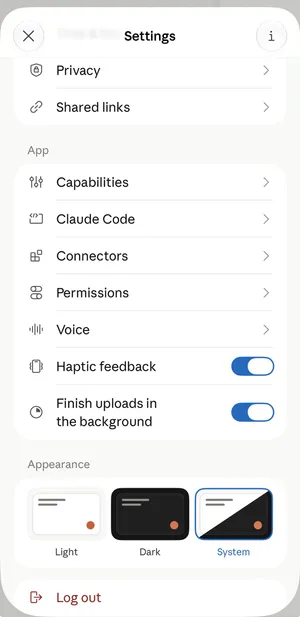
Open the Claude app, go to Settings, and tap Connectors in the App section.
-
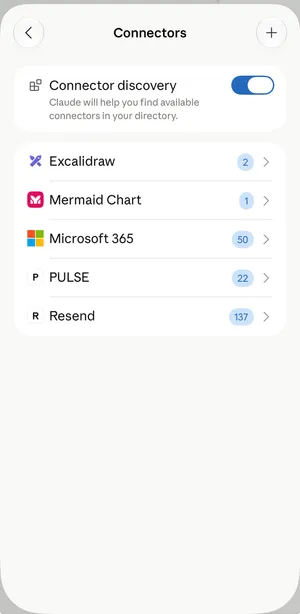
On Connectors, tap the + button at the top right.
-
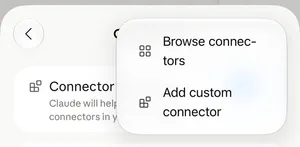
Choose Add custom connector.
-
Name it
PULSE, paste this address into the URL field, then tap Continue.https://app.pulse-i.com/mcp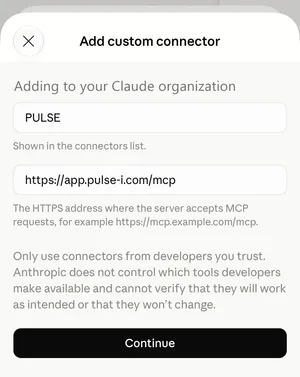
-
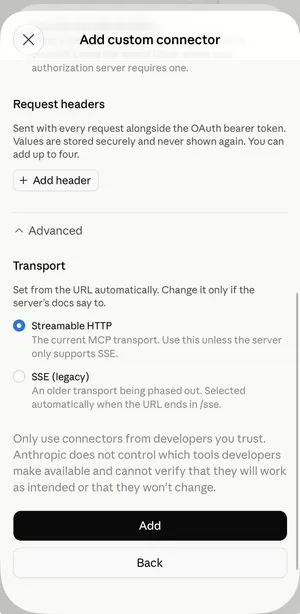
Leave the next screen empty. Under Advanced, keep Transport on Streamable HTTP (the default), then tap Add.
-
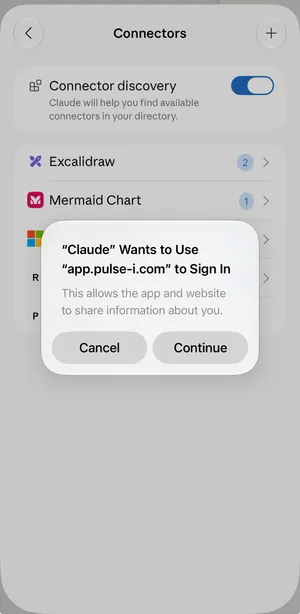
iPhone asks whether “Claude” Wants to Use “app.pulse-i.com” to Sign In. Tap Continue.
-
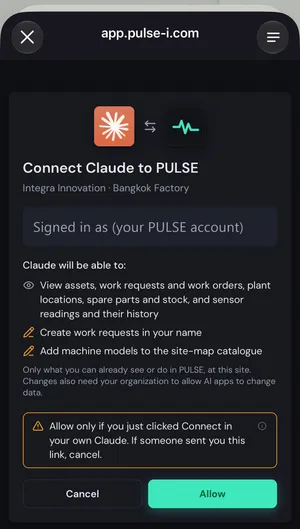
A PULSE page opens. If you aren’t signed in, sign in with your PULSE account. You then see Connect Claude to PULSE. Check three things:
- The organization and site are right. If you work at several sites, pick the Site Claude should see.
- Signed in as shows your own account. If not, tap Not you? Switch account.
- The Claude will be able to: list shows what Claude may see or do.
Then tap Allow.
-
Back in the Claude app, PULSE is in your Connectors list. Start asking.
Connect on a computer (claude.ai)
Section titled “Connect on a computer (claude.ai)”The steps are the same as on the phone.
-
Open claude.ai, go to Settings → Connectors, and choose Add custom connector.
-
Name it
PULSE, paste the URLhttps://app.pulse-i.com/mcp, and click Add. -
A PULSE page opens. Sign in, check the organization, site and account, then click Allow.
The connection belongs to your Claude account, not the device. If you connect on your phone, it normally works on claude.ai too, and the other way round.
Privacy and scope
Section titled “Privacy and scope”- Claude sees what you see: Claude uses your PULSE permissions and only the site you picked when you allowed it. If your access is reduced, Claude sees less straight away.
- Mostly read-only: the only changes Claude can make in PULSE are raising a work request after you confirm and adding a Spatial Twin model after you approve. Both need your organization’s change-data switch.
- Photos: if your organization shares photos, the photos Claude looks at stay in your Claude chat history.
- One connection per app: you have one Claude connection at a time. To change site, connect again and pick the other site; the new connection replaces the old one.
- Admins can cut it off at once: if an Organization Admin switches off Enable MCP access, every connection in the organization is disconnected immediately.
Disconnect
Section titled “Disconnect”You can do it from either side.
- In PULSE: open your personal settings (computer: click your profile picture at the bottom of the left menu; phone: tap your profile picture at the top right) and go to Connected apps. You see Claude with its site, when it was last used and what it can do. Tap Disconnect and confirm. Claude loses access to PULSE immediately.
- In Claude: open Settings → Connectors, tap PULSE, and disconnect or remove the connector.
If it won’t connect
Section titled “If it won’t connect”| Message on the PULSE page | What it means |
|---|---|
| Your organization’s plan doesn’t include the PULSE MCP connector | Your plan doesn’t include the AI assistant. Contact your Organization Admin or the PULSE team. |
| MCP access is turned off for your organization | An Organization Admin hasn’t switched on Enable MCP access yet. |
| This link is invalid or has expired | Go back to Claude and start connecting again. |
If you’re connected but Claude says your organization doesn’t allow photos or changes, Share photos with AI apps or Allow AI apps to change data is off. Ask an Organization Admin to switch it on.