Work orders
A work order is the job a technician actually does. It comes from an accepted request, from a PM schedule, or is created directly. This page is for supervisors who hand out the work and technicians who do it.
Before you start
Section titled “Before you start”- Supervisors and Site Admins can create, approve, assign, reschedule and cancel work orders.
- Technicians can start, pause, change the priority of and complete work orders, but only those where they are on the crew (or in the assigned unit, when no crew is named).
- Available in every plan. The Materials tab works with the Inventory module (Enterprise plan). See Inventory.
Create a work order directly
Section titled “Create a work order directly”Use this when a supervisor already knows what needs doing and there is no request to wait for, such as an improvement or an inspection.
-
Go to Maintenance → Work Orders and tap New work order (on a phone, +).
-
Tap Choose location, then pick an Asset (optional) and a Cost center if you need one (optional).
-
Enter a Title (required) and Description (optional). Choose the Work type (required), Priority and Operational impact (optional). You can attach photos or files.
-
Tap Create work order.
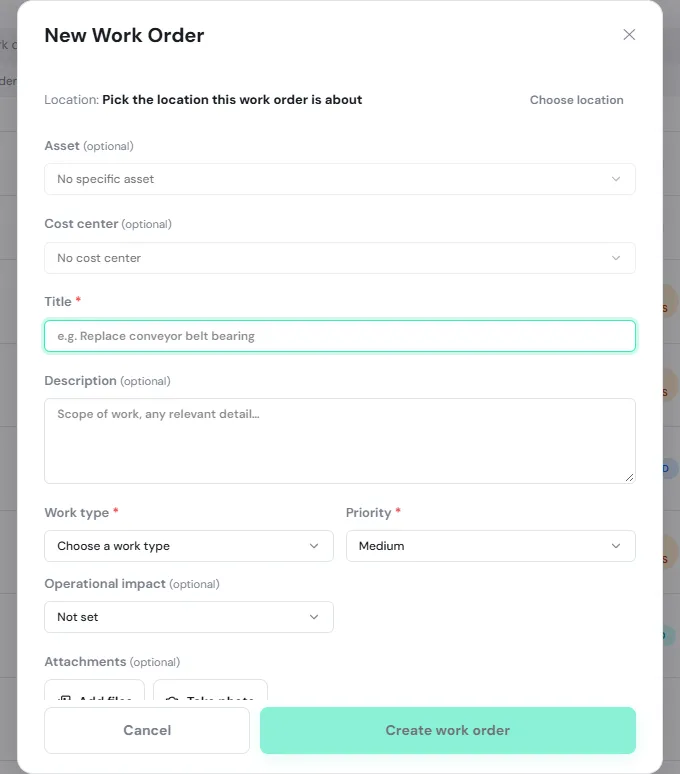
The new work order is Approved and ready to assign, or Pending approval if your site has Require approval before work starts turned on in Settings. In that case people who can approve are notified, and one of them must open the work order and tap Approve first.
Assign the work
Section titled “Assign the work”-
Open a work order with the status Approved and tap Assign.
-
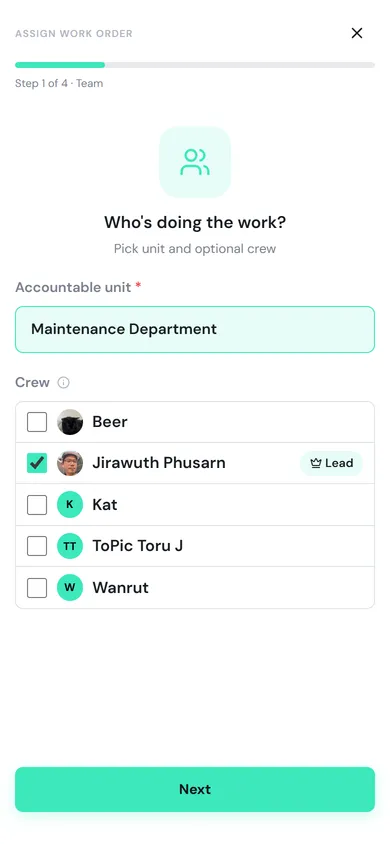
Team: pick the Accountable unit (required), then tick names under Crew. Leave the crew empty to assign everyone in the unit. If you pick several people, tap Make lead on the one accountable for the job. Tap Next.
-
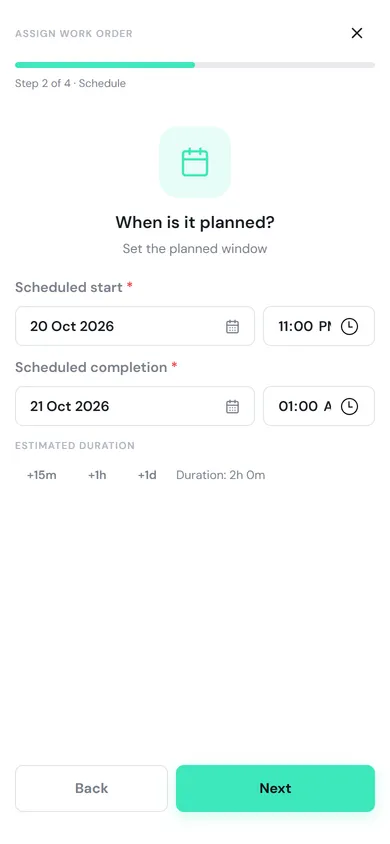
Schedule: set the Scheduled start and Scheduled completion (both required). Tap +15m, +1h or +1d to push the completion time out quickly. Tap Next.
-
Tasks: this step appears only when the work order has tasks. You can hand each task to a crew member (optional).
-
Comment: add a note for the crew (optional, but required when reassigning). Tap Next.
-
Review: check the unit, crew and schedule, then tap Assign.
The work order becomes Assigned. The crew and the requester are notified, and the job appears in the crew’s My Work.
Work from My Work
Section titled “Work from My Work”Technicians start every day in My Work (on a phone it is in the bottom bar). It gathers everything waiting on you: requests to triage, work orders to start or complete, and PM work.
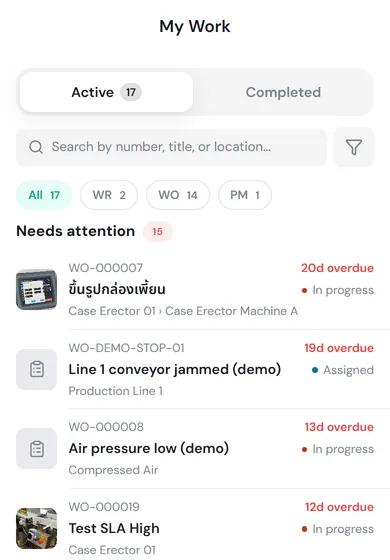
- Active is grouped into Needs attention (overdue or past its response time), Today, Upcoming and My requests (requests you reported).
- Completed shows work closed in the date range you pick.
- Tap the WR, WO or PM chip to see one kind only, or search by number, title or location.
- On a computer, the Action column says what to do next, such as Triage, Assign, Start or Complete.
The order comes from the response SLAs set in Settings: the most urgent work that has waited longest comes first.
Start the job and record the repair
Section titled “Start the job and record the repair”-
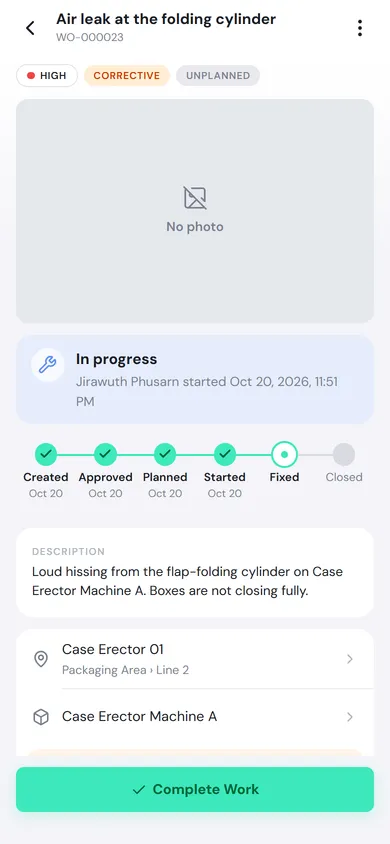
Tap the work order in My Work and tap Start Work. The status becomes In progress and the requester is told that work has started.
-
While you work, scroll down to the tabs:
- Tasks: the checks or steps to do. Tap a task to record its result (done, text, a measurement, or pass/fail), attach evidence, or Skip it with a reason. Tap Task to add a New task, Select from template or My templates.
- Materials: request or use parts for this job. See Inventory.
- Files: tap Add files to attach Before work or After work photos, or other documents.
- Activity: every status change, who made it and when.
- Comment: talk with the supervisor and the requester on the work order.
-
When the repair is done, tap Complete Work. See Complete the job below.
Pause and other actions
Section titled “Pause and other actions”Tap ⋮ at the top right (on a computer, the ⋯ button) to open More actions. What you see depends on the status and your permissions.
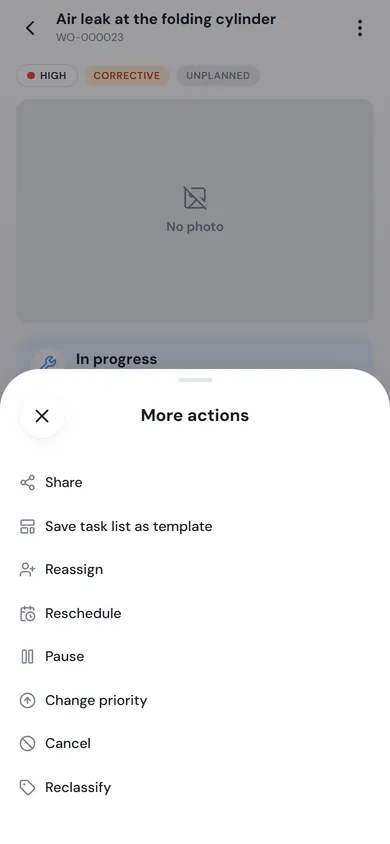
| Action | What it does | Who can |
|---|---|---|
| Pause | Stops work for now. Pick a Hold reason, such as waiting for parts. The status stays On hold until someone taps Resume Work. | The crew |
| Change priority | Raises the priority. Supervisors are notified. | The crew |
| Reassign | Changes the unit, crew or schedule. A comment is required. | Supervisors |
| Reschedule | Moves the planned window without changing who does it. The crew and the requester are notified. | Supervisors |
| Cancel | Stops the work order for good. This cannot be undone. | People who can approve work orders |
| Reclassify | Corrects a wrongly chosen work type. The status does not change. | People who can close work orders |
| Save task list as template | Saves this work order’s tasks to My Task Template | Anyone who can open the work order |
| Share | Copies a link to the work order | Anyone who can open the work order |
Complete the job
Section titled “Complete the job”-
On a work order that is In progress, tap Complete Work. If a required task still has no result, PULSE shows Tasks still require attention. Tap Continue Tasks and record them first.
-
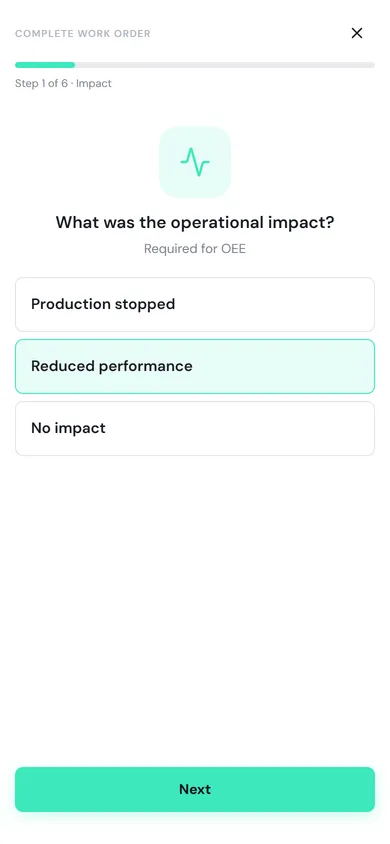
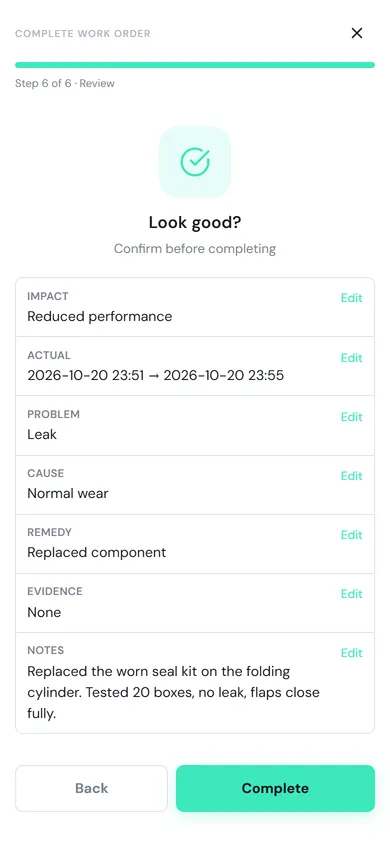
Impact: choose Production stopped, Reduced performance or No impact (required; it feeds OEE). Tap Next.
-
Downtime: this step appears when you chose Production stopped. Enter the Downtime start and Downtime end (required).
-
Actual: check the Actual start and Actual finish. PULSE fills in the time you tapped Start Work and the current time; change them if they are not right.
-
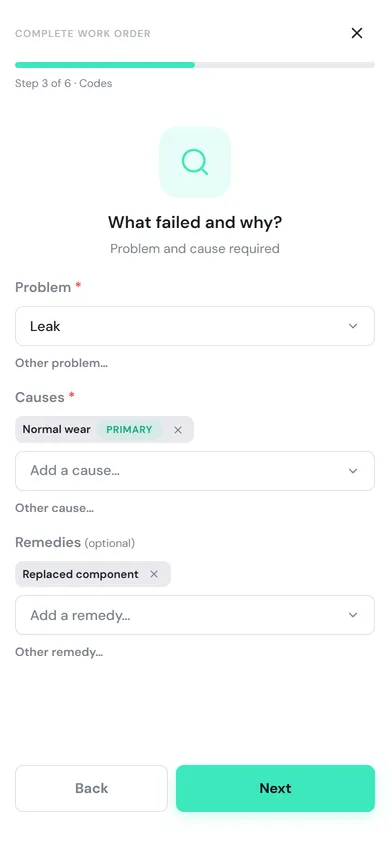
Codes: for Corrective work, pick the Problem (required), at least one Cause (required) and any Remedies (optional). If something is not listed, tap Other problem…, Other cause… or Other remedy… and type it. With several causes, tap one to make it Primary.
-
Evidence: tap Take photo or Choose files to attach after-work photos (optional).
-
Notes: write the Completion notes (required), what you did, for example “Replaced the worn seal kit on the folding cylinder. Tested 20 boxes, no leak.”
-
Material: this step appears when parts you got for the job are not yet recorded as used or returned. Settle them first.
-
Review: check the summary, then tap Complete.
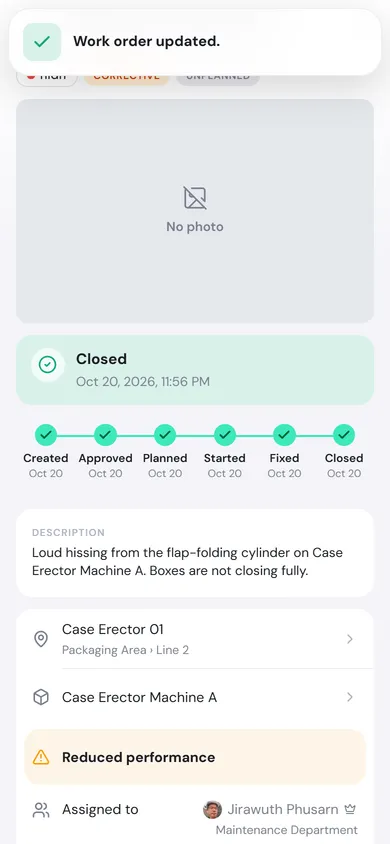
If your site has no review steps, the work order is Closed at once. The original request shows Fixed and closed and the requester is notified.
Review and close
Section titled “Review and close”If the Completion review pipeline is turned on in Settings, a completed work order goes In review and must pass each step in order:
- Requester verification: the requester opens their request and taps Confirm fixed or Not fixed (see Report a breakdown → Verify the fix).
- Manager sign-off: a supervisor who can close work orders opens it and taps Approve or Reject (a Comment is required to reject).
When every step passes, the work order is Closed. If any step is rejected, the work order goes back to In progress, its card shows Sent back for rework, the crew is notified, and the review starts a new round when the job is completed again.