Getting started
This page takes you from creating an account to a team that is ready to work in PULSE. The essentials take about 30 minutes.
Pick your path
- You are the first person at your company to use PULSE. Read on from Create your account to Invite your team.
- Your supervisor or admin sent you an invite code. Skip to Join an existing organization.
Create your account
Section titled “Create your account”-
Open app.pulse-i.com and tap Create an account under the Sign in button.
-
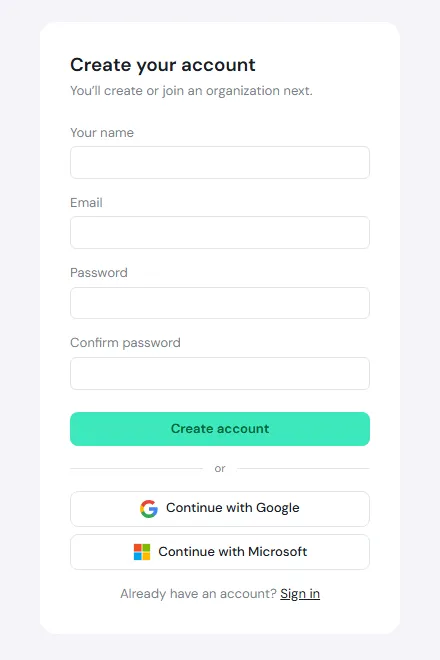
Enter Your name, Email and a Password (at least 8 characters) twice, then tap Create account.
Or tap Continue with Google or Continue with Microsoft to use your existing work account, with no new password.
-
Open the email from PULSE (no-reply@notify.pulse-i.com) and click the verification link. If it isn’t there, check your spam folder or tap Resend the email.
-
Fill in Your details: full name (required), phone and job title (optional). Tap Continue.
-
Read Terms & consent to the end. The tick boxes unlock once you reach the bottom. Tick both, then tap Accept & continue.
-
On Set up your workspace, choose Create an organization, enter the Organization name (your company name, for example) and tap Create.
What you get when you create an organization
Section titled “What you get when you create an organization”- Your first site, named after your organization, on Thailand time.
- You are the Organization Admin, so you see every menu, including Administration.
- Ready-made user groups for site admins, supervisors, technicians and viewers.
- The Free plan, with maintenance ready to use. See your limits and upgrade under Administration → Plan & Usage, or compare plans on the pricing page.
Set up PULSE
Section titled “Set up PULSE”Once your organization exists, the home page shows a Continue setup card with a progress bar, and the left menu shows Getting started. Tap either to open Set up PULSE.
The page groups the work into four parts, done in order. The Recommended next step card always tells you what to do next: tap Start and PULSE takes you straight to the right screen.
| Group | Steps |
|---|---|
| Locations & assets | Create your first location · Create your first asset · Install your first asset to a location |
| Organization | Create your first organization unit · Assign location responsibility to an organization unit |
| People & access | Invite a new user · Add a user to the organization · Add the user to a user group |
| Maintenance | Create your first request · Convert a request to a work order · Create a direct work order · Create a task-library task · Create a PM plan |
Tip for the first step: build your locations from big to small, for example building → area → production line. With many locations, use Import CSV on the Location page to add them in one go.
Invite your team
Section titled “Invite your team”-
Go to Administration → Users and tap Add user.
-
Pick what suits your team:
- Invite with code: tap Generate code, then Copy, and send the code to your team over LINE or email. Everyone signs up with the same code.
- Create user: set up an account with a temporary password for someone who can’t sign up themselves. They choose their own password at first sign-in.
-
When someone asks to join, the Users page shows a join requests waiting banner. Tap Review.
-
Tap Approve, then set:
- Where: the Organization unit (required). Their unit decides which locations they work in.
- What: one or more User groups, such as Technicians or Supervisors.
Then tap Approve & finish.
Join an existing organization
Section titled “Join an existing organization”-
Ask your company’s PULSE admin for an invite code.
-
Create your account using steps 1 to 5 above.
-
On Set up your workspace, choose Join an organization, enter the Invite code and tap Request to join.
-
You’ll see Waiting for approval. When your admin approves, PULSE takes you in by itself; there’s no need to refresh.
Use it on your phone
Section titled “Use it on your phone”PULSE works in your phone’s browser straight away, with no App Store or Play Store download. Add it to your home screen so it opens like an app and can send you notifications.
- iPhone (Safari): open app.pulse-i.com, tap Share, then Add to Home Screen.
- Android (Chrome): open app.pulse-i.com, tap the ⋮ menu, then Install app or Add to Home screen.
On a phone, the bottom bar has Home, My Work, Scan (scan the QR code on a machine) and Profile.
Change the language
Section titled “Change the language”- Before you sign in: tap TH | EN at the top right.
- Computer: click your profile picture at the bottom of the left menu, then Language.
- Phone: tap your profile picture at the top right, then Language.
PULSE saves your choice to your account, so every device uses the same language.