Get parts
This page is for technicians and anyone who needs parts on the job. You request parts from the work order in a few taps, the store prepares them, and they stay in My Items until you record that you used them or return them.
Before you start
Section titled “Before you start”- You need the right to request material. The Technician, Supervisor and Site Admin groups have it; Viewer does not.
- Inventory is in the Enterprise plan.
- The part must be in the Parts catalogue and have Serviceable stock in a store you can reach.
Request parts for a work order
Section titled “Request parts for a work order”When the part is for a repair, always start from the work order. The request is linked to it for you, and the cost lands on that work order.
-
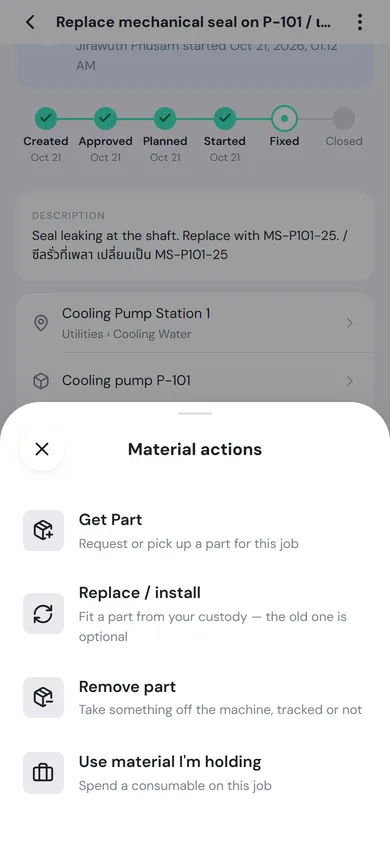
Open the work order, for example WO-000025, tap the Materials tab, tap the Material button, then choose Get Part.
-
Type a part number or name in Search a part…, for example
MS-P101. Each result shows how many are available and in how many stores. Tap the part, then tap Add to cart. -
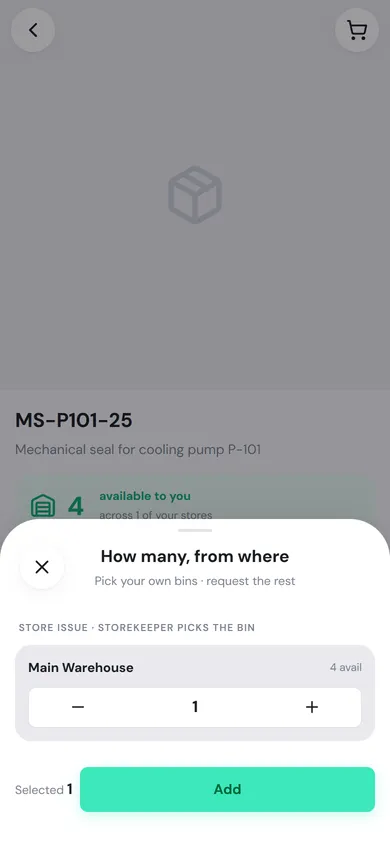
The How many, from where sheet lists the stores that have it. Press + to set the quantity from the store you want, then tap Add.
- Self-service · pick the bin is a store that is open to you. You pick the bin and take the part right away.
- Store issue · storekeeper picks the bin is a store with a keeper. PULSE sends a request for the keeper to prepare.
-
Add any other parts you need, then tap the cart icon at the top right, check the list and tap Checkout · 1 parts.
-
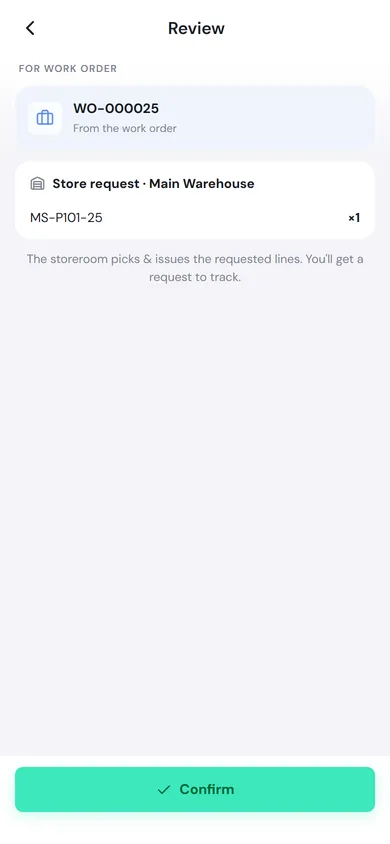
The Review page shows the linked work order under For work order, and splits the lines into Ready to take now (self-service) and Store request. Tap Confirm.
The Got it page tells you how many items are already in your toolbox and how many are on request, with the request number, for example MR-000009.
- If nothing on the request needs approval, it is Approved at once and the keepers are told to prepare it.
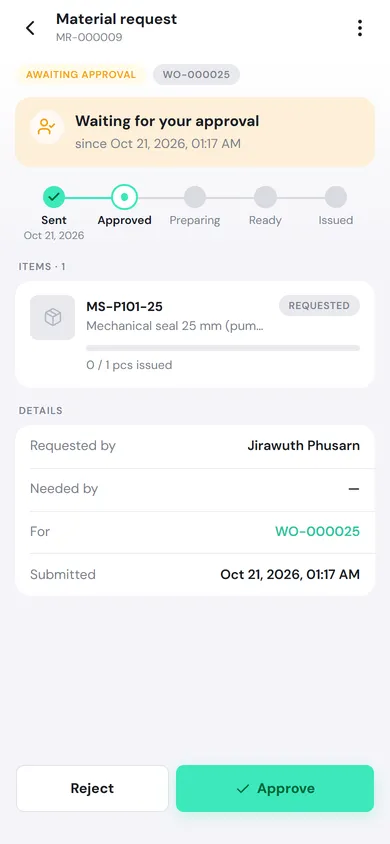
- If any line has a control policy that needs approval, the whole request is Awaiting approval and your approver is notified.
Track your request
Section titled “Track your request”You can follow a request in three places: the My requests card in My Items, Inventory → Material Requests (the My requests queue), or by tapping the request number on the Got it page.
The request page has a five-step progress bar: Sent → Approved → Preparing → Ready → Issued, and the card at the top says what it is waiting for, such as Waiting for approval, The store is preparing your parts or Ready to pick with the place to collect from.
- You are notified when the request is approved, rejected, or issued.
- Changed your mind? Tap ⋮ and choose Cancel request (on a computer it is a button on the page) as long as nothing has been issued yet. Any reserved stock is released.
- If the card says No approver, you have no manager set up in PULSE. Ask your PULSE admin to set your Reports to.
What every status means is on the Inventory overview.
What you’re holding
Section titled “What you’re holding”When a keeper issues your parts (or you take them yourself from an open store), they go into My Items. On a phone, tap My Items in the bottom bar; on a computer, go to Inventory → My Items.
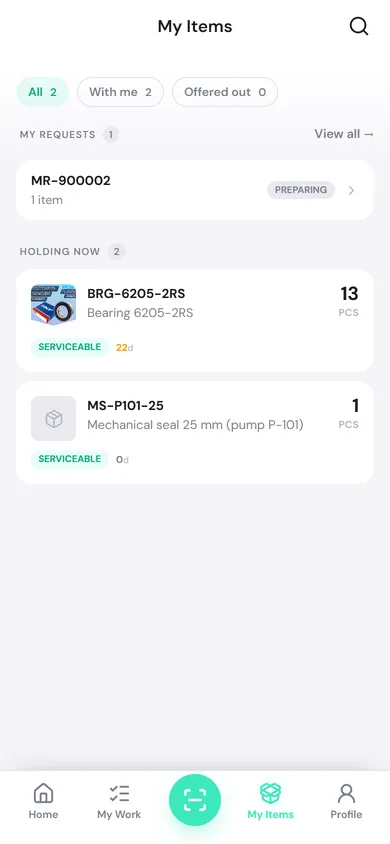
- Holding now shows the quantity, state and how long you have held each item. Supervisors can see anything held for more than 30 days.
- Offered to me lists material a colleague wants to hand you. Tap Accept or Decline.
Return material or give it to a colleague
Section titled “Return material or give it to a colleague”-
In My Items, tap the item.
-
Choose Return to store and pick the store, or Give to someone and pick the person.
-
Set the Quantity, add a Note if needed, and tap the confirm button at the bottom, which says what goes where or to whom.
- Returned material waits at the store for a keeper to put it away. If the part’s policy has Inspect returns on, it stays Pending inspection until a keeper inspects it.
- Giving: your colleague has to tap Accept before it becomes theirs. Until then it is still your responsibility and shows under Offered out. Withdraw it with Cancel hand-off.
Use parts on a work order
Section titled “Use parts on a work order”Record usage from the work order’s Materials tab. Tap the Material button and choose what you did.
| Option | Use it when |
|---|---|
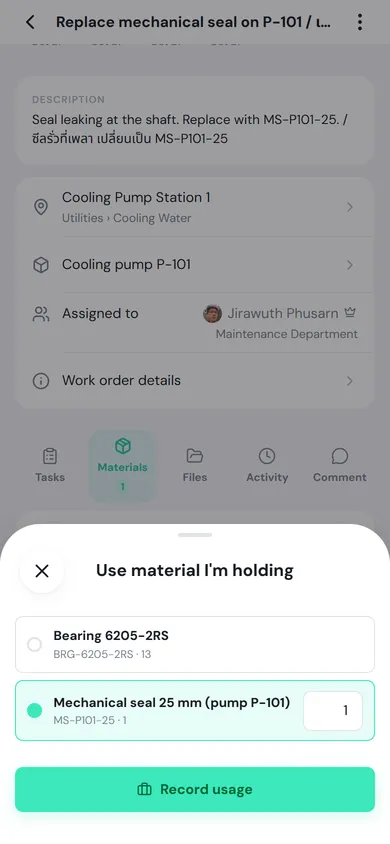
| Use material I’m holding | You spent a consumable, such as a seal, grease or bolts, from what you hold |
| Replace / install | You fitted an installable part from your custody to the machine. Then say what happened to the old one: Return for inspection, Discarded on the spot, or Skip |
| Remove part | You took something off the machine, whether or not it is in the system. It goes into your custody as pending inspection; return it to the store to be inspected |
-
Tap Use material I’m holding, pick the item, for example Mechanical seal 25 mm (pump P-101), and enter the quantity used.
-
Tap Record usage.
How parts show up on the work order
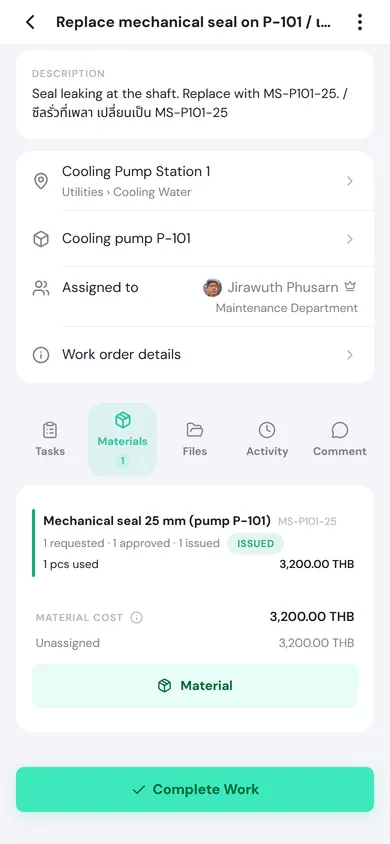
Section titled “How parts show up on the work order”The work order’s Materials tab (see Work orders) lists every part on the job, two lines each:
- The get line: how many were requested, approved and issued. A to issue pill means the store still owes some; an issued pill means it is all handed over. Parts used from your own stock without a request on this job show not requested here.
- The use line: how much was used or installed, and its cost.
- Material cost counts only what was used or installed on this job; material handed out and returned costs nothing. Below it, the cost is split by cost center. The same figures feed Maintenance → Spend.
Before you complete the work
Section titled “Before you complete the work”When a technician taps Complete Work and still holds issued material that has not been recorded as used or returned, the Material step asks what was used and what is coming back. See Work orders.