Notifications and LINE
PULSE notifies the right people through the in-app bell, push notifications on phones and browsers, and LINE. This page is for admins who decide who gets notified and connect LINE for the plant.
Before you start
Section titled “Before you start”- Notification rules and the MCP connector: Organization Admins only.
- A site’s LINE Official Account: Site Admins (for the sites they manage) and Organization Admins.
- Linking your own LINE account: everyone, once their site has LINE connected.
- LINE and notification rules are in every plan. The MCP connector comes with Enterprise or as an add-on for other plans.
- You need the plant’s LINE Official Account and access to that account in the LINE Developers Console.
Who gets notified
Section titled “Who gets notified”Notifications reach people in two ways, at the same time:
- People PULSE always notifies: those directly involved, such as the requester, the assigned technicians and the approvers who must decide. Nothing to set up.
- People added by notification rules: extra recipients an admin chooses, for example the head of a department for every new work order on their lines.
The person who made a change isn’t notified about their own action, and each person gets one notification per event even when several rules match.
Notification rules
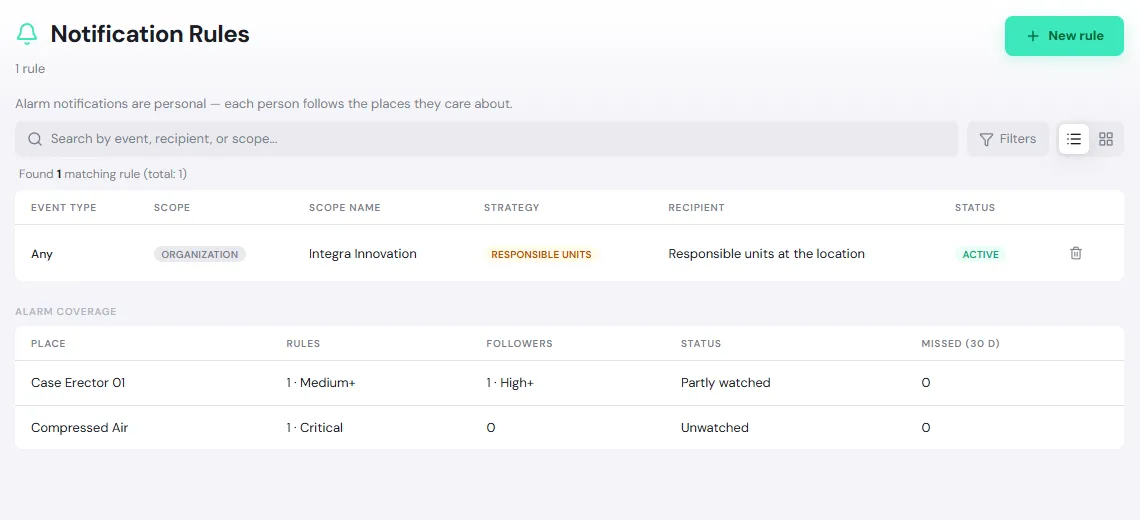
Section titled “Notification rules”Open Administration → Notification Rules. Every organization starts with one rule: event type Any, scope Organization, strategy Responsible units. So every event notifies everyone in the org units responsible for the event’s location; that’s why responsible areas should be set for your units. See Set a unit’s area.
Add a rule
Section titled “Add a rule”-
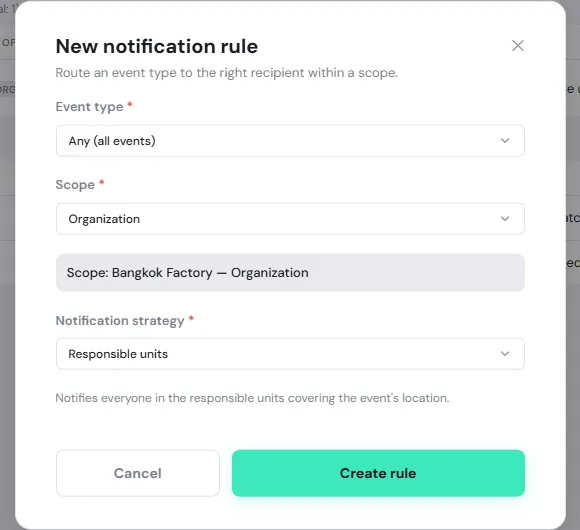
Tap New rule.
-
Choose the Event type, such as a new work order, a work request past its SLA, a purchase request awaiting approval, or Any (all events).
-
Choose the Scope: Organization, Site (current site) or Location (the rule covers that location and everything under it).
-
Choose the Notification strategy, then the recipient:
Strategy Who is notified Direct user One person you pick Org unit Everyone in the unit you pick, including its child units Responsible units Everyone in the units responsible for the event’s location Role Everyone with that role whose area covers the event’s location -
Tap Create rule.
Tap the badge in the Status column to turn a rule off or on, or tap the bin icon to delete it (this can’t be undone).
Alarm coverage
Section titled “Alarm coverage”At the bottom of the page, Alarm coverage lists places that have alarm rules, with their number of Followers and Missed (30 d): alarms raised there that reached nobody.
- Unwatched: nobody follows this place, so alarms go unnoticed.
- Partly watched: some people follow it, but only at a higher severity than some of its rules, for example a Medium rule while everyone follows High and above.
Places where every rule reaches a follower aren’t listed. When every place is covered, the page says Every place with alarm rules has followers. Alarm rules nobody can follow are rules on a data source that isn’t bound to an asset at a location yet.
Agree with your team who should follow the places listed. Following is personal; an admin can’t follow on someone else’s behalf.
Connect a site’s LINE Official Account
Section titled “Connect a site’s LINE Official Account”Each site can connect one LINE Official Account of its own. PULSE then sends alarms, work assigned to people, approvals waiting on them and overdue work to the LINE of everyone who has linked their account.
Prepare in LINE
Section titled “Prepare in LINE”-
In LINE Official Account Manager, turn on the Messaging API for the account.
-
In the LINE Developers Console, open the account’s channel. Under Basic settings, copy the Channel secret.
-
On the Messaging API tab, issue a long-lived Channel access token and copy it.
Set it up in PULSE
Section titled “Set it up in PULSE”-
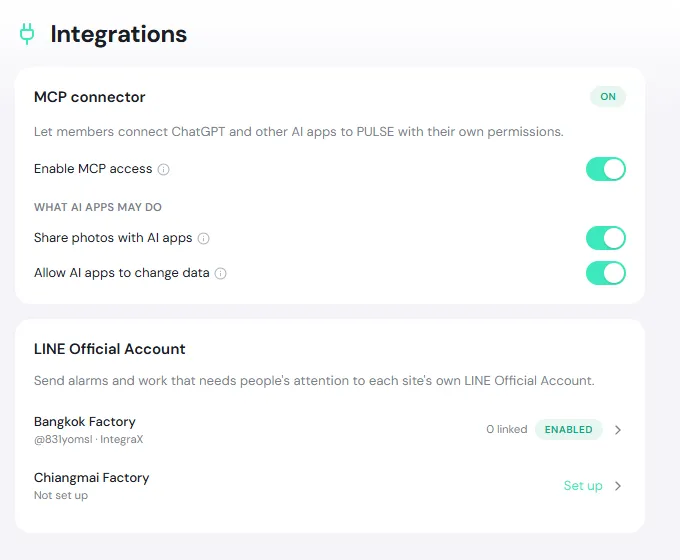
Open Administration → Integrations. On the LINE Official Account card, tap the site that says Not set up, then Set up.
-
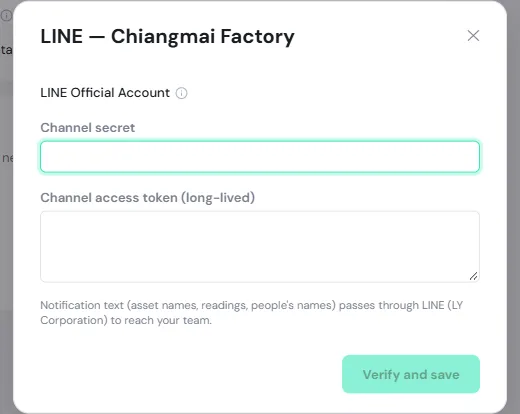
Paste the Channel secret and the Channel access token (long-lived), and tap Verify and save. PULSE checks them with LINE straight away and fills in the webhook URL on the LINE account itself.
-
Do the two items under Required setup in LINE:
- Turn on “Use webhook” in the LINE Developers Console, Messaging API tab. (PULSE has already entered the URL; you only flip the switch.)
- Turn off auto-response and greeting messages in LINE Official Account Manager → Response settings. If they stay on, people get LINE’s canned reply next to PULSE’s.
-
Back in PULSE, tap Check again until it says Setup verified.
-
Turn on Send notifications through this account. The site’s status becomes Enabled.
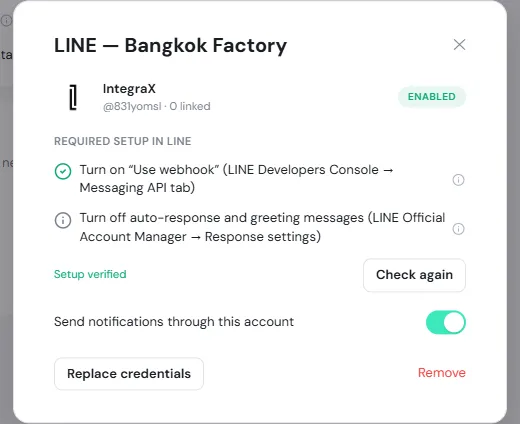
Then ask your team to link their own LINE. The card shows how many people are linked.
| Status | Meaning |
|---|---|
| Enabled | Notifications are going out through LINE |
| Disabled | Connected, but sending is off; users see Paused by site admin |
| Credentials invalid | LINE no longer accepts the saved token (for example, it was reissued). Tap Replace credentials and paste a new one |
Link your LINE account
Section titled “Link your LINE account”Anyone can do this once an admin has connected LINE for their site.
-
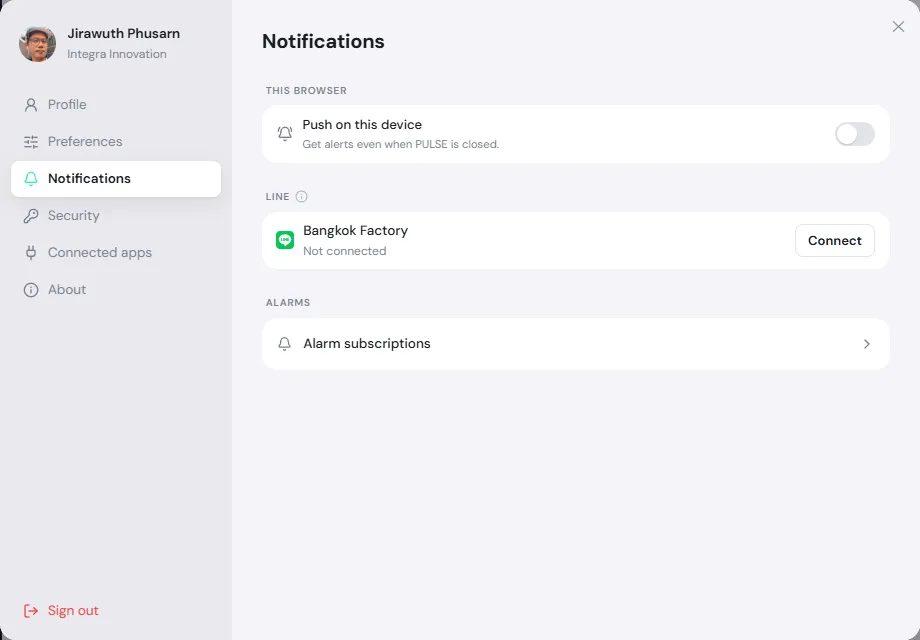
Open Settings from your profile picture (on a computer, click your profile picture at the bottom of the left menu and choose Settings), then go to Notifications.
-
On your site’s LINE row, tap Connect.
-
On a phone: tap Open LINE, then tap Send in the plant account’s chat. On a computer: scan the QR code with LINE on your phone, then tap Send. If LINE asks, add the plant account as a friend first.
You can also send the code shown on screen to the plant account yourself. The code is short-lived and renews by itself (the screen shows New code in … s); always use the latest one.
-
The screen shows Connected as … with your LINE name.
| Status on your LINE row | Meaning |
|---|---|
| Not connected | Tap Connect |
| Connected as … | You receive notifications in LINE |
| Not receiving — add or unblock … in LINE | You haven’t added the plant account as a friend, or you blocked it. Tap Open LINE and add it |
| Paused by site admin | The site has turned LINE sending off |
To stop LINE notifications, tap Disconnect; you still get notifications in the app. If you see no LINE row at all, your site hasn’t connected LINE yet.
MCP connector (AI apps)
Section titled “MCP connector (AI apps)”The MCP connector card on the Integrations page lets members connect ChatGPT, Claude and other AI apps to PULSE with their own permissions. An AI app sees only what that person can see in PULSE.
- Enable MCP access: makes it available to the organization. Turning it on connects nobody; each member chooses to connect their own apps. Turning it off disconnects every MCP connection in the organization immediately.
- Share photos with AI apps: AI apps may look at small versions of asset and work photos the member can already see; the photos then stay in that app’s chat history. When off, AI apps get text only, with a link to open the photo in PULSE.
- Allow AI apps to change data: AI apps may create or update records for the member, within that member’s permissions, for example raise a work request after the user confirms.
If your plan doesn’t include MCP, the card says Not included; contact the PULSE team to add it.