Set up OEE
This page is for supervisors and site admins who start measuring a machine’s OEE. You do it once per machine; after that PULSE keeps calculating on its own.
Before you start
Section titled “Before you start”- Bind channels, change a location’s OEE settings, and set up code rules: the Supervisor and Site Admin groups (and organization admins).
- Add or edit reasons, and edit machine states: organization admins only, because they are shared by every site.
- Plan: Pro or Enterprise.
- Needed first: the machine’s location in the plant tree, and an Edge Device connected to the machine’s PLC that has declared its OEE channels to your site. See Edge Devices.
Open setup from Performance → OEE Configuration. It has four tabs: Channels, Reasons, Code rules and Machine states. It sets up the site you have selected.
Bind a channel to a location
Section titled “Bind a channel to a location”You don’t create channels. When an Edge Device declares a channel, it appears on the Channels tab by itself, with its External ID, Name, Capabilities (State is the machine state, Counters the part counters), Binding and Last declared.
-
Go to Performance → OEE Configuration, Channels tab.
Or open the machine’s location page, OEE tab, and click Bind an edge channel; PULSE then picks that location for you.
-
On a channel marked Unbound, click Bind.
-
Choose the machine’s Location and click Bind.
-
Open that location’s page, OEE tab, and click the gear button (OEE settings). Fill it in as described in the next section and click Save.
What happens next: data the channel sent before you bound it is kept and starts counting toward the location from the moment you bind. PULSE recalculates within about a minute, and a mint dot appears after the location’s name in the tree (OEE monitored).
- Rebind: to move a channel to another location. History before that moment stays with the old location; new data counts toward the new one.
- Unbind: history up to now stays with the location; new readings don’t count anywhere until the channel is bound again.
- A Seq conflict badge means two messages arrived with the same number but different content, for example two Edge Devices set up with the same configuration. Ask whoever looks after the Edge Devices to check.
Set the cycle time and schedule
Section titled “Set the cycle time and schedule”On the location page, OEE tab, click the gear button. The OEE settings window opens.
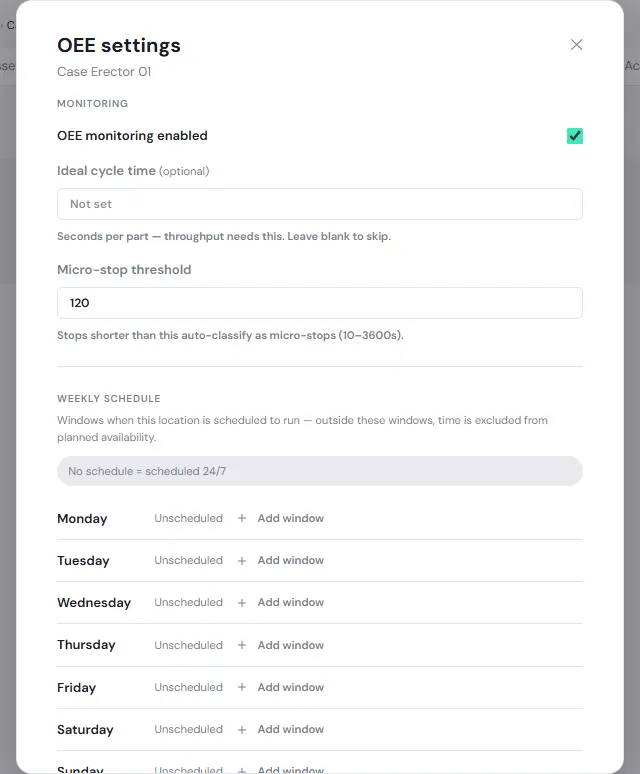
| Field | What to enter |
|---|---|
| OEE monitoring enabled | Keep it ticked so PULSE calculates OEE for this location. |
| Ideal cycle time | Seconds per part when the machine runs at full speed, for example 2.5. Left blank, PULSE can’t calculate Throughput or OEE (the card says no cycle time configured). |
| Micro-stop threshold | Stops shorter than this count as micro-stops and don’t lower Availability. 10–3600 seconds; the default is 120. |
| Weekly schedule | The windows when the location is planned to run, per day. Time outside the windows is left out of Availability. With no schedule at all, it is planned to run 24 hours a day, every day. |
Add a shift: on the day you want, click Add window and enter the start and end time. A day can have several windows (50 in total at most). An end time of 00:00 means midnight.
Click Save. The cycle time applies to the numbers for every range straight away. When you change the micro-stop threshold or the schedule, PULSE recalculates the last 7 days within about a minute; older data stays as it was.
For plant-wide stops, such as an annual shutdown, use Administration → Planned shutdowns. PULSE takes that time out of planned time by itself, so you don’t need to change the weekly schedule.
Set up downtime reasons
Section titled “Set up downtime reasons”Reasons such as a changeover, a material shortage or a jammed case are the choices technicians click when they assign a reason, and the reasons code rules use. Reasons are shared by the whole organization.
-
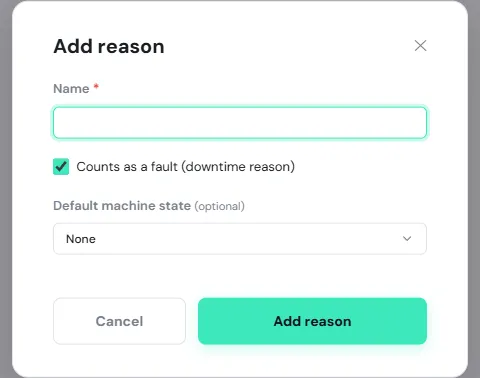
Go to Performance → OEE Configuration, Reasons tab, and click Add reason.
-
Enter a Name technicians recognize at once, such as “Changeover”.
-
Tick Counts as a fault (downtime reason) if the reason is a machine fault. Untick it if it isn’t, as for a changeover.
-
Choose a Default machine state (optional). If stops with this reason are planned, such as a changeover, choose Planned stop; that time then doesn’t lower Availability.
-
Click Add reason.
When you Edit a reason you can also set its Severity and Parent reason (to group reasons), and switch off a reason you no longer use with Active. Micro stop is a system reason, shown with a lock; its name can’t be changed.
Let PULSE assign reasons from machine codes
Section titled “Let PULSE assign reasons from machine codes”If the PLC also sends a stop code, such as E-14 when material runs out, set up a code rule and PULSE fills in the reason every time, so technicians don’t have to.
-
Go to the Code rules tab and click Add rule.
-
Enter the Code exactly as the machine sends it, and choose the Reason.
-
Choose a Location if the code means something only on one machine, or leave it blank for Site-wide.
-
Click Add rule.
If the same code has both a location rule and a site-wide rule, the location rule wins. If the rule’s reason has a Default machine state, the stop also moves to that state. Each code can have only one rule (PULSE says That code already has a rule). After you Remove rule, new readings with that code are no longer classified automatically.
When you add or remove a rule, PULSE reclassifies the last 7 days within about a minute.
Machine states
Section titled “Machine states”The Machine states tab lists the five states PULSE uses across the organization, with the flags that drive the calculation.
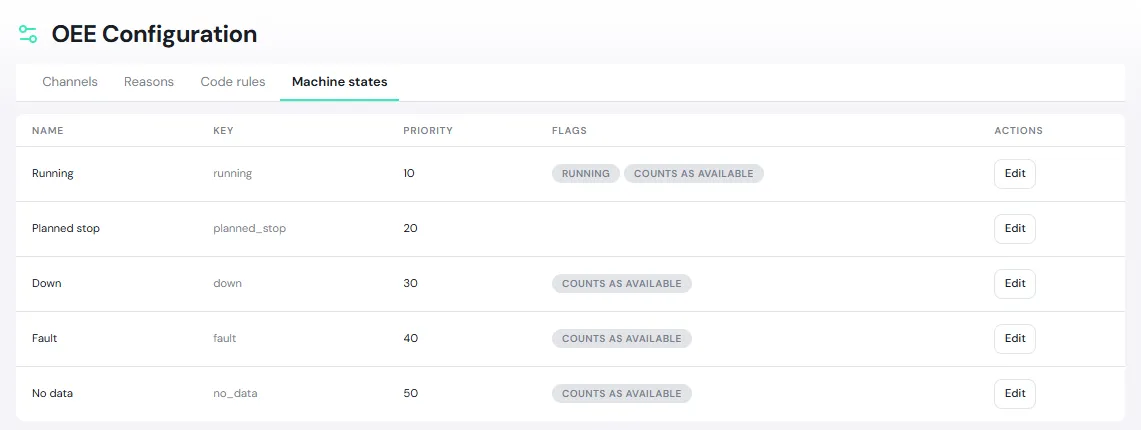
- Running: counts as running time.
- Counts as available: time in this state is part of the time the machine should run. The state without this flag (Planned stop) is taken out.
Organization admins can Edit only the Name and Priority; the flags can’t be changed.