Plan and track work
This page is for supervisors and maintenance managers. Use these screens to see where work is stuck, schedule your team’s time and set the rules for your site. They work best on a computer.
Before you start
Section titled “Before you start”| Menu | Who sees it |
|---|---|
| Dashboard, Calendar, Timeline | Anyone who can view work orders |
| Spend | Supervisor and Site Admin (permission to view maintenance spend) |
| Settings | Supervisor and Site Admin (permission to manage maintenance settings) |
Available in every plan. The figures on Spend come from material issued to work orders through Inventory (Enterprise plan).
Dashboard
Section titled “Dashboard”Maintenance → Dashboard answers “what do I need to chase today?”
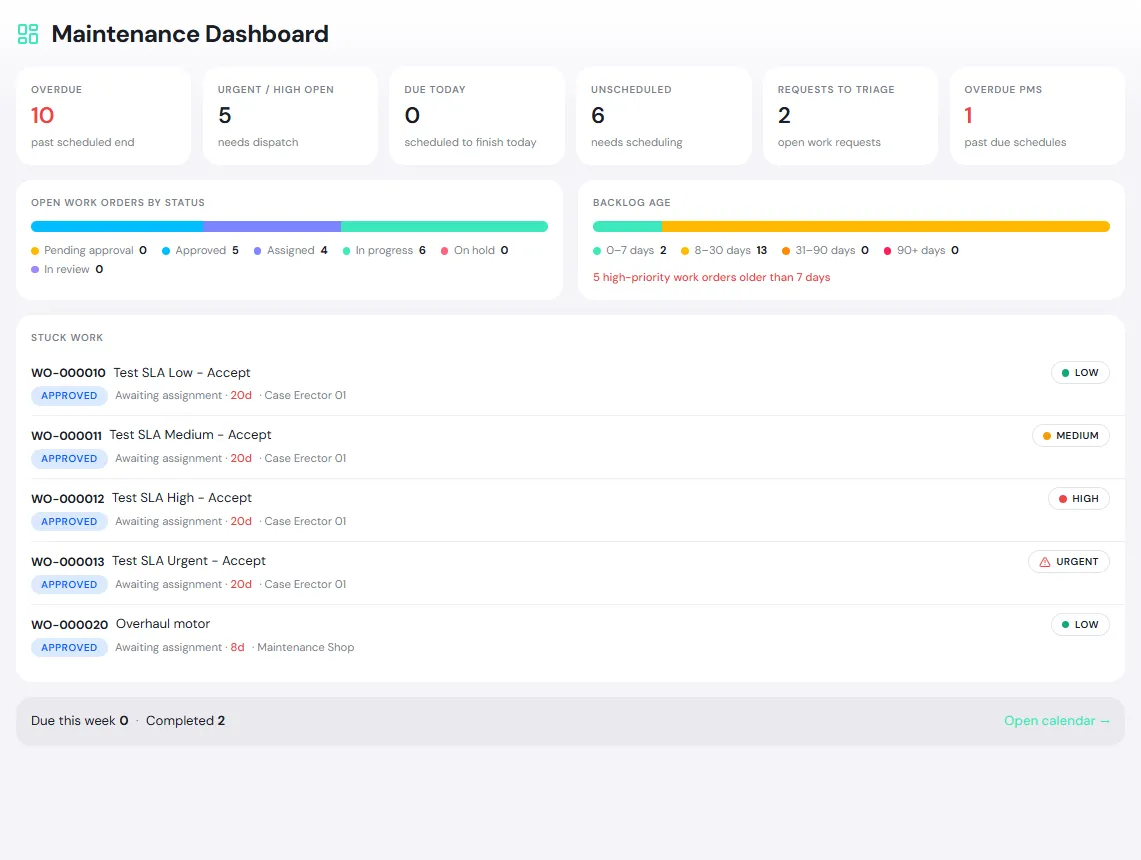
- Top figures: Overdue (past scheduled end), Urgent / High open, Due today, Unscheduled, Requests to triage and Overdue PMs.
- Open work orders by status: which stage most work is waiting at.
- Backlog age: how long open work has been open (0–7 days up to 90+ days), with a warning for high-priority work older than 7 days.
- Stuck work: the work that has waited longest and what it waits for, such as Awaiting assignment. Click one to open it.
Calendar
Section titled “Calendar”Maintenance → Calendar shows work orders on their planned time, and upcoming PM. View by Month, Week or Day, and filter to All, My unit, Me, Unassigned or a chosen person.
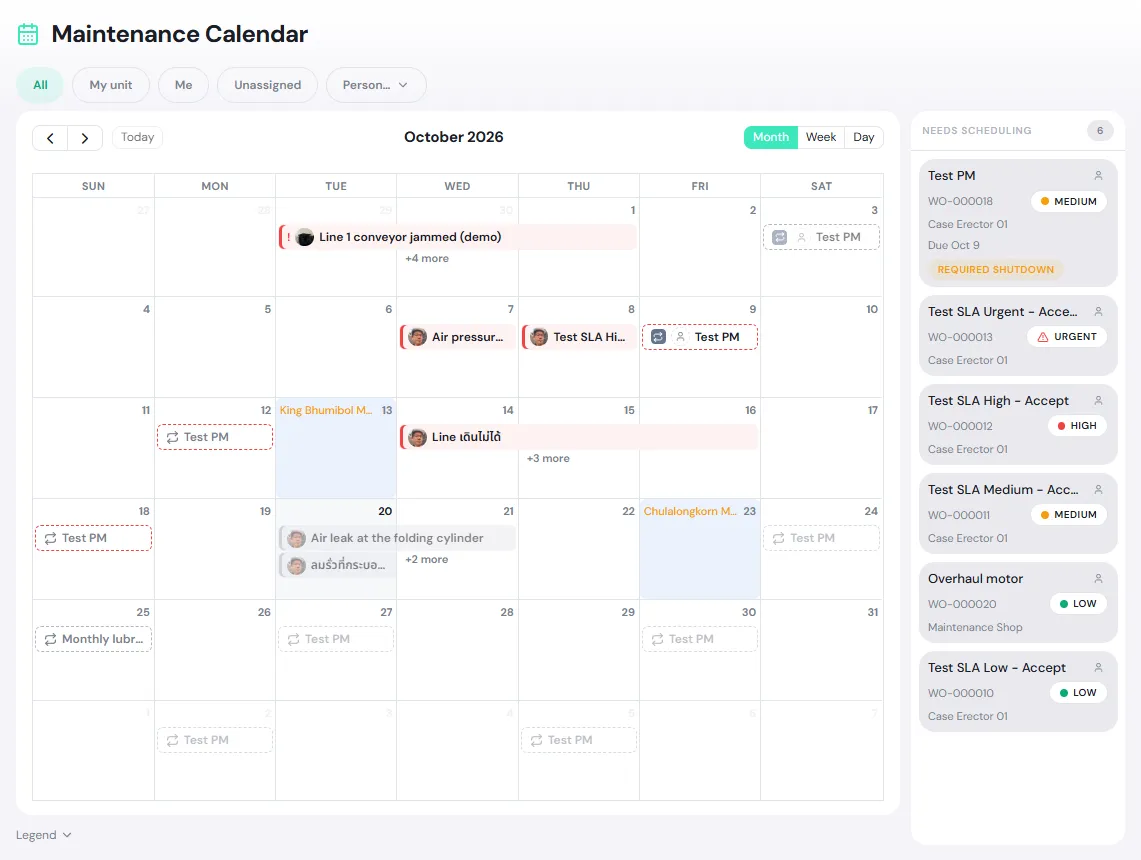
- Needs scheduling, at the side, lists work orders that have a due date but no planned time yet, such as newly created PM work. Drag one onto the calendar to schedule it.
- Drag a job on the calendar to another day to reschedule it. PULSE asks you to confirm before saving, and the crew and requester are notified.
- Holidays and planned shutdowns show on the calendar. Use them to find a slot for work that needs a Required shutdown.
- On a phone, the calendar has two tabs: Scheduled and Needs scheduling.
Timeline
Section titled “Timeline”Maintenance → Timeline shows work in rows by location, one Week, 2 weeks or Month at a time. Use it to see which lines are busy or free. Choose All, PM only or General only, and click the arrow before a location to see the locations inside it.
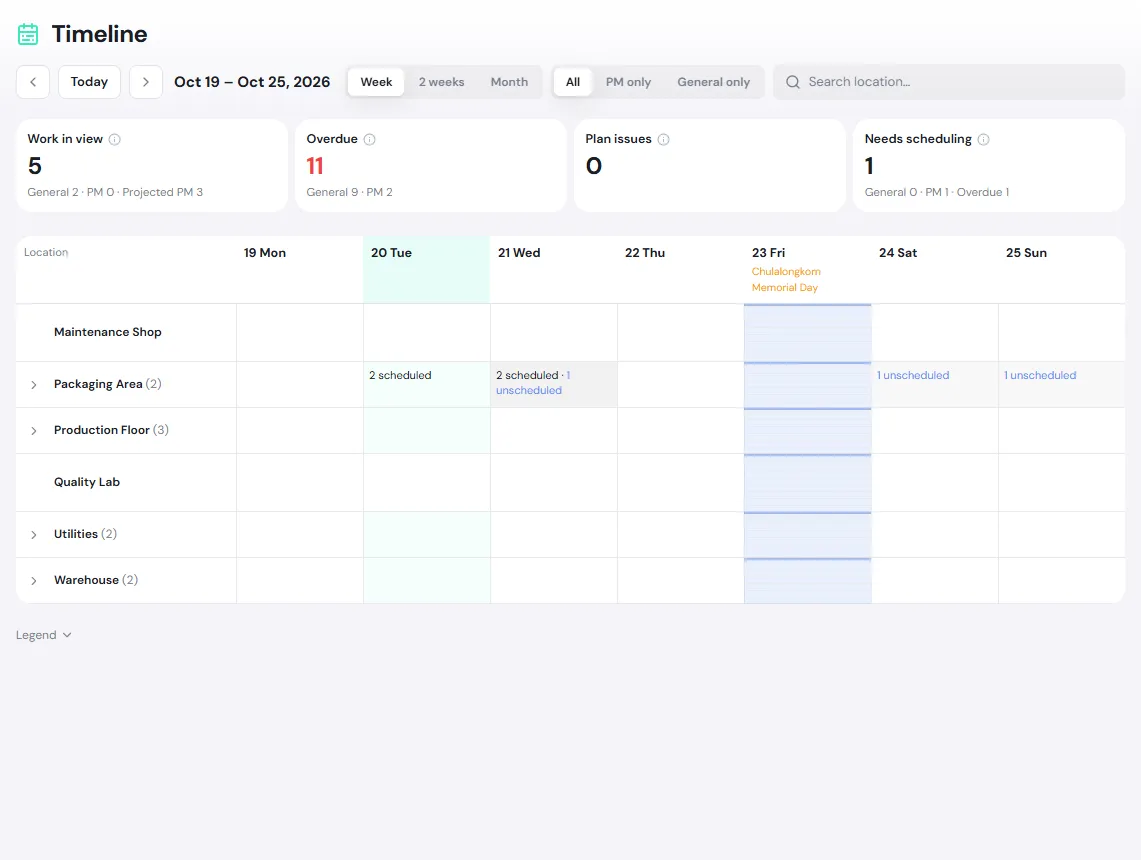
The cards at the top:
- Work in view: work orders and projected PMs in the selected period.
- Overdue: open work past its due date, across all dates.
- Plan issues: work planned to finish after its due date, or that needs a shutdown but is scheduled outside one.
- Needs scheduling: work with a due date that still needs a time.
Click Legend under the grid to see what each color and bar means.
Maintenance → Spend totals the cost of material used on maintenance work, per month. Group by Cost center or Expense code, and change the months in Filters. Click a figure to see the work orders behind it, or click Export CSV to open it in Excel.
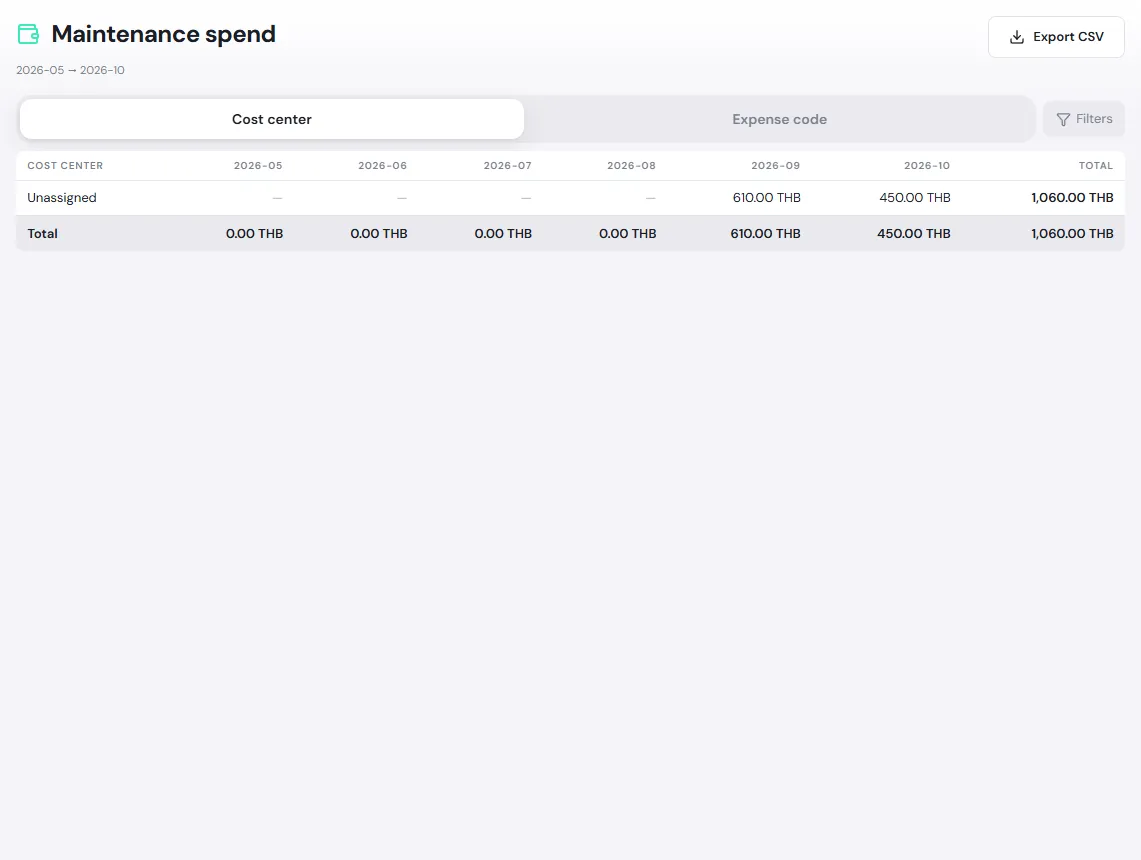
Cost goes to the work order’s Cost center; work without one appears in the Unassigned row. People who can assign work orders can change a work order’s cost center; lines already posted keep their original one.
Maintenance settings
Section titled “Maintenance settings”Maintenance → Settings sets the rules for the site you are in. Change the values and click Save. Without permission to change them, the page is read-only.
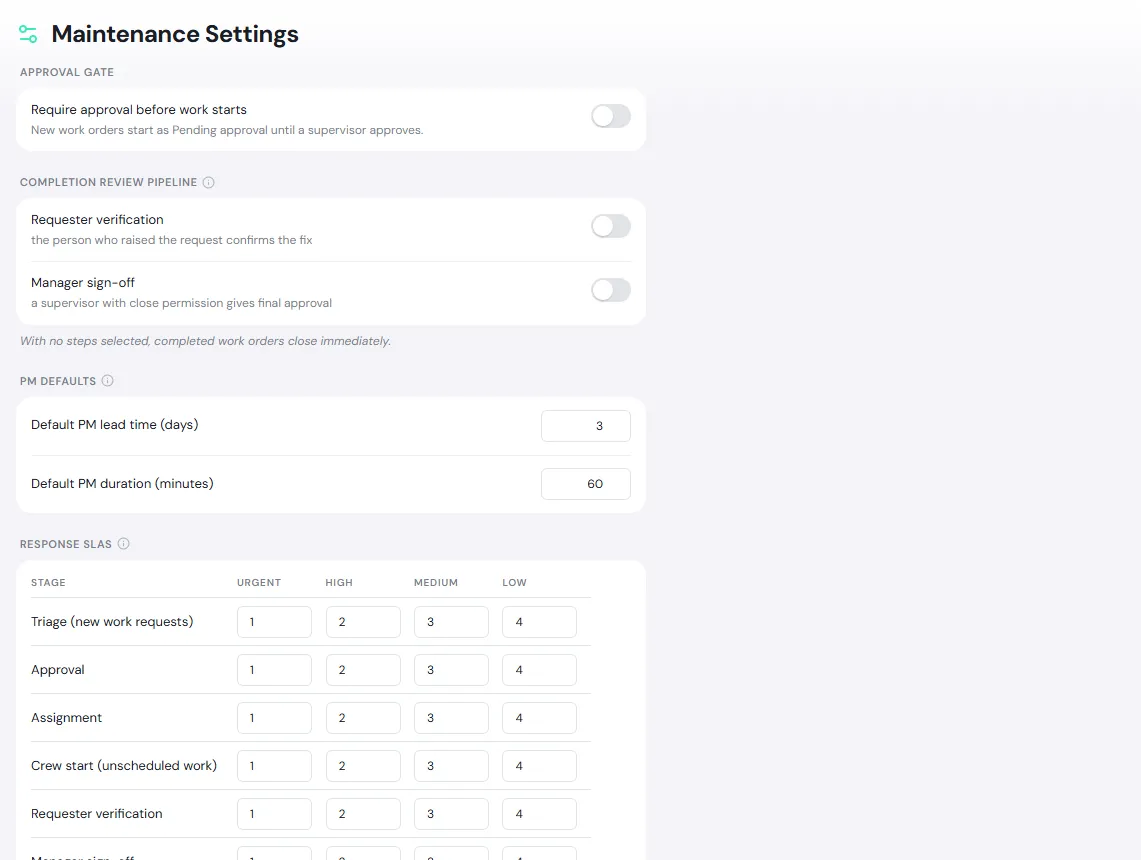
| Section | What you set | What it does |
|---|---|---|
| Approval gate | Require approval before work starts | On: new work orders start as Pending approval until a supervisor approves them (PM work orders skip this) |
| Completion review pipeline | Requester verification and/or Manager sign-off | A completed work order must pass the chosen steps in order. With none chosen, it closes as soon as the technician completes it. |
| PM defaults | Default PM lead time (days) (0–365) and Default PM duration (minutes) | Used by PM schedules that do not set their own |
| Response SLAs | Hours each stage may wait, by Urgent, High, Medium and Low, for Triage, Approval, Assignment, Crew start and the review steps | Orders the My Work queue and sends reminders when work waits too long |