Active alarms
An alarm tells you that a reading from a machine or a location is out of range, such as air pressure dropping too low or a sensor going silent. This page is for everyone who needs to know the moment a machine has a problem: technicians, supervisors and maintenance managers.
Where alarms come from
Section titled “Where alarms come from”-
An Edge Device sends readings from sensors or PLCs to PULSE. Each reading is bound to a property of an asset or location, such as the temperature of Case Erector Machine A.
-
Someone sets an alarm rule on that property, such as “temperature greater than 30”. See Set alarm rules.
-
When a reading meets the condition, PULSE raises an alarm in Active Alarms and notifies the people who follow that place.
-
When the reading returns to normal, the alarm clears on its own and leaves the list. Nobody has to close it.
Before you start
Section titled “Before you start”- Anyone who can view assets can see and acknowledge alarms, including the Viewer group. You only see alarms for the locations you are allowed to see.
- To open a work request from an alarm you need permission to create work requests. The Technician, Supervisor and Site Admin groups have it.
- Available in every plan.
See active alarms
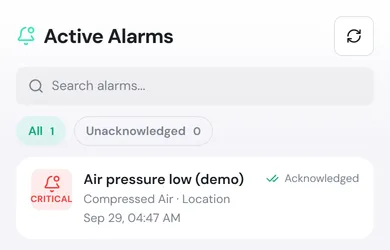
Section titled “See active alarms”Open Active Alarms in the menu. Unacknowledged alarms come first, then the list is sorted by severity and by time raised.
- Tap Unacknowledged to see only alarms nobody has picked up yet. The number on each button is the alarm count.
- Type in Search alarms… to find an alarm by its name, the machine name or its message.
- Tap Refresh to pull in the newest alarms.
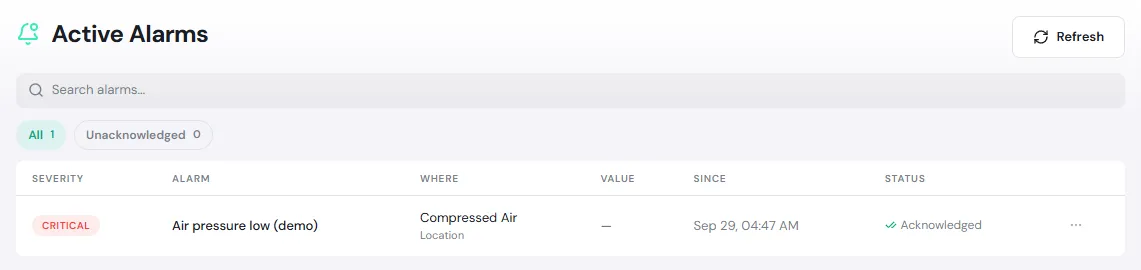
On a computer the list is a table with the columns Severity, Alarm, Where, Value (the reading that raised the alarm), Since and Status. Click the name under Where to open that asset or location.
You can also see one machine’s alarms on the Alarms tab of an asset or location page. A location’s tab also includes the alarms of the assets installed there.
Severity levels
Section titled “Severity levels”| Level | What it usually means |
|---|---|
| Critical | Act now, for example production has stopped or it is unsafe |
| High | Act soon |
| Medium | Check it shortly |
| Low | Keep an eye on it |
| Info | For information only |
Whoever sets the rule chooses the level. The meanings above are a guide; your plant may agree its own.
Alarm states
Section titled “Alarm states”| State | Meaning |
|---|---|
| Unacknowledged | The alarm is active and nobody has picked it up. On a phone it shows a red dot (Critical or High) or an orange dot. |
| Acknowledged | Someone has picked it up, but the reading is still out of range, so the alarm stays in the list. |
| Cleared | The reading is back to normal. The alarm leaves the list; you can still see it under History. |
Acknowledge an alarm
Section titled “Acknowledge an alarm”Acknowledging tells the team that someone has seen the alarm and is dealing with it.
-
Tap the alarm card (on a computer, click ⋯ at the end of the row).
-
Tap Acknowledge.
-
Add a Comment on what you did or why you are acknowledging it (optional), then tap Acknowledge.
The alarm now shows Acknowledged, and the time is recorded in its History. Acknowledging does not close the alarm and sends no notification. The alarm leaves the list only when the reading returns to normal.
Open a work request from an alarm
Section titled “Open a work request from an alarm”-
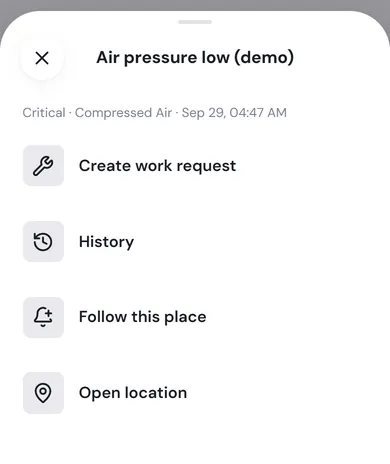
Tap the alarm card, then tap Create work request.
-
PULSE opens the request form already filled in: the location, the asset (if the alarm belongs to an asset) and a Title taken from the alarm name.
-
Complete the remaining steps and tap Create request, just as when you report a breakdown.
The request is linked to the alarm and marked Raised from an alarm. From there it follows the normal maintenance flow.
- If the asset is not installed at any location, PULSE warns you to pick the request’s location yourself.
- If the alarm rule already created a work request or work order automatically, Create work request is not shown and the card names that work, for example “WR-000031 raised automatically”.
Follow places to get notified
Section titled “Follow places to get notified”PULSE sends alarm notifications only to people who follow that place. If nobody follows it, the alarm is still raised and listed, but nobody is notified. Following is personal: each person picks their own places and level.
-
Pick the place to follow in one of these ways:
- On a location page, open the Alarms tab and tap Follow alarms.
- In the alarm list, tap an alarm card and tap Follow this place.
-
Choose Notify me from: Critical, High and above, Medium and above, Low and above or All (the default is High and above).
-
Tap Follow.
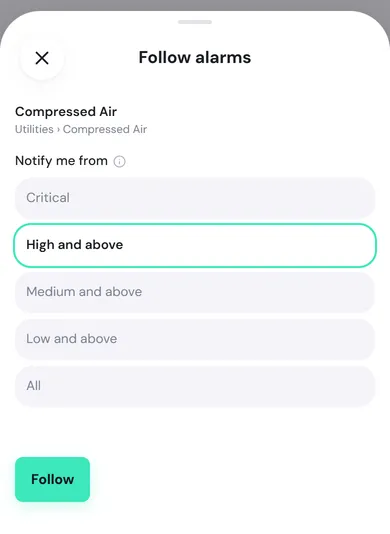
Following covers the place and everything under it. For example, following Line 2 gets you the alarms of every machine on Line 2. If you already follow a place higher up, the sheet tells you “You already get … alarms here via …”.
The button on the location’s Alarms tab then reads Following · High+. Tap it to change the level and tap Save, or tap Unfollow.
See every place you follow
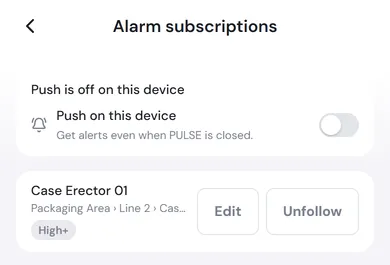
Section titled “See every place you follow”Open Settings from your profile picture (on a computer, click your picture at the bottom of the left menu and choose Settings), go to Notifications and choose Alarm subscriptions. It lists every place you follow with its level. You can Edit or Unfollow from there.
How notifications reach you
Section titled “How notifications reach you”| When | In-app bell | Push on phone/browser | LINE |
|---|---|---|---|
| An alarm is raised at the level you follow | Yes | Yes, if push is on | Yes, if your site has connected LINE and you have linked your LINE account |
| An alarm clears | Yes, only to people notified when it was raised | No | No |
| Someone acknowledges an alarm | No | No | No |
- Tap a notification to open the alarm. PULSE highlights it on the place’s Alarms tab. If the alarm has already cleared, you see “This alarm is no longer active here.”
- If the same rule fires again and again in a short time, PULSE does not buzz your phone every time unless the severity gets worse. Every one still goes in the bell.
- If Alarm subscriptions says Push is off on this device, turn on Push on this device to get alerts even when PULSE is closed. On an iPhone, add PULSE to the Home Screen first.
- You are only notified about alarms you are allowed to see.
See alarm history
Section titled “See alarm history”-
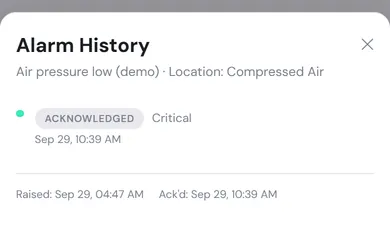
One alarm: tap the alarm card and tap History to see what happened to that alarm, with the time it was raised and acknowledged.
-
All alarms of a machine or location: on the asset or location page, open the Alarms tab and tap History. Pick a date range with From and to. The table shows the time, event, alarm name, property, severity and value.
| Event | Meaning |
|---|---|
| Raised | The reading met the rule’s condition; the alarm started |
| Cleared | The reading returned to normal; the alarm ended |
| Acknowledged | Someone acknowledged the alarm |