Storeroom work
This page is for storekeepers. Every job starts from Inventory → Worklist, which gathers everything waiting for you in the stores you keep. Use it on the store-counter computer or on your phone.
Before you start
Section titled “Before you start”- You must be a keeper of the store. Keeper is not a user group: it is a list of names on each store under Storage Locations, and it covers every bin inside that store → Create stores and bins
- Worklist, Inspection, Put-away, Transfers, Disposition and Adoption Review only appear for keepers.
- Inventory is in the Enterprise plan.
The worklist
Section titled “The worklist”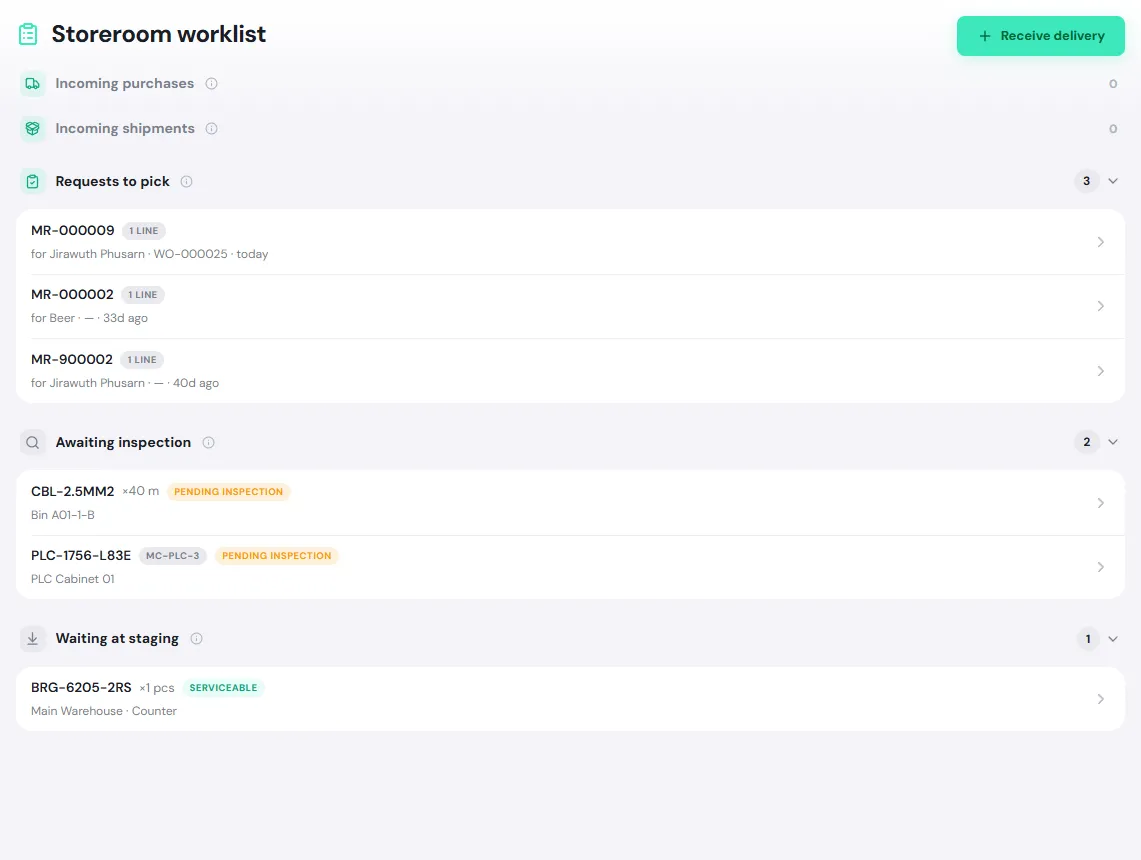
| Section | What is in it | Act on it in |
|---|---|---|
| Incoming purchases | Ordered goods on their way to your stores | Receive a delivery, From PO tab |
| Incoming shipments | Material in transit to your stores from another site | Transfer stock |
| Requests to pick | Approved material requests waiting to be picked and issued | Pick and issue |
| Awaiting inspection | Material on the inspection shelf, such as returns or deliveries received for inspection | Inspect and put away |
| Waiting at staging | Material dropped at a staging counter, waiting to go into a bin | Inspect and put away |
When nothing is waiting, the page says All caught up.
Receive a delivery
Section titled “Receive a delivery”-
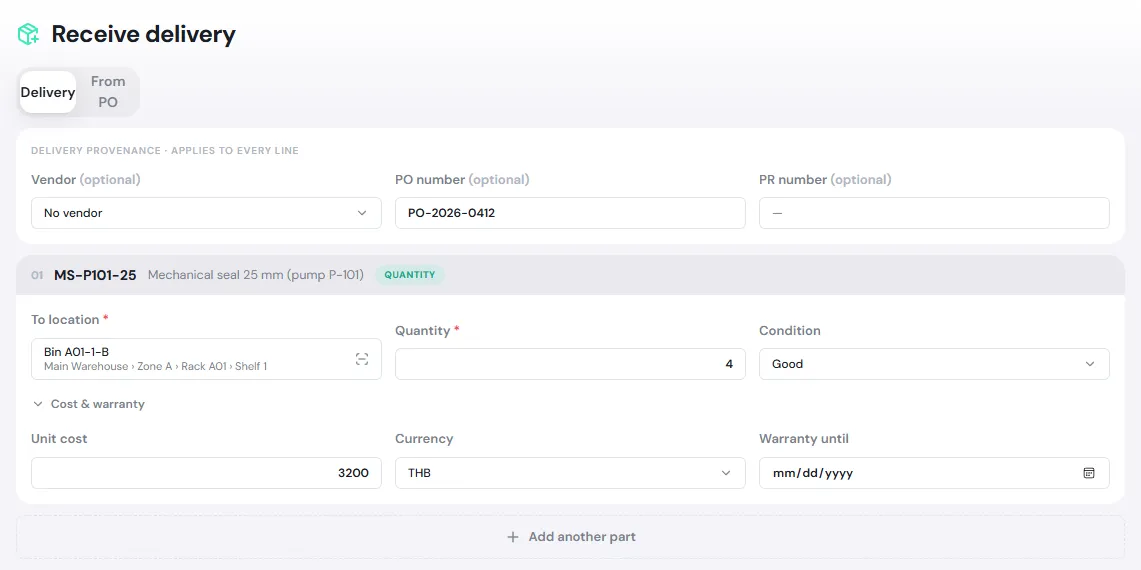
On the Worklist, tap Receive delivery. The Delivery tab opens.
-
Fill in the delivery details that apply to every line: Vendor, PO number and PR number (all optional).
-
Tap Choose a part and search, for example
MS-P101. Then fill in:- To location (required): pick the store and drill down to the bin, or type or scan the bin’s code, then tap Select.
- Quantity (required), or Serial numbers for a serialized part. Scan, type or paste a list.
- Condition: Good (into stock, ready to issue), To inspect, Quarantined or Damaged.
- Cost & warranty: Unit cost, Currency and Warranty until.
-
Tap Add another part if the delivery has more, then tap Receive all.
The page shows Delivery received. Material received as Good can be issued straight away; material received To inspect goes to Awaiting inspection on the worklist.
Pick and issue
Section titled “Pick and issue”-
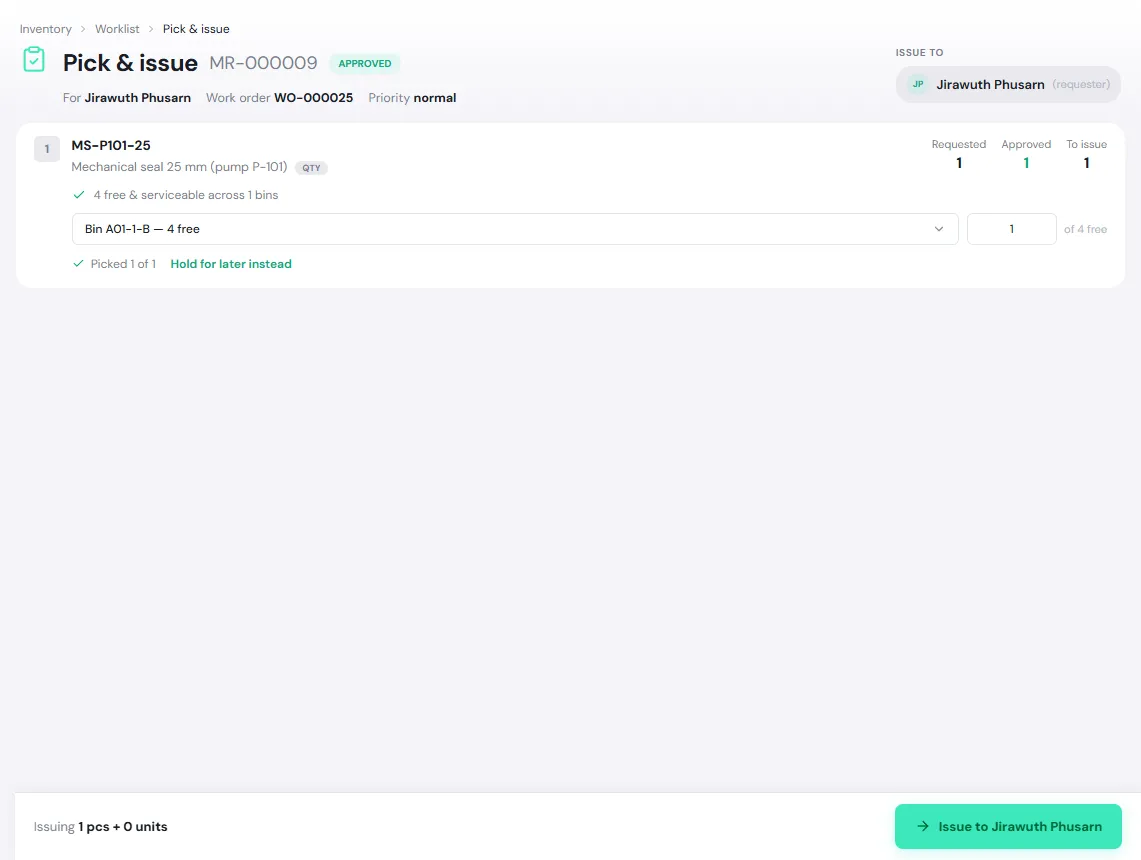
On the Worklist, under Requests to pick, tap the request, for example MR-000009. The Pick & issue page opens.
-
For each line, check Requested, Approved and To issue, and pick the bin to take it from. PULSE only lists bins with free, Serviceable stock. If one bin is not enough, tap Add another bin. For a serialized part, pick the units by serial number.
-
Take the parts from the bin, then tap Issue to … at the bottom right (the requester receives them).
The material moves from the bin into the requester’s My Items, the requester is notified, and the request becomes Issued.
- Not ready to hand over yet: tap Hold for later instead to reserve the stock for this request. The technician sees Ready to pick. Release the hold on the request’s Pick list tab.
- Not enough stock: issue what there is. The rest stays open on the request; issue it once restocked, or open the request and choose Close as short. The shortage stays on record.
- Emergency issue: if the request is still Awaiting approval but the job cannot wait, open the request and tap Emergency issue. You must give a reason, and it only works when the policy of every part on the request has Allow emergency issue on. You can never issue more than was asked for.
Unrouted requests
Section titled “Unrouted requests”Under Inventory → Material Requests, the Unrouted queue lists requests that do not have a store yet. Tap Claim, choose the store in Into store, and confirm. Every unrouted line moves into that store’s pick queue and its keepers are notified.
Inspect and put away
Section titled “Inspect and put away”Material returned by a technician, taken off a machine, or received for inspection has to be inspected before it can be issued again.
-
Open Inventory → Inspection. Items are grouped by store, with the quantity or serial and where each one is sitting. Tap Inspect.
-
Choose the Verdict:
- Serviceable (Pass): back into stock. Pick a bin under Put away to.
- Quarantine (Hold) or Damage (Fail): records the verdict where it sits, or choose Move to another bin to move it as well.
-
Enter the Quantity and a Note if needed, then tap Put away or Record verdict.
Material that does not need inspecting but is sitting at a staging counter (for example the returns counter) goes through Inventory → Put-away: tap Put away, pick a bin under Put away to, and tap Put away. Its state does not change.
Transfer stock
Section titled “Transfer stock”-
Open Inventory → Transfers and tap New transfer.
-
Pick From and To, then tap Add an item… to choose the material and quantity. Only serviceable, unreserved stock at the source can be moved.
-
Confirm:
- Same site — instant move. Tap Move now; it moves immediately.
- Cross-site — this will ship. Tap Send shipment; it is in transit until the other site receives it.
The destination keepers see the shipment under Incoming shipments on their worklist and on the Transfers page. They tap Receive and enter what actually arrived. If less arrived, the rest stays in transit; the sender can then Cancel (return to me) to bring it back to the source, or Close the shipment.
Scrap, report lost and recover
Section titled “Scrap, report lost and recover”Open Inventory → Disposition and pick a tile.
| Tile | Use it when | Note |
|---|---|---|
| Scrap | Deliberate disposal, for example damaged beyond repair, expired, obsolete | Permanent. Only unreserved serviceable stock that is not linked to an asset can be scrapped |
| Report lost | Material cannot be accounted for | Losses from the last 90 days appear under Lost & recoverable |
| Recover found | A lost item turns up, or you find stock that is not in the system | Recovered material enters as Pending inspection and goes to Inspection |
Choose the item, the quantity and a Reason, such as Damaged beyond repair, Obsolete, Expired, Missing, Theft or Other (a note is required for Other), then confirm. Supervisors see their team’s write-offs on Oversight.
Look up the movement history
Section titled “Look up the movement history”Inventory → Movement ledger shows every stock movement, newest first: when, the event, the part or serial, quantity, from → to, who, and the reference (material request or work order). Filter by family: Inbound, Issue / consume, Movement, Inspection / repair, Loss / adjustment and Corrections.
The ledger is read-only. Mistakes are corrected by posting a new, compensating movement from the part or unit page. To see the history of a single part, open its Stock & movements tab.